

Members & Roles
A workspace can be shared with your team. Each member gets a role that decides what they can see and change, from read-only access to full control.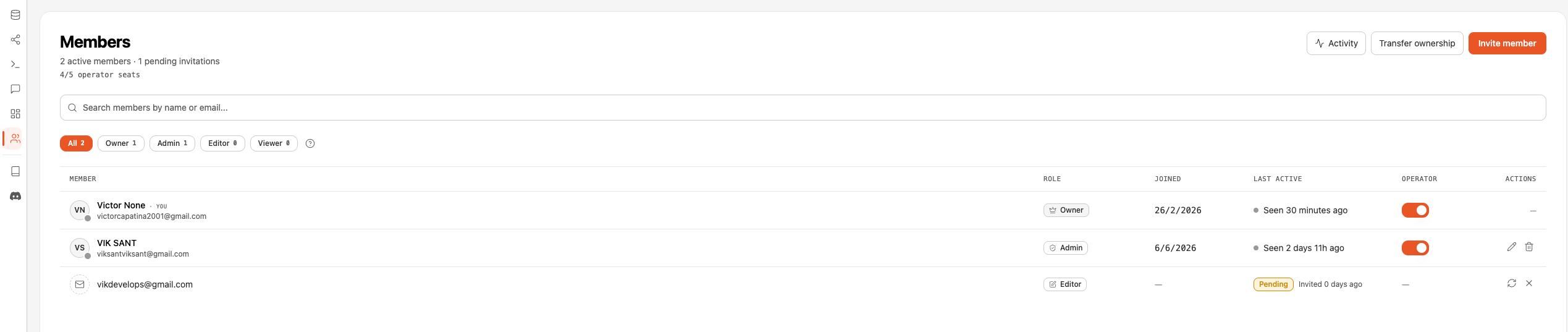
The Four Roles
Role Hierarchy
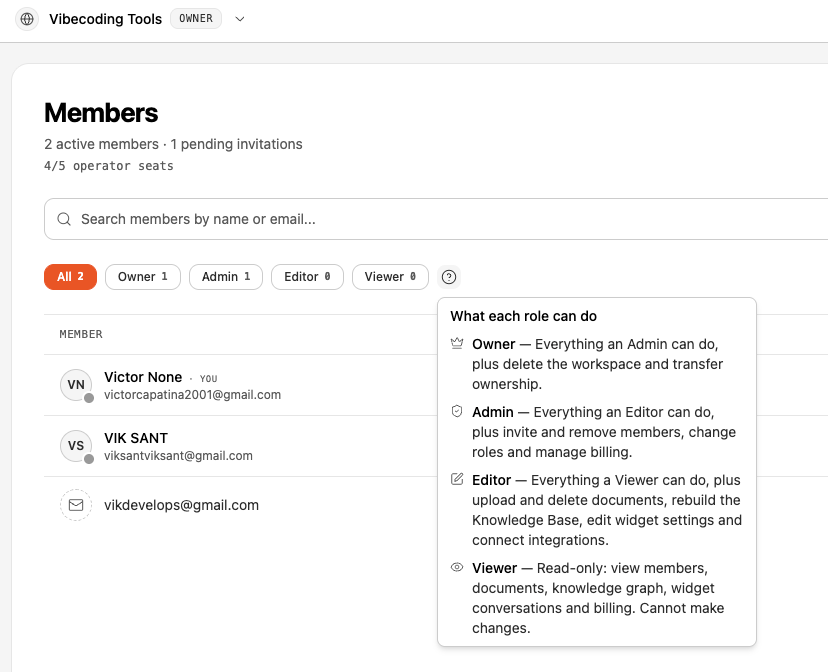
Roles build on each other. A higher role can do everything the roles below it can, plus more:What Each Role Can Do
Billing identifiers (such as Stripe IDs) are only visible to Admins and Owners. Viewers and Editors can see the plan and usage, but not the billing details.
Inviting a Member
Send an invitation
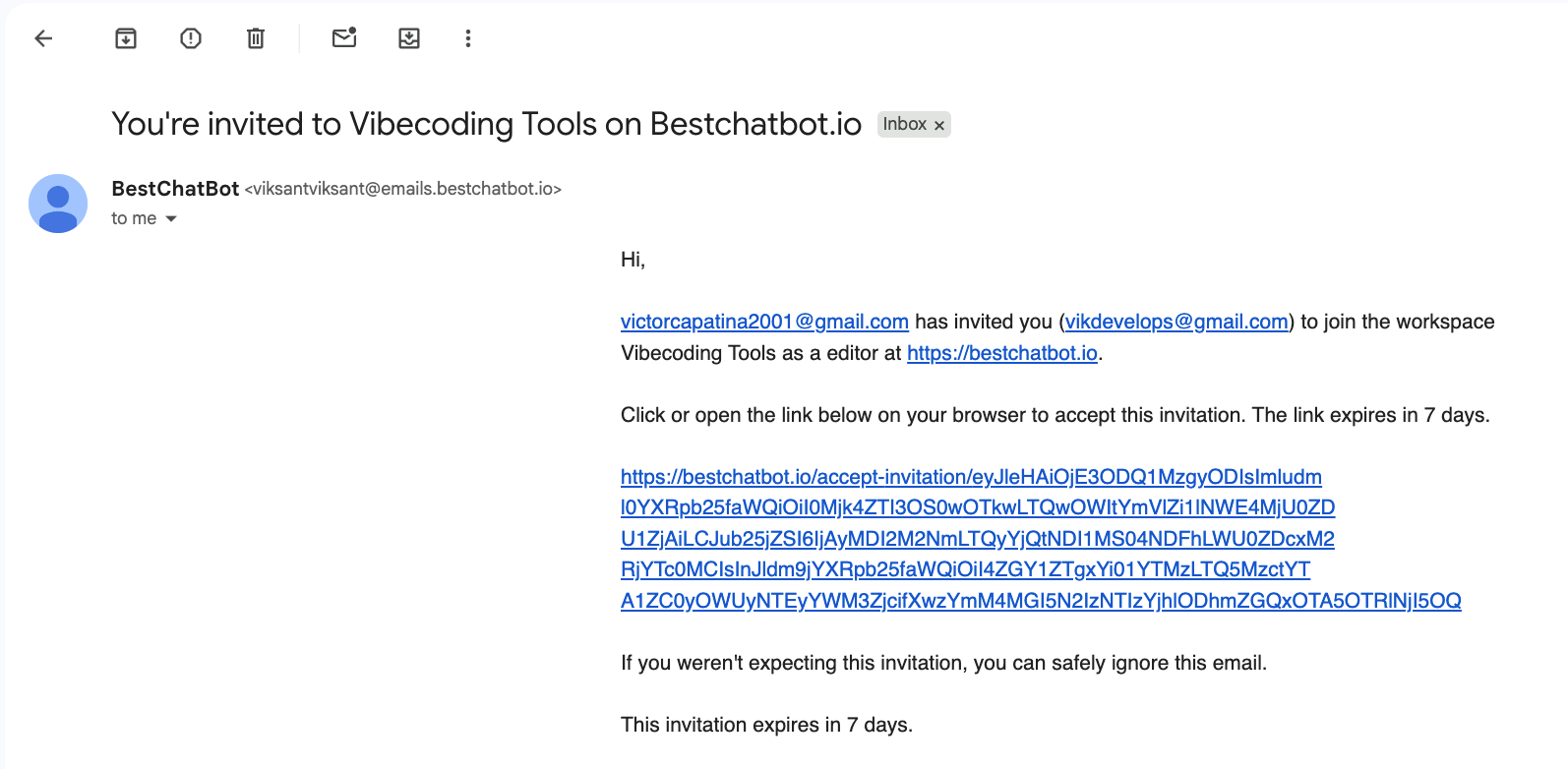
An Admin or Owner invites someone by email and chooses the role to grant (Admin, Editor, or Viewer). The invitee receives an email with a secure link.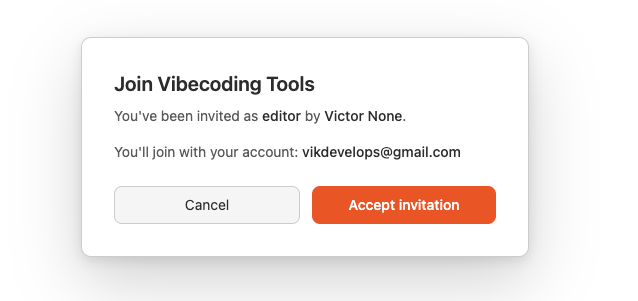
The invitee reviews and accepts
The link opens a consent screen showing the workspace name, the offered role, and who invited them. After signing in to BestChatBot, they accept.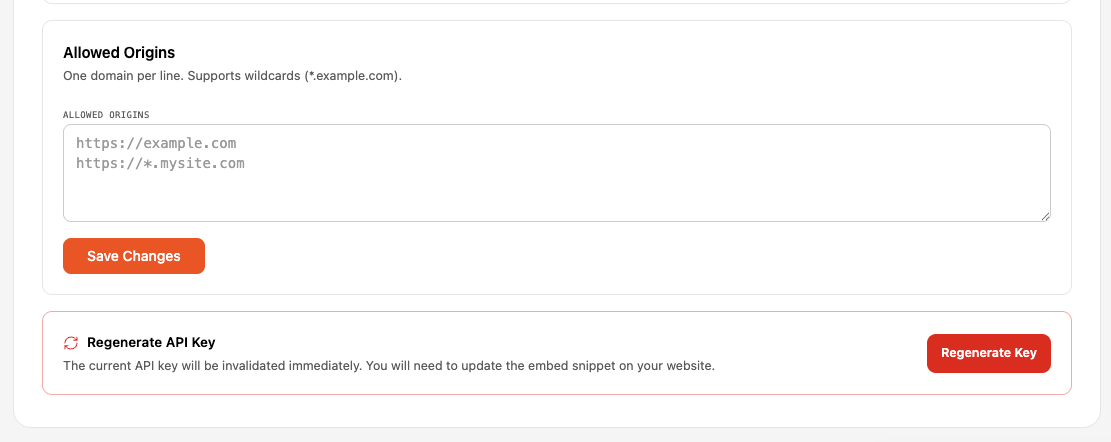
They join the workspace
The new member appears in the Members list with the role you assigned. Admins can change a member’s role or remove them later.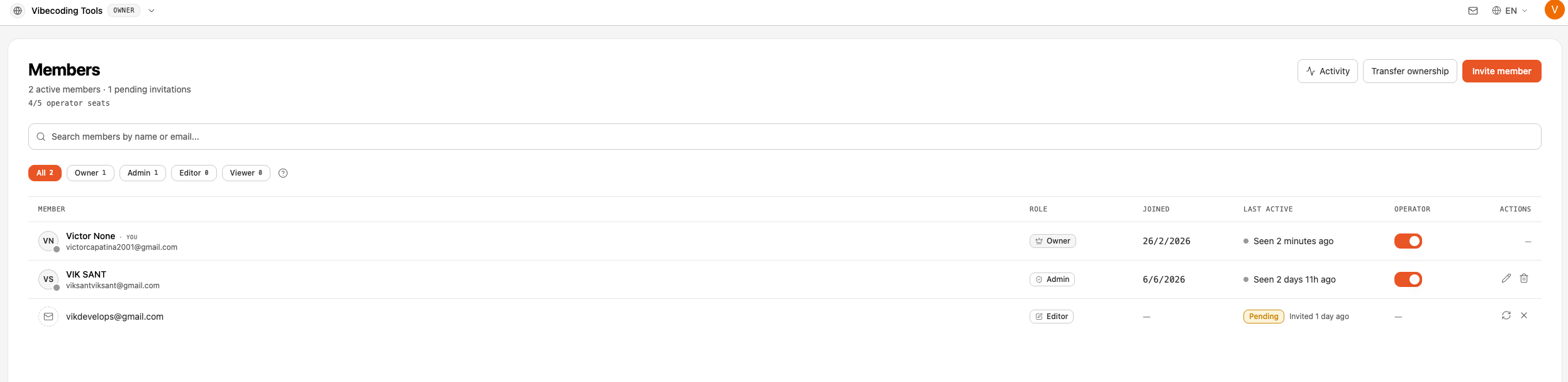
Ownership
Every workspace has exactly one Owner: the person who created it.- The Owner role can’t be assigned with a normal role change. To hand it over, the current Owner uses Transfer Ownership to promote an existing Admin.
- The Owner can’t be removed or leave the workspace directly. They must transfer ownership (or delete the workspace) first.
- Any other member can leave the workspace voluntarily at any time.
Next Steps
Pricing Plans
See how many members each plan includes.
Manage Subscription
Upgrade your plan to add more seats.