

Stripe
Category: Payments. Connect Stripe and your widget can answer billing questions and start purchases for visitors, right inside the chat.Integrations are available on the Pro and Business plans.
What This Bot Can Do
The bot does exactly these actions, nothing more. “Needs sign-in” means the visitor must be identified first; otherwise the bot gives a safe, neutral answer.What It Can’t Do
Stripe is scoped to the actions above. It does not:- Cancel or change a subscription directly (it hands the visitor a secure portal link instead)
- Issue refunds or charge a card
- Create or edit products and prices
- Show full card numbers (only the brand and last 4 digits)
How to Connect
Connecting Stripe takes one click. BestChatBot uses Stripe’s official OAuth flow — you authorize the BestChatBot Stripe App from your own Stripe account. There’s no API key to create, copy, or paste.Connecting integrations requires an Editor, Admin, or Owner role. See Members & Roles.
Open the Stripe integration
In your workspace dashboard, open the Integrations tab, find Stripe under Payments, and click Connect.
Authorize BestChatBot in Stripe
A secure Stripe popup opens. Sign in to your Stripe account, review what the BestChatBot app can access, and approve it. Your credentials stay with Stripe — they’re never typed into the chat or shared with BestChatBot.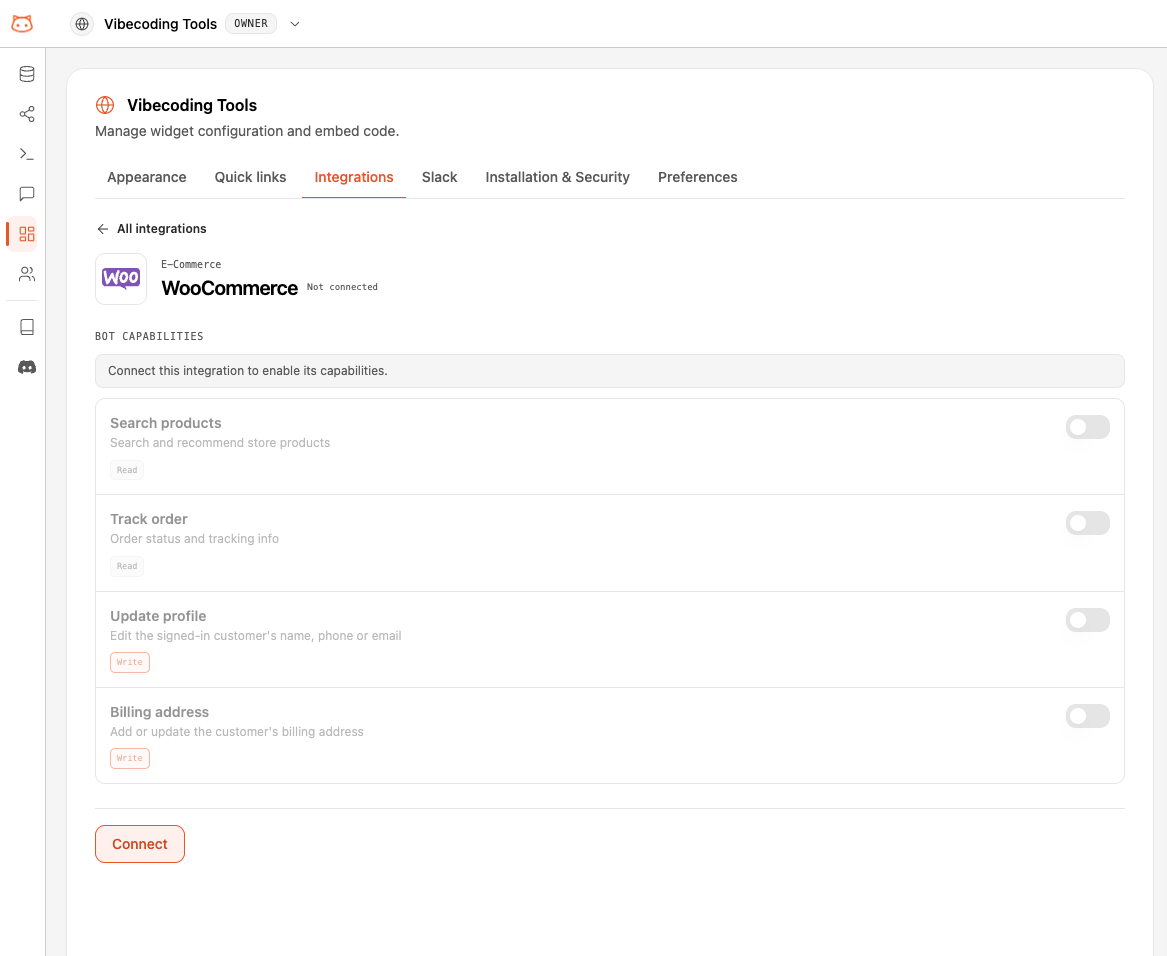
You're connected
The popup closes and Stripe shows as Connected right away. Nothing to copy or paste, and no key to rotate later.
What BestChatBot Can Access
When you approve the app, Stripe shows you exactly what it grants — a narrow, mostly read-only scope, never your secret keys:- Read your customers, subscriptions, invoices, products, prices, payment methods, and charges — so the bot can answer each visitor’s own billing questions.
- Create a Billing Portal link and a Checkout link on the visitor’s behalf.
After Connecting
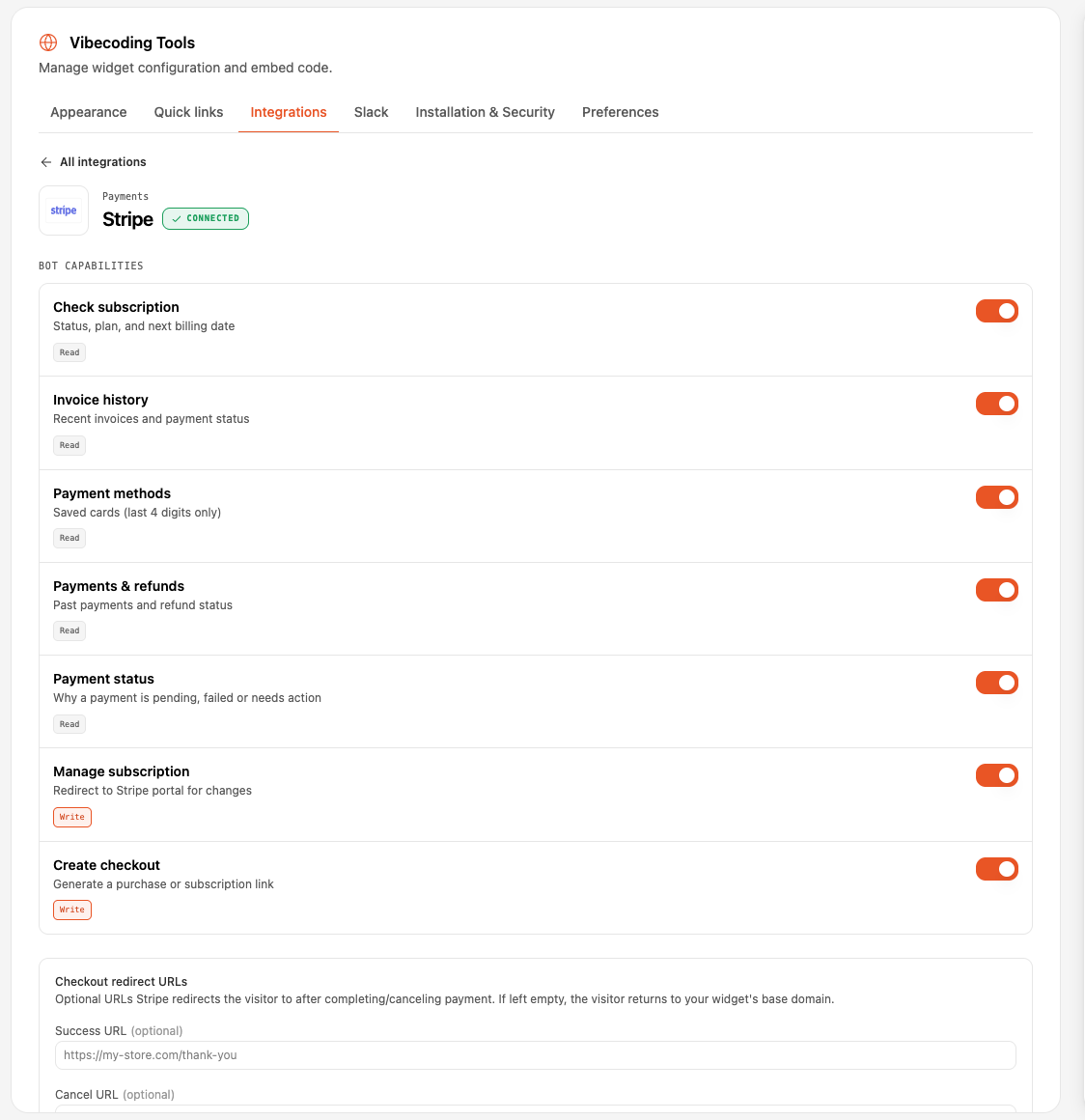
Once connected, Stripe’s actions become available to your widget right away. From the integration panel you can toggle each bot capability (check subscription, invoice history, payment methods, manage subscription, create checkout) and set optional Checkout redirect URLs:- Success URL — where the visitor lands after a completed payment.
- Cancel URL — where the visitor lands if they cancel.
Showing Products in Checkout
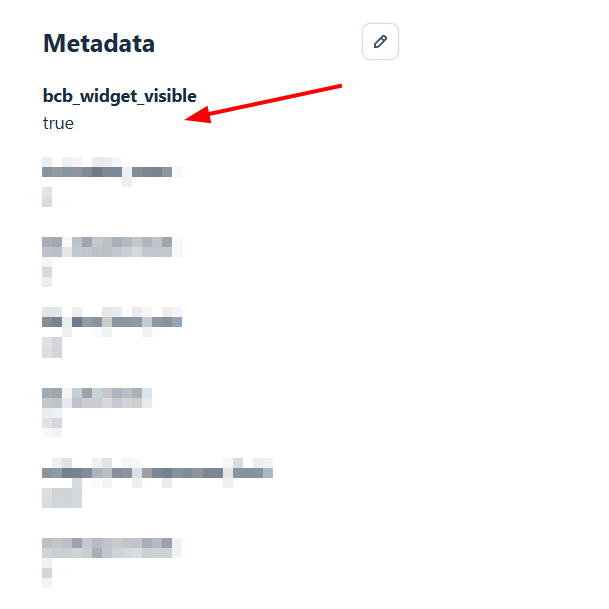
When the bot offers Start a purchase, it only shows the products you’ve explicitly opted in — your full Stripe catalog is never exposed. To make a product available, add the metadata keybcb_widget_visible with the value true to the product (or to a specific price) in Stripe.
See It in Action
Once connected, identified visitors can check invoices, view saved payment methods, manage their subscription, and start a purchase — all from the widget.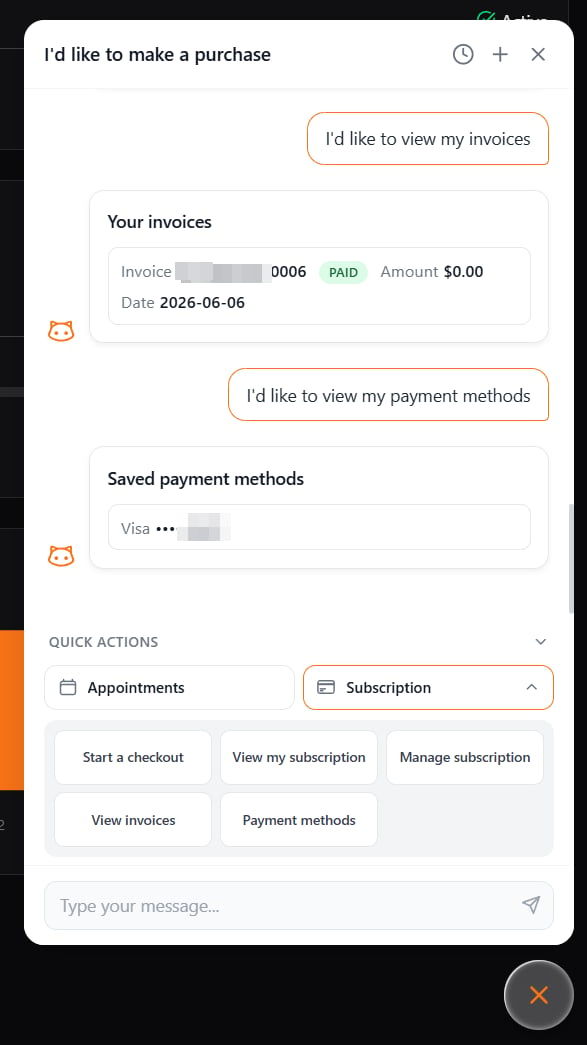
One per Category
Stripe is the only option in the Payments category, so it never conflicts with another integration.Availability
Next Steps
All Integrations
See the full catalog and how categories work.
Agentic Actions
Learn how the bot turns a request into a real action.