

Retrieval Testing
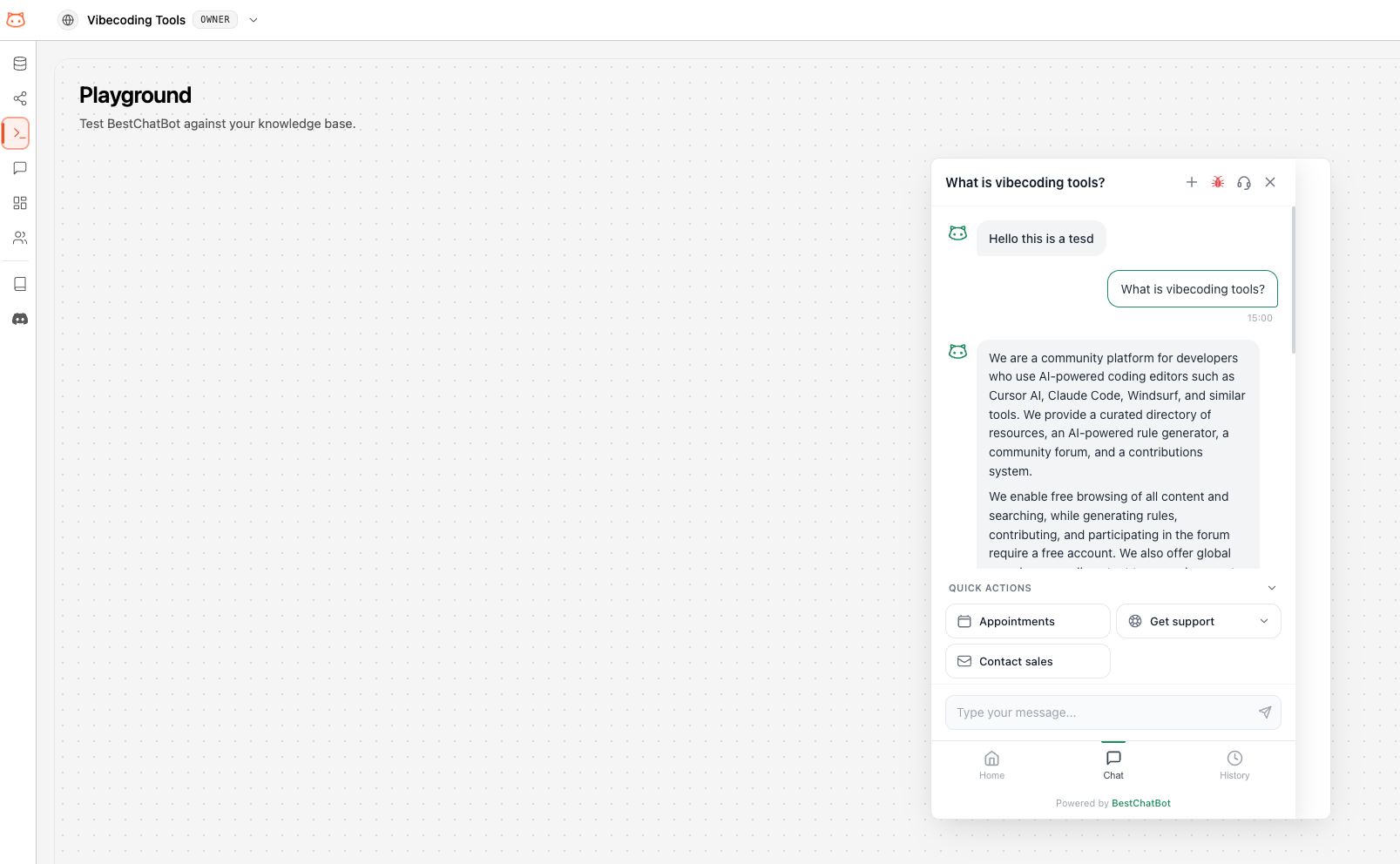
The Retrieval Testing page lets you chat with your bot directly from the dashboard. Use it to verify the bot’s answers, test edge cases, and make sure everything works before your visitors see it.How to Use Retrieval Testing
1
Open Retrieval Testing
Go to Retrieval Testing from the dashboard sidebar.
2
Type a Question
Use the chat input at the bottom to type a question, just like a visitor would on your website.
3
Review the Response
The bot replies in real time with a streaming response. You’ll see the answer appear word by word, along with the sources it used.
4
Iterate and Test
Ask follow-up questions or test different phrasings to see how the bot handles variations.
What to Test
Common Questions
Start with the most frequent questions your visitors ask.
Edge Cases
Try questions where the answer is partial or not in your knowledge base.
Different Phrasings
Ask the same question in different ways to check consistency.
Recent Updates
After rebuilding, test with questions related to newly added content.
Understanding the Response
Each response in the testing chat includes:- The answer: Generated from your knowledge base content
- Cited sources: Which documents or URLs the bot used to form its answer
Chat Sessions
Your testing conversations are saved as sessions. You can:- Continue a previous conversation
- Start a new session for fresh testing
- Review past sessions to track improvements
Next Steps
Conversations
See how the widget is performing with real visitors.
Knowledge Graph
See the connections in your knowledge base.