

Human Handoff
Your bot handles most conversations on its own. But sometimes a visitor needs a real person: a tricky case, a sensitive question, or a deal worth closing in the moment. Human handoff lets a visitor pass the conversation to your team and chat with them live, right inside the widget.Human handoff is available on every plan, including Free. As the workspace owner you’re a reserved operator by default, so you can answer live chats without using a seat. Adding more operators uses operator seats, which scale with your plan. See Pricing Plans.
How a Visitor Reaches Your Team
The widget shows a Talk to a human button in its header whenever your team has at least one operator. Because you’re an operator by default, that button shows on any plan, right after you set up the widget.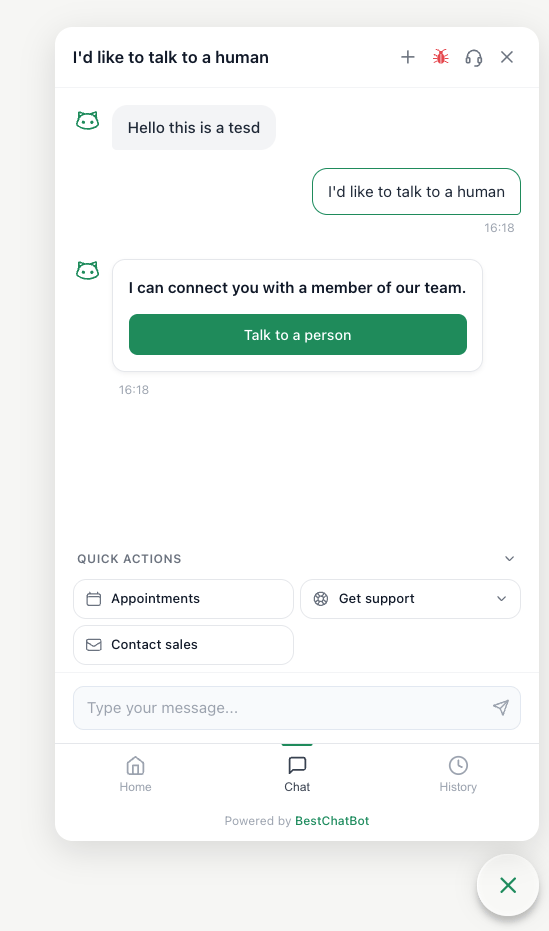
Answering from Your Dashboard
Handoffs land in the Conversations area of your dashboard, which has two views switched with a toggle:- Tracking: a read-only history of conversations, visible to your whole team.
- Live inbox: the operator workspace where you actually reply. This toggle only appears for members who are operators.
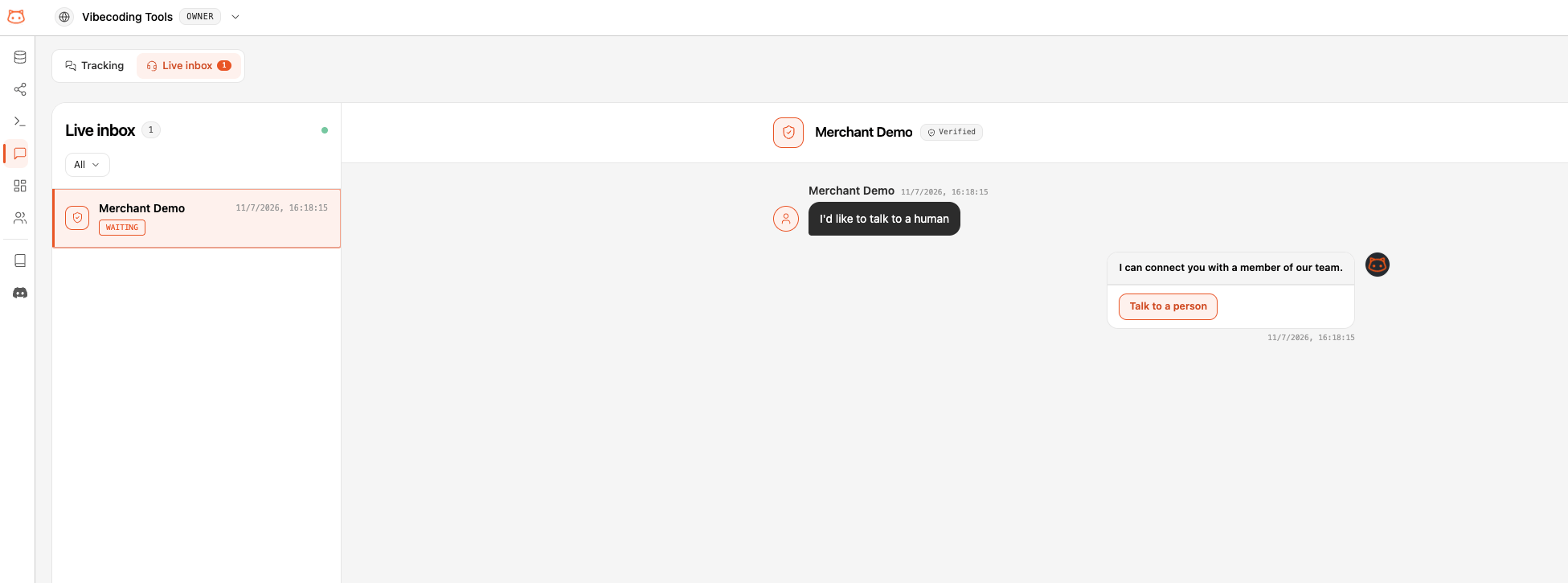
- Your first reply claims the conversation. From then on it’s yours, and other operators see it as handled. If two operators open the same one, only the first to reply gets it. The other keeps their draft and a note that someone else took over.
- Close it when you’re done. The Close conversation button ends the handoff, returns the visitor to the bot, and removes the conversation from every operator’s live inbox. The visitor can request a human again later.
Who Can Answer: Operators & Seats
Being an operator is a capability, separate from a member’s role: any role can be one, and you assign it from Members & Roles.- You, the owner, are a reserved operator by default. It works on every plan, Free included, and never uses one of your operator seats. Prefer not to take live chats yourself? Turn your own operator status off from Members & Roles.
- Extra operators use operator seats. To let teammates answer alongside you, mark them as operators too. Each one takes an operator seat, and how many seats you have scales with your plan. Your Members page shows seats used out of your limit.
Use Members & Roles to assign operators, and see Pricing Plans for how operator seats scale per plan.
Conversation Markers
The transcript records who joined and left, so anyone reviewing it later gets the full picture:- Operator joined the conversation: added when an operator sends their first reply.
- Operator closed the conversation: added when the handoff is closed.
AI Compose: Draft Replies from Your Knowledge Base
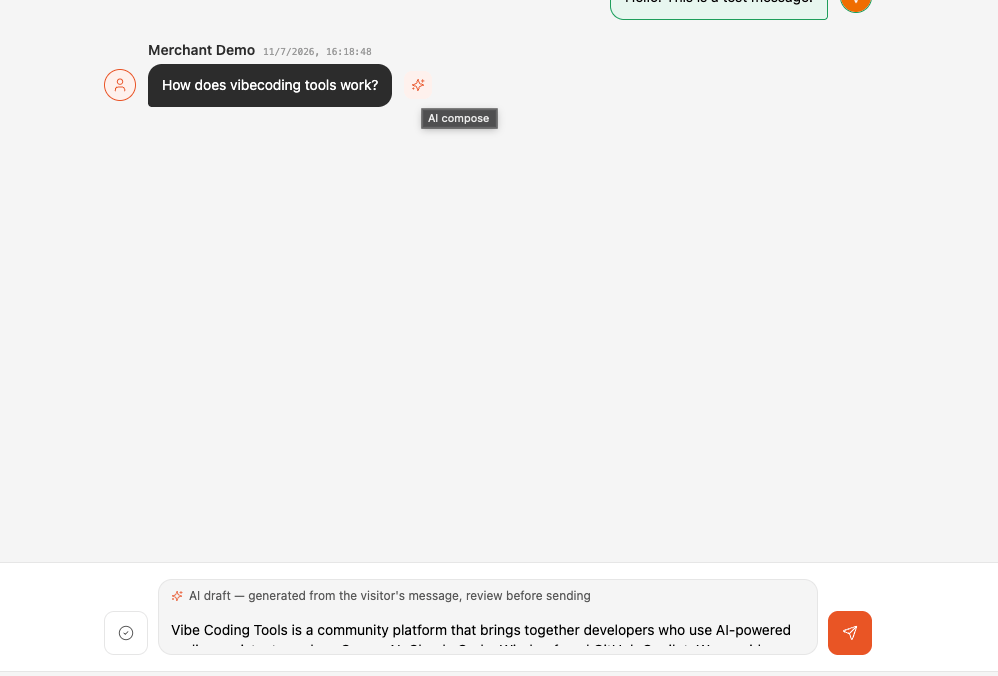
While you answer live, you don’t have to write every reply from scratch. Next to each visitor message, an AI compose button (✨) appears on hover.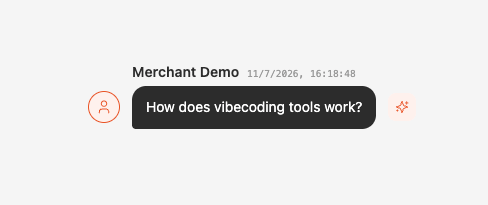
Answer from Slack or Discord
Prefer to handle live chats where your team already works? Route handoffs to a Slack channel or a Discord server and reply from there.Answering from Slack or Discord is a premium feature on the Pro and Business plans. Dashboard handoff stays available on every plan.
Connect Slack
Handle handoffs from a Slack channel. Your team replies in Slack, visitors keep chatting in the widget.
Connect Discord
Handle handoffs from a Discord server. Operators reply in a thread, visitors keep chatting in the widget.
Office Hours
Set when your team is live, and let out-of-hours requests become async tickets.
Members & Roles
Assign operators and manage who can reply to live conversations.