

Response Preferences
The Preferences panel lets you control how your bot communicates with your visitors. You can adjust the communication style and response length to match your brand’s voice.Communication Style
Choose how the bot talks to your users:Response Length
Control how detailed the bot’s answers are: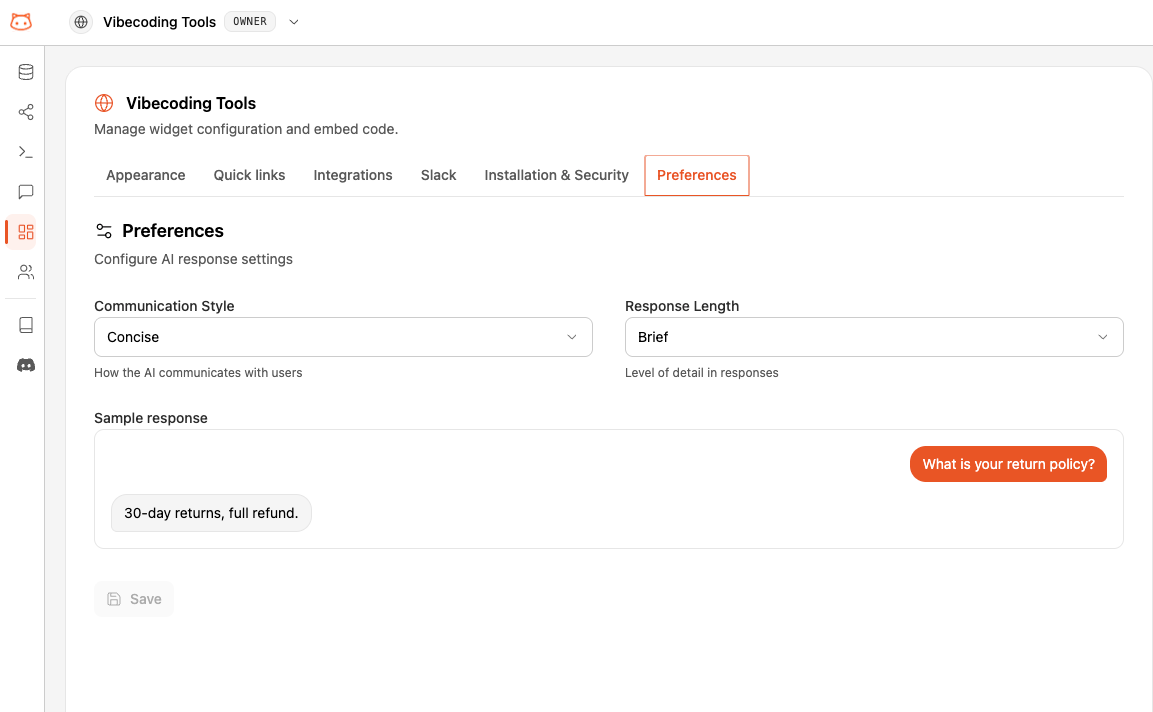
How to Change Preferences
1
Open Preferences
Click the Preferences icon (gear icon) in the dashboard. A side panel will open.
2
Select Communication Style
Use the Communication Style dropdown to choose between Professional, Casual, Technical, or Concise.
3
Select Response Length
Use the Response Length dropdown to choose between Brief, Moderate, or Detailed.
4
Save Changes
Click the Save button. Changes take effect immediately for all new responses.
Past widget conversations stay as they were. Only new answers will use the updated style.
Per-Workspace Settings
Preferences are configured per workspace. If you run multiple widgets across different sites or brands, each one can have its own communication style and response length.Next Step
Pricing Plans
See what’s included in each plan.