

Discord
BestChatBot lives inside your Discord server. It reads messages, finds answers from your knowledge base, and replies naturally. No slash commands. No weird syntax. Just plain conversation.What the Bot Needs
When you invite BestChatBot, it asks for a specific set of permissions. Here is what each one does:| Permission | What It Does |
|---|---|
| Read Messages | Lets the bot see questions in your channels |
| Send Messages | Lets the bot reply with answers |
| Read Message History | Gives the bot context from recent messages |
| Embed Links | Lets the bot format responses with rich content |
How the Bot Sees Your Server
BestChatBot connects to your server through Discord’s bot system. Here is what that means for you:- The bot appears in your member list like any other bot
- It only reads channels you’ve enabled in the Channel Manager
- It never reads DMs or channels outside your selected list
- It responds to regular messages, not slash commands
Bot Status
The bot runs 24/7 on our servers. You don’t need to keep your computer on or any app running. Once invited, it stays active as long as your subscription is valid.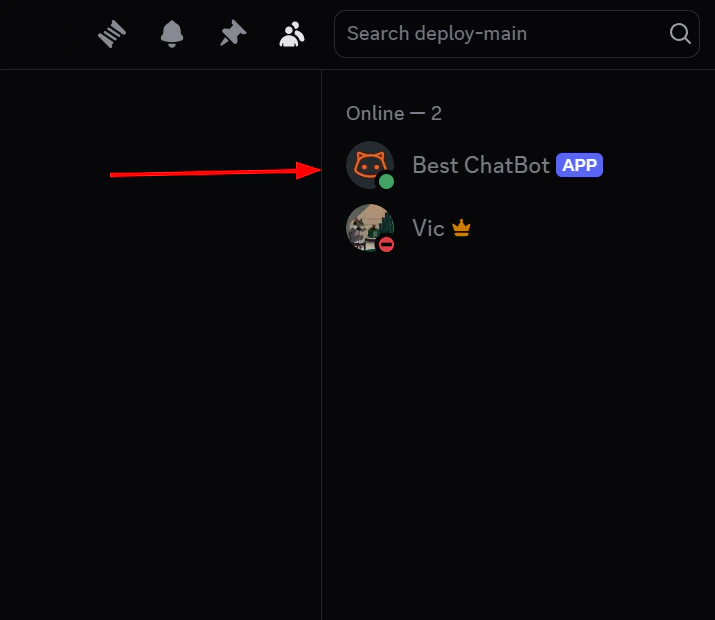
Multiple Servers
You can add BestChatBot to as many servers as your plan allows. Each server gets its own workspace with separate knowledge, settings, and usage tracking.| Plan | Workspaces (Servers) |
|---|---|
| Free | 1 |
| Starter | 2 |
| Pro | 3 |
| Business | 10 |
Next Steps
Select Channels
Choose where the bot responds.
Web Widget
Coming soon to websites.