

Channel Management
Control where BestChatBot responds. The setup depends on your platform.Discord Channels
The Platform Channels page gives you control over which Discord channels BestChatBot monitors and responds in. The bot shows all text channels where it has the View Channel permission.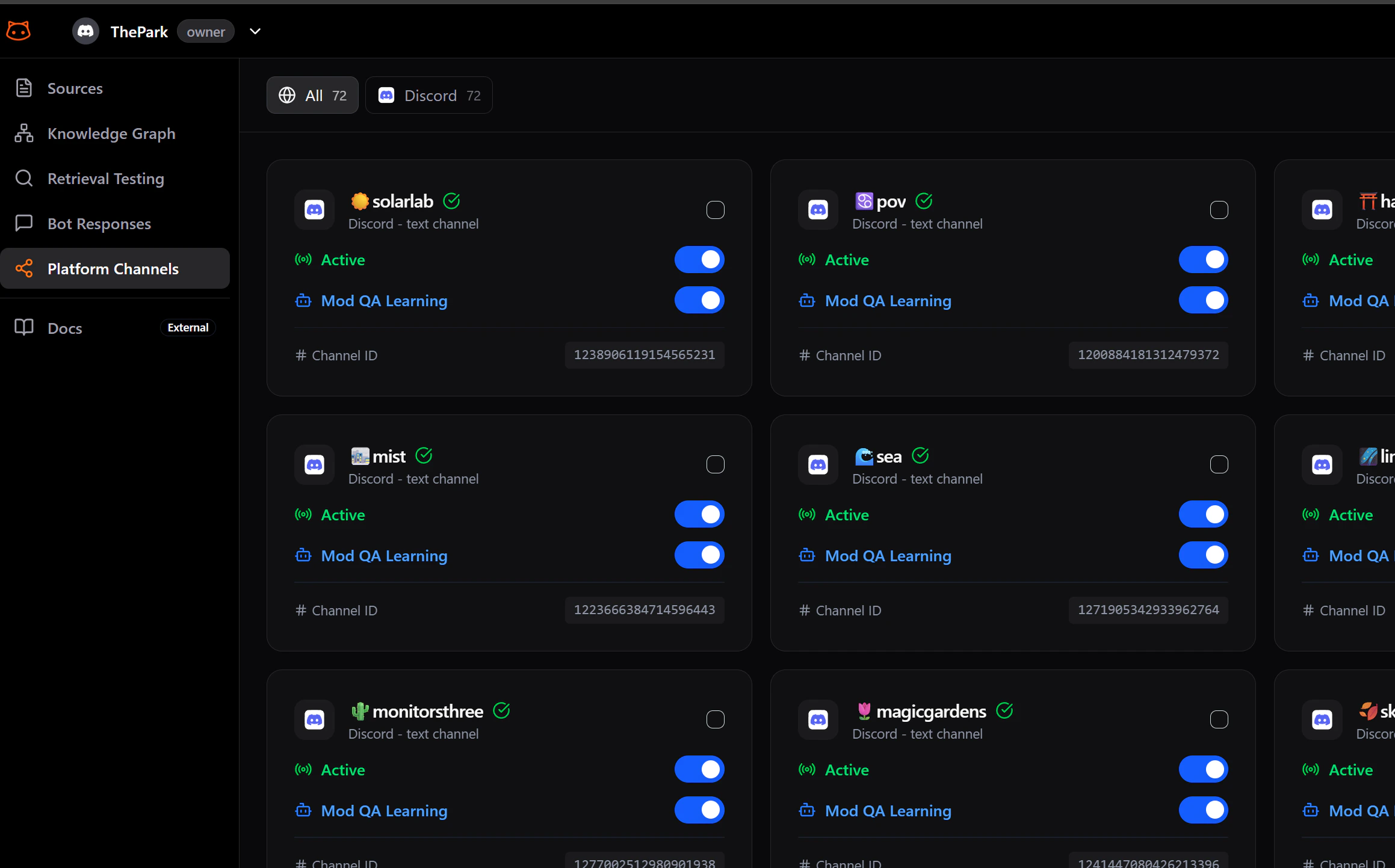
Managing Channels
Toggle Individual Channels
Each channel card has two controls:
- Active — enables or disables bot responses in that channel
- Mod QA Learning — enables or disables automatic learning from moderator answers
Use Bulk Actions
For quick changes:
- Select All: Enable the bot in every channel
- Deselect All: Disable the bot everywhere
Channel Types
| Channel Type | Supported |
|---|---|
| Text channels | Yes |
| Voice channels | No |
| Announcement channels | No |
| Forum channels | No |
| Stage channels | No |
Web Widget
The web widget does not have per-channel control. Each workspace supports one widget, and it is either active or inactive globally. To toggle your widget:- Go to the Web Widgets page from the dashboard sidebar
- Use the Active toggle on your widget card to enable or disable it
Next Steps
Response Preferences
Customize the bot’s tone and detail level.
Pricing Plans
See what’s included in each plan.