

Upload Documents
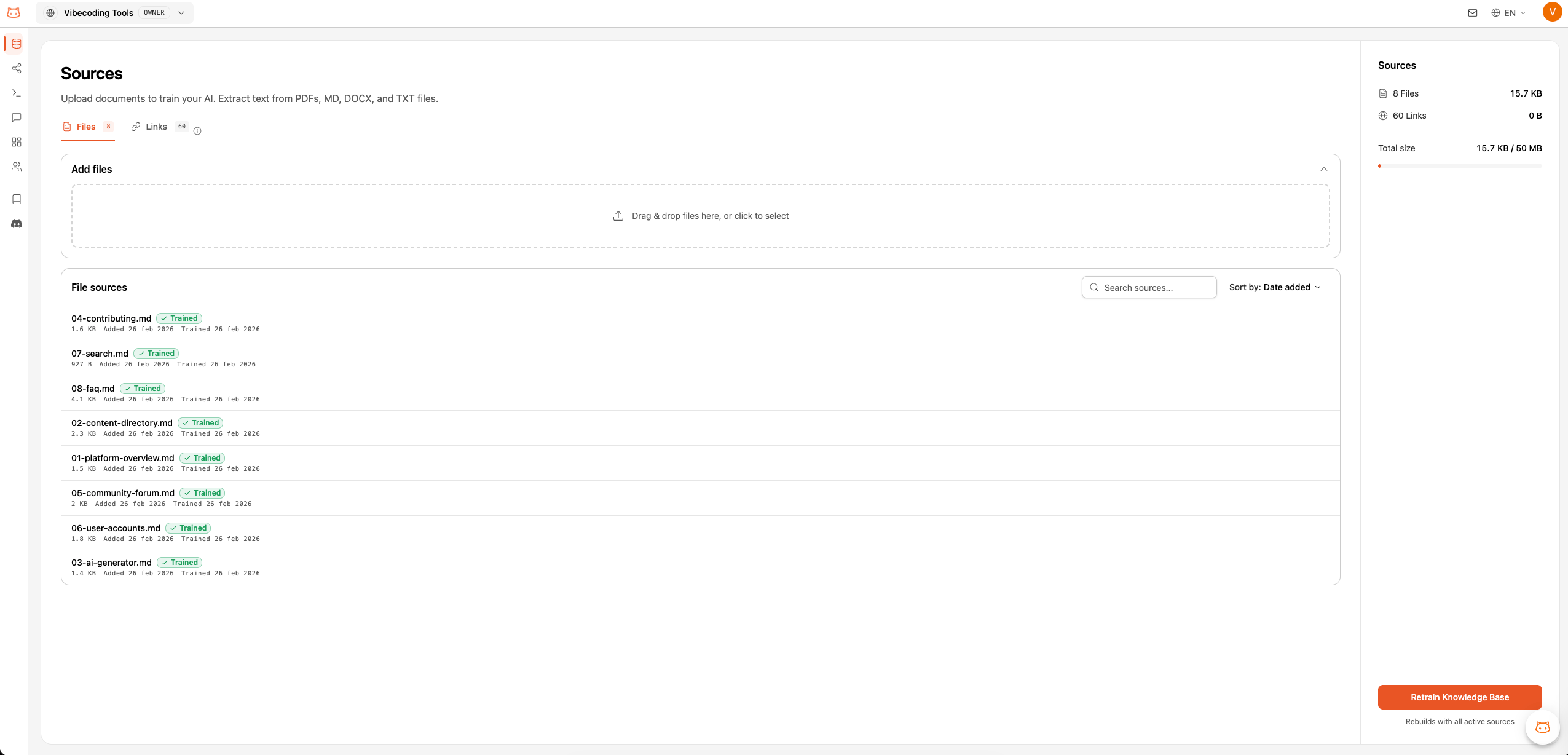
The Files tab in the Document Manager lets you upload files that BestChatBot uses to answer questions. This is the most direct way to add knowledge to your bot.Supported File Types
How to Upload
1
Open Document Manager
From the dashboard sidebar, go to the Document Manager section. Make sure you’re on the Files tab.
2
Drag and Drop
Drag your files directly into the upload area, or click the upload zone to browse your computer.
3
Wait for Processing
You’ll see a progress indicator for each file as it’s being processed.
4
Rebuild Your Knowledge Base
After uploading, click Rebuild Knowledge Base to incorporate the new content into the bot’s active knowledge.
Managing Documents
Once uploaded, your documents appear in a list where you can:- View the document name and upload date
- Delete documents you no longer need
- See status: whether the document has been processed successfully
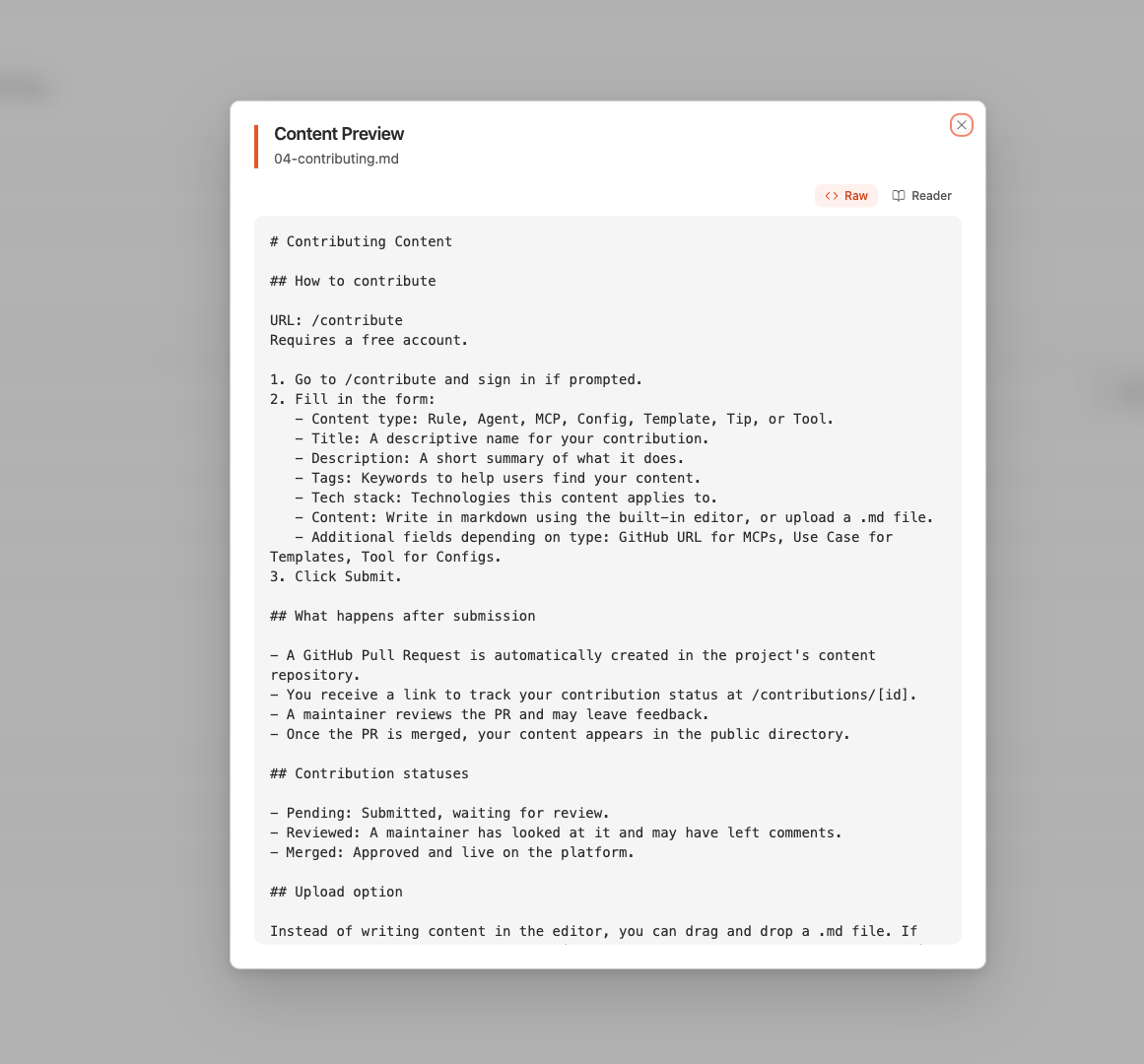
Changes to your documents (new uploads or deletions) are not applied until you perform a Knowledge Base Rebuild. The bot continues using the previous version of the knowledge base until then.
Knowledge Base Size Limits
Your plan limits the total size of your knowledge base, not the number of documents. Every uploaded file and every scraped URL shares the same size budget, measured by the size of their processed text content.Because the limit is by size, many short documents can fit in a small budget, while a few very large PDFs can fill it quickly. If you hit the limit, remove content you no longer need or upgrade your plan. See Pricing Plans.
Tips for Better Results
Use Clear Language
Write documents in clear, simple language. The bot’s answers will mirror the clarity of your source content.
Keep Content Focused
Shorter, topic-focused documents work better than one giant file covering everything.
Update Regularly
When your information changes, upload updated documents and rebuild the knowledge base.
Remove Outdated Files
Delete old documents to prevent the bot from giving outdated answers.
Next Steps
Add URLs
Scrape content directly from your website.
Rebuild Knowledge Base
Learn when and how to rebuild.