

Select Active Channels
BestChatBot gives you control over where it responds. The setup depends on your platform:- Discord — select individual text channels from a grid
- Web Widget — the widget is either globally active or inactive on your website
Discord Channels
After connecting the bot to your Discord server, you need to tell it which channels to monitor. BestChatBot will only respond to messages in channels you explicitly enable.Using the Channel Manager
Open Channel Management
In your dashboard, navigate to the Platform Channels section from the sidebar.
View Your Channels
You’ll see a grid of all text channels the bot has access to in your Discord server. The bot displays every channel where it has the View Channel permission.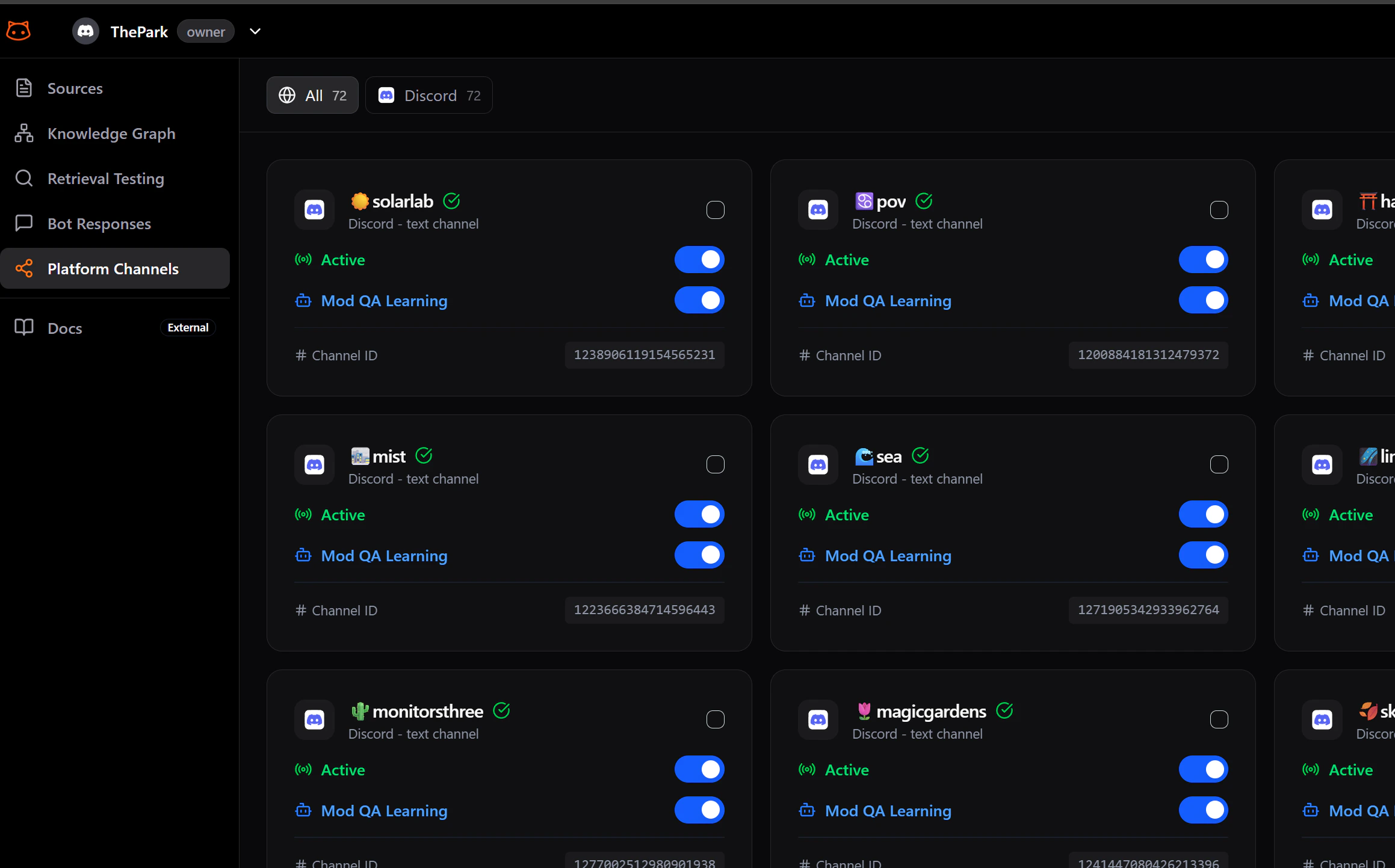
How the Bot Behaves in Channels
Once a channel is active:- The bot reads every new message in that channel
- If the message looks like a question the bot can answer, it responds automatically
- The bot does not use slash commands. It responds to regular messages naturally
The bot is helpful without being intrusive. It won’t respond to every message. It only jumps in when it has relevant knowledge to share.
Which Channels Appear
The channel manager shows all text channels where the bot has the View Channel permission in Discord. If a channel is missing from the list, check that the bot’s role has permission to view that channel in your Discord server settings. Voice channels, announcement channels, and forum channels are not listed because the bot can only respond in standard text channels.Web Widget
The web widget doesn’t have per-channel control. Each workspace supports one widget, and it is either active or inactive globally.- Active — the widget appears on your website and responds to visitor questions
- Inactive — the widget is hidden and does not respond
Next Steps
Upload Documents
Give the bot knowledge to answer questions.
Add URLs
Scrape content from your website.