

Zendesk
Category: Help Desk. Connect Zendesk and your widget can open and check support tickets for visitors, right inside the chat.Integrations are available on the Pro and Business plans. Zendesk shares the Help Desk category with Freshdesk, so only one of the two can be active at a time.
What This Bot Can Do
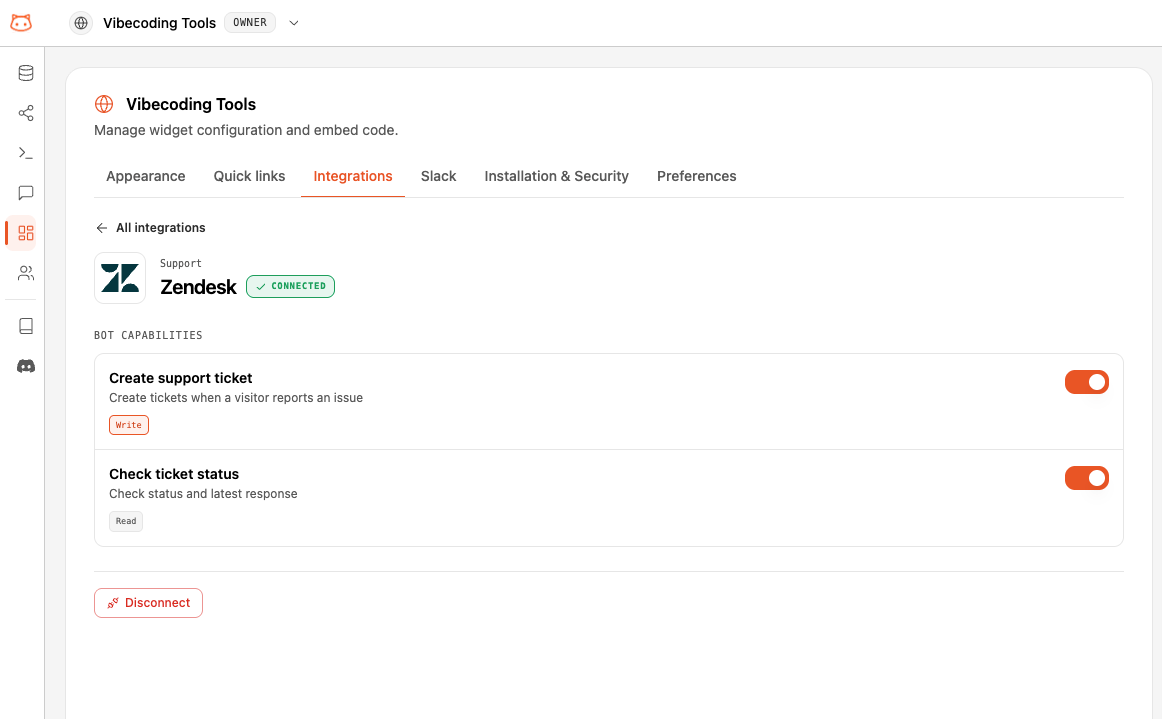
The bot does exactly these actions, nothing more. “Needs sign-in” means the visitor must be identified first; otherwise the bot gives a safe, neutral answer.What It Can’t Do
Zendesk is scoped to the actions above. It does not:- Reply to or comment on a ticket
- Close, resolve, or reassign a ticket
- Attach files to a ticket
How to Connect
Connecting an integration requires an Editor, Admin, or Owner role, on the Pro or Business plan. See Members & Roles.
Open Integrations
In your workspace dashboard, open your Web Widget → Integrations tab and find Zendesk.
Enter your Zendesk subdomain
Click Connect. A secure popup opens — enter your Zendesk domain (the subdomain in 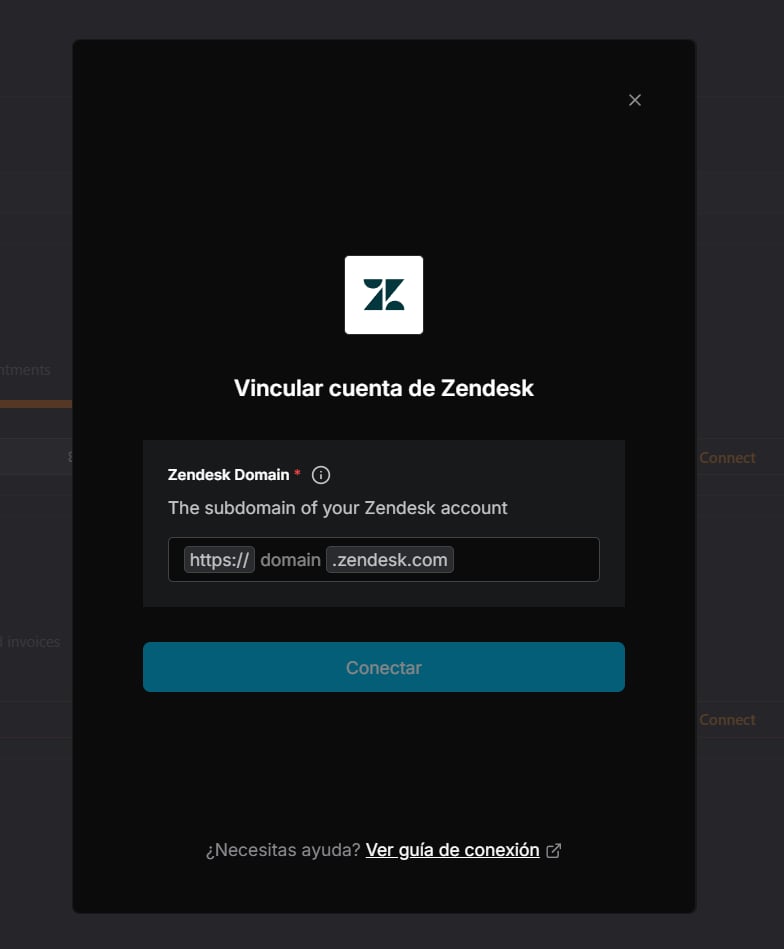
yoursubdomain.zendesk.com) and continue. If Freshdesk is currently active, you’ll be asked to confirm replacing it.Authorize on Zendesk
A Zendesk window opens asking to grant access to BestChatBot. Click Allow to authorize. You never type your Zendesk password into BestChatBot.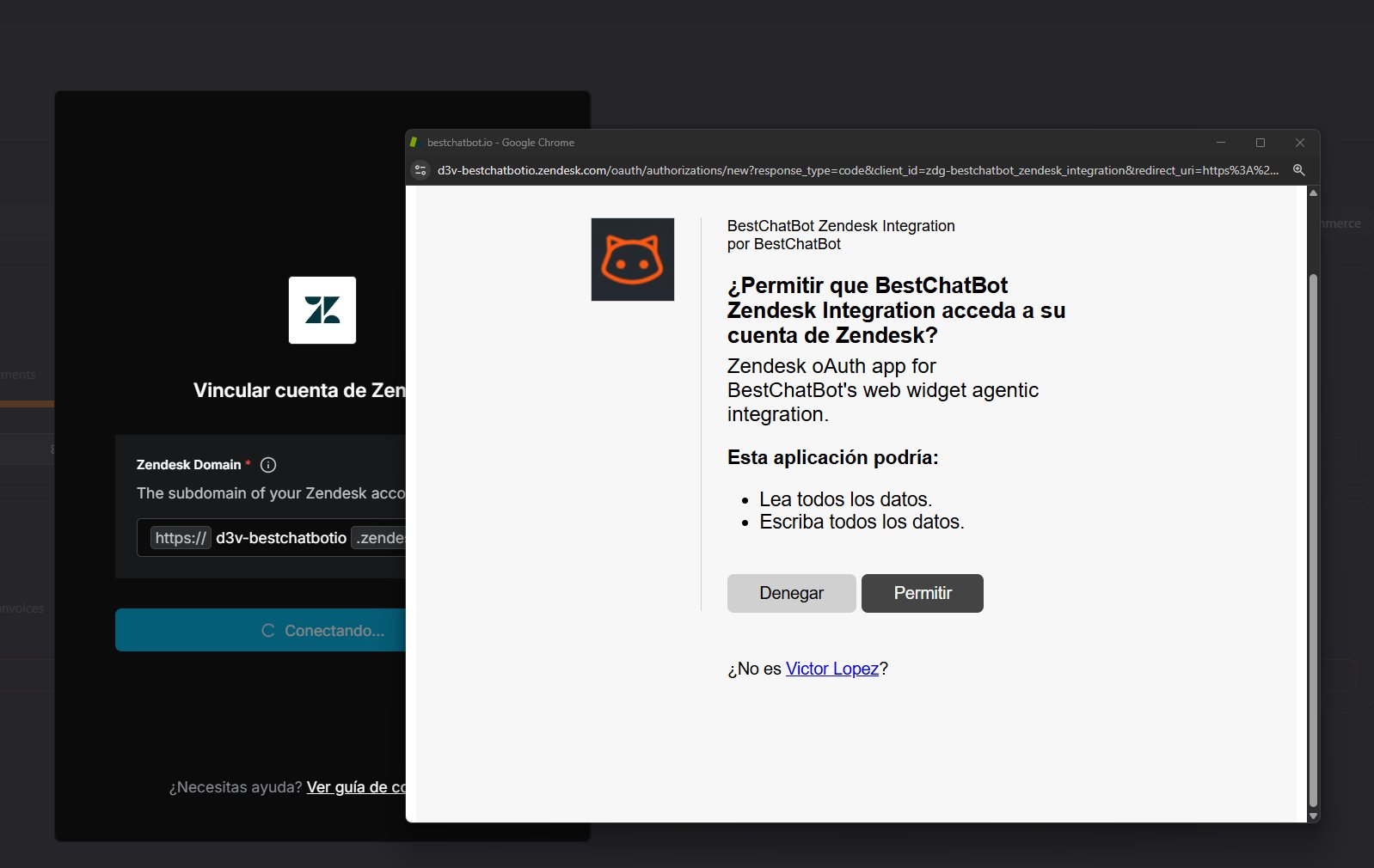
One per Category
Zendesk is in the Help Desk category with Freshdesk. Connecting one disconnects the other, so your bot always has a single, clear tool for help desk.Availability
Next Steps
All Integrations
See the full catalog and how categories work.
Agentic Actions
Learn how the bot turns a request into a real action.