

Shopify
Category: E-commerce. Connect Shopify and your widget can find products and check orders for visitors, right inside the chat.Integrations are available on the Pro and Business plans. Shopify shares the E-commerce category with WooCommerce, so only one of the two can be active at a time.
What This Bot Can Do
The bot does exactly these actions, nothing more. “Needs sign-in” means the visitor must be identified first; otherwise the bot gives a safe, neutral answer.| Action | What it does | Needs sign-in |
|---|---|---|
| Search products | Search your catalog by keyword and show product cards with price, image, and a buy link (up to 10). | No |
| Check order status | Look up an order’s status, tracking, and delivery by the visitor’s email. | Yes |
What It Can’t Do
Shopify is scoped to the actions above. It does not:- Add items to a cart or check out from the chat (visitors do that on your store)
- Process returns or change an order from the chat
- Look up an order without the visitor’s email
Part 1 — Connect Shopify
Shopify connects with OAuth, so you never paste API keys — you just authorize the BestChatBot app on your store.Connect
Click Connect. A secure popup opens. Sign in to Shopify and authorize access. This installs the BestChatBot app on your store, which also powers the identity proxy used in Part 3. You never type credentials into BestChatBot.
Connecting integrations requires an Editor, Admin, or Owner role. See Members & Roles.
Part 2 — Embed the Widget on Your Store
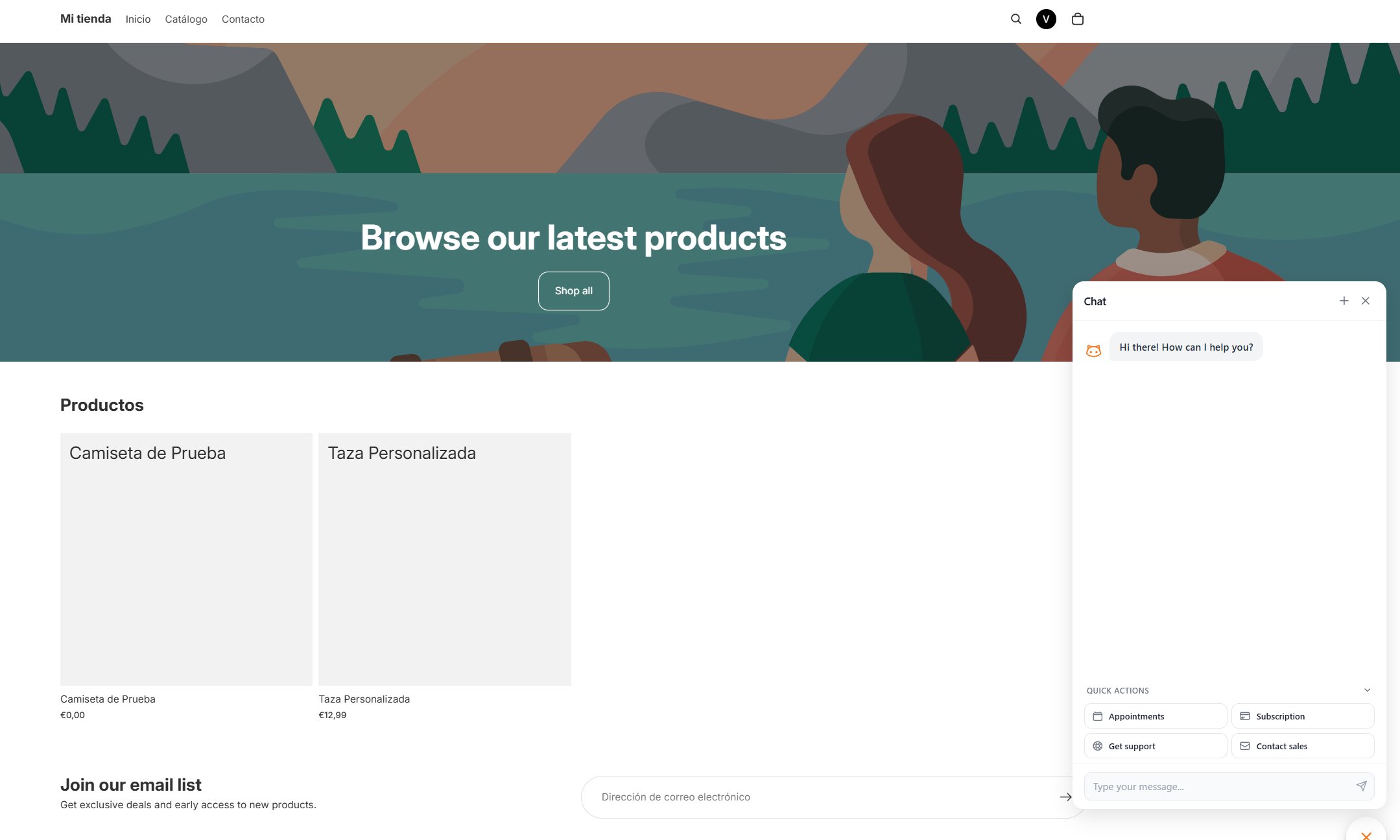
Connecting Shopify lets the bot read your store. To show the widget on your storefront, paste the standard embed snippet into your theme.Open your theme code
In Shopify admin, go to Online Store → Themes → ⋯ → Edit code and open
layout/theme.liquid.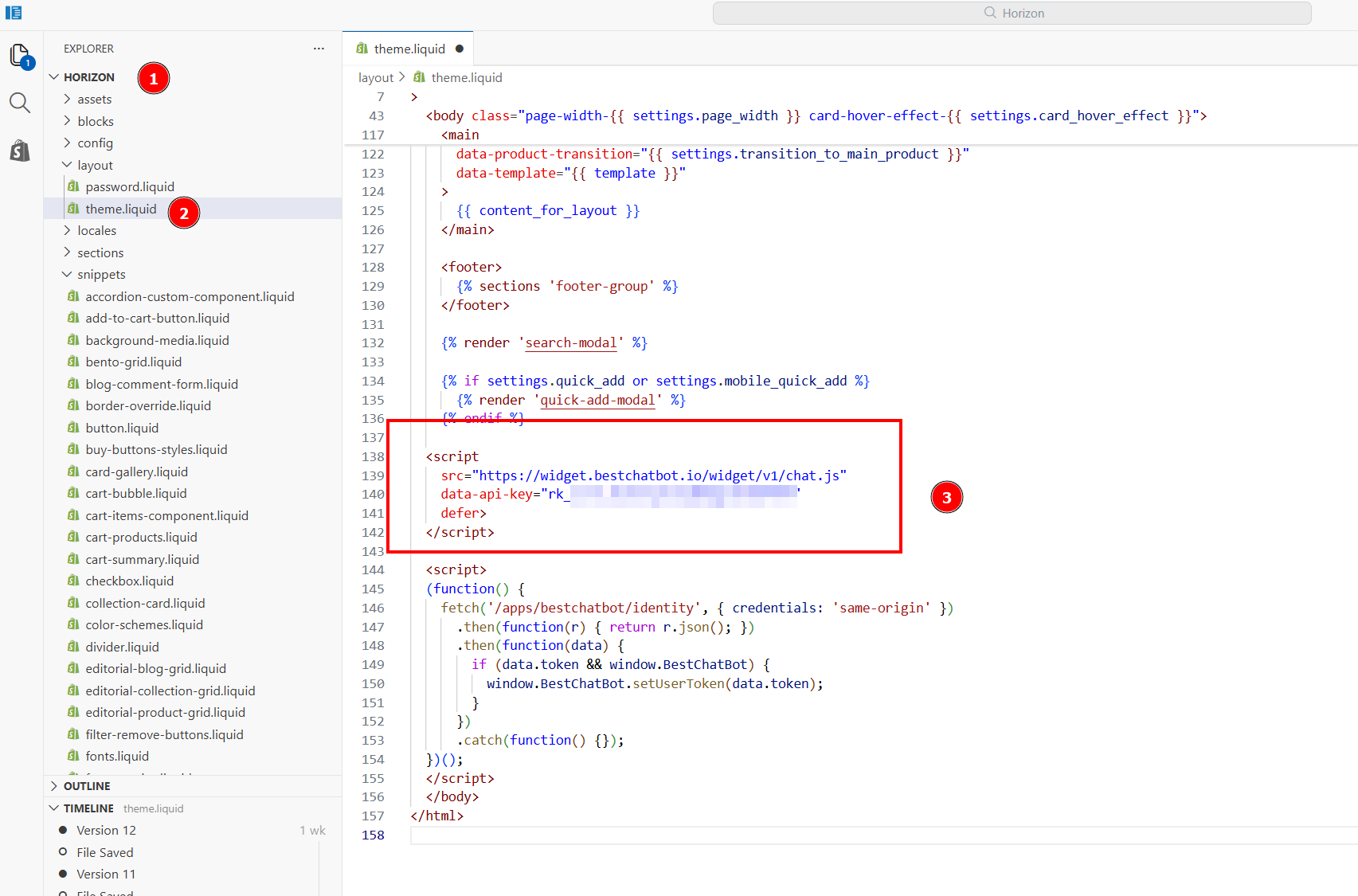
Part 3 — Identity-Aware Order Lookups
By default the bot asks a visitor for their email before checking an order. For logged-in Shopify customers, you can skip that: BestChatBot verifies their identity automatically through a Shopify App Proxy, so “track my order” returns their orders with no email prompt.Create a signing key
In your dashboard, open Web Widget → Security and click Create Signing Key. BestChatBot uses this key to sign each customer’s identity token server-side — you don’t paste it into your theme.
Add the identity snippet
In On every page load, this asks BestChatBot’s identity proxy who the logged-in customer is. The proxy returns a short signed token (email and Shopify customer ID) only for authenticated customers; anonymous visitors get nothing and simply browse as usual.
theme.liquid, right after the widget snippet, add: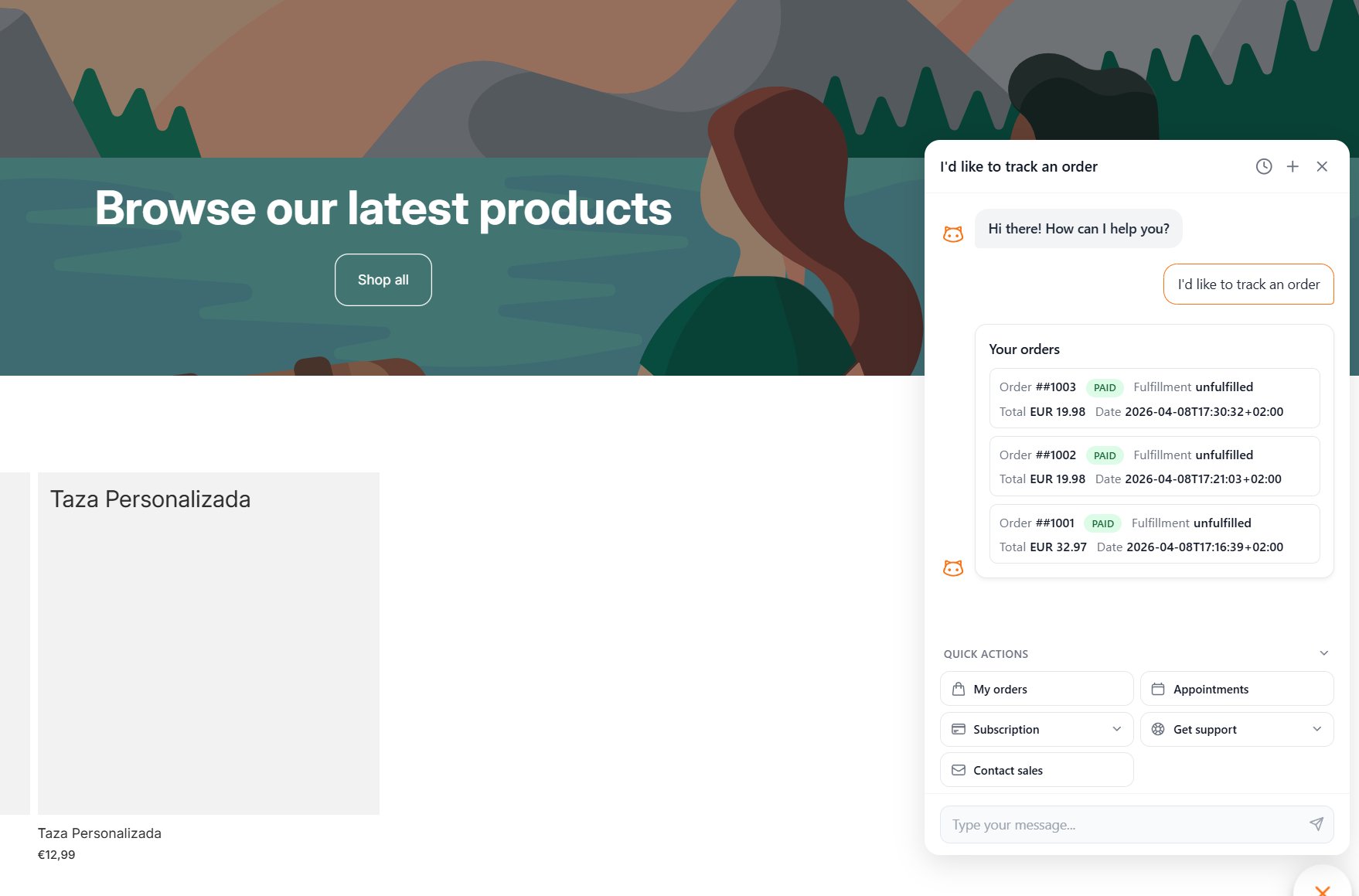
For how visitor identity works across platforms, see Visitor Identity.
One per Category
Shopify is in the E-commerce category with WooCommerce. Connecting one disconnects the other, so your bot always has a single, clear tool for e-commerce.Availability
| Plan | Shopify |
|---|---|
| Free | — |
| Starter | — |
| Pro | ✅ |
| Business | ✅ |
Next Steps
Visitor Identity
Set up identity verification for personal actions like order lookups.
Agentic Actions
Learn how the bot turns a request into a real action.