

Help Links
Help Links are quick links shown on your widget’s home screen, under Popular Articles. They give visitors a fast way to reach your most important pages, and they make the bot smarter: BestChatBot crawls each linked page so the assistant can answer questions directly from that content.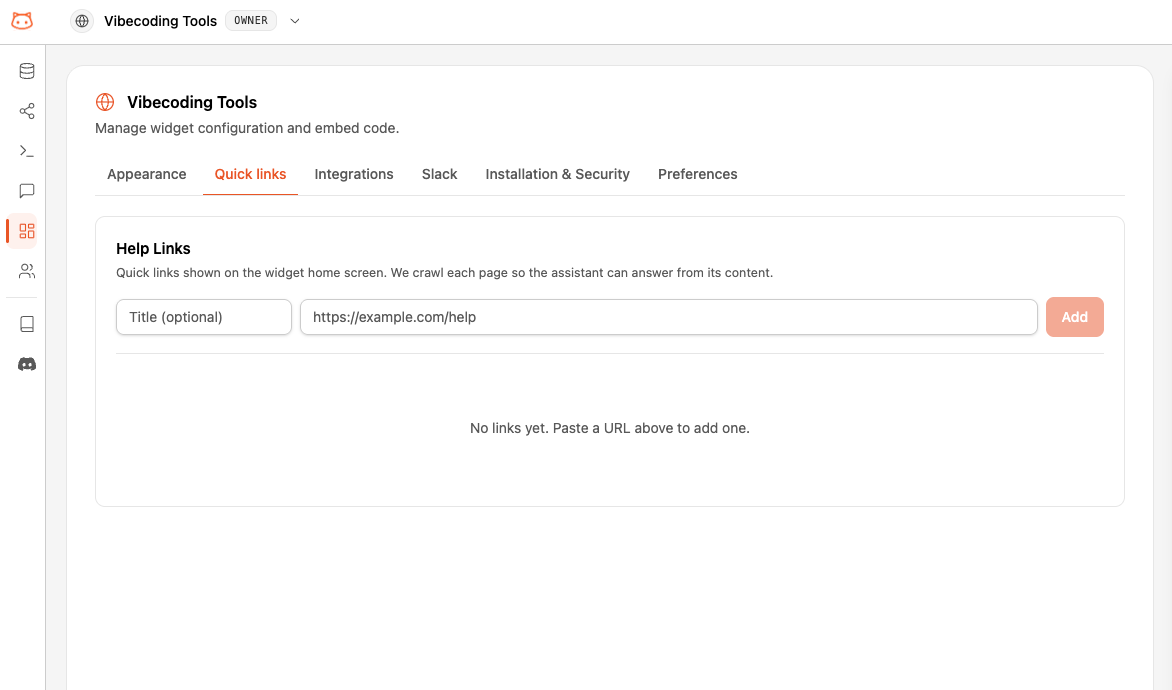
How It Works
When you add a Help Link, two things happen:- It appears on the widget as a clickable article on the home screen.
- The page is crawled in the background. BestChatBot fetches the page, extracts a clean title and a searchable summary, and indexes it so the bot can use that content in its answers.
Help Links are indexed separately from your main Knowledge Base. They do not count toward your plan’s scraped-pages limit or knowledge base size, and you don’t need to rebuild the knowledge base after adding one.
Adding a Help Link
1
Open the Help Links tab
From your workspace, open the Web Widget settings and select the Help Links tab.
2
Enter a URL
Paste the page URL (for example,
https://yoursite.com/help). Optionally add a Title to control how the link is labeled. If you leave the title empty, BestChatBot generates one from the page automatically.3
Click Add
The link is created and starts crawling immediately. You’ll see its status change from Processing to Ready once the page has been indexed.
Link Status
Each link shows a status badge:Managing Links
Each link in the list can be:- Reordered — drag the handle on the left to change the order articles appear on the widget.
- Refreshed — click the refresh icon to re-crawl the page after its content changes. A short cooldown applies between refreshes.
- Renamed — click the pencil icon to edit the displayed title inline.
- Deleted — click the trash icon to remove the link.
On the Widget
Visitors see your Help Links as Popular Articles on the widget’s Home tab. They can search, open an article, or jump straight into a chat.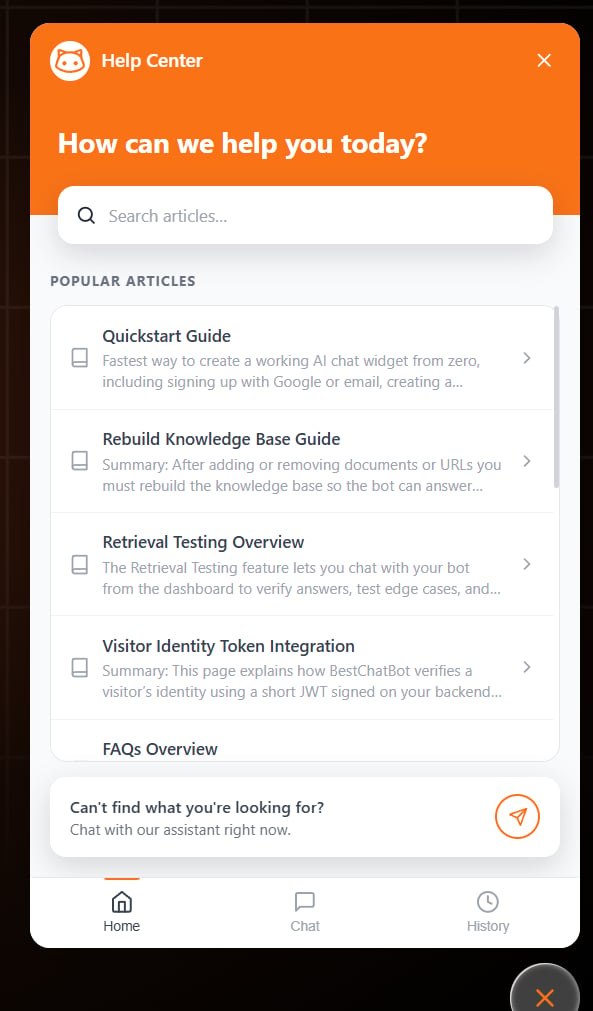
Next Steps
Web Widget
Configure and install the chat widget on your site.
Add URLs
Scrape full sites or sections into your knowledge base.