> ## Documentation Index
> Fetch the complete documentation index at: https://docs.bestchatbot.io/llms.txt
> Use this file to discover all available pages before exploring further.
# Members & Roles
> Invite your team to a workspace and control what each person can do with roles.
# Members & Roles
A workspace can be shared with your team. Each member gets a **role** that decides what they can see and change, from read-only access to full control.
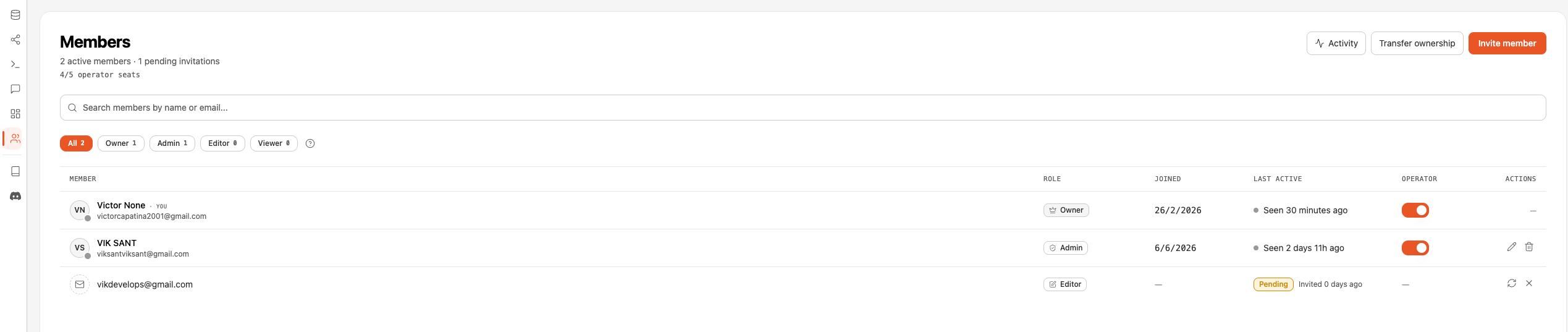 ## The Four Roles
| Role | Best for | In short |
| ---------- | ------------------------------------- | ----------------------------------------------------- |
| **Viewer** | Stakeholders who only need visibility | Read-only access |
| **Editor** | People who build and maintain the bot | Create and edit content, settings, and integrations |
| **Admin** | Team leads managing the workspace | Everything an Editor can do, plus members and billing |
| **Owner** | The person who created the workspace | Full control, including deleting the workspace |
## Role Hierarchy
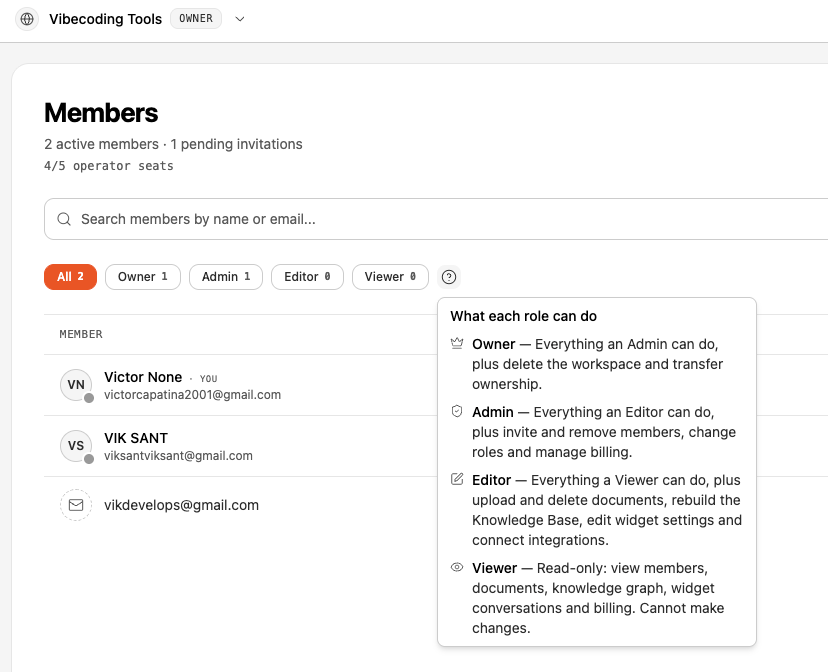
Roles build on each other. A higher role can do everything the roles below it can, plus more:
```
Viewer → Editor → Admin → Owner
(least) (most)
```
## What Each Role Can Do
| Capability | Viewer | Editor | Admin | Owner |
| -------------------------------------------------- | :----: | :----: | :---: | :---: |
| View the knowledge base, widget, and conversations | ✅ | ✅ | ✅ | ✅ |
| View members, integrations, and the current plan | ✅ | ✅ | ✅ | ✅ |
| Upload and delete knowledge base content | — | ✅ | ✅ | ✅ |
| Scrape URLs and rebuild the knowledge base | — | ✅ | ✅ | ✅ |
| Edit widget settings and response preferences | — | ✅ | ✅ | ✅ |
| Connect, configure, and disconnect integrations | — | ✅ | ✅ | ✅ |
| Invite, remove, and change the role of members | — | — | ✅ | ✅ |
| Manage the subscription (upgrade, billing portal) | — | — | ✅ | ✅ |
| Transfer ownership of the workspace | — | — | — | ✅ |
| Delete the workspace | — | — | — | ✅ |
Billing identifiers (such as Stripe IDs) are only visible to Admins and Owners. Viewers and Editors can see the plan and usage, but not the billing details.
## The Four Roles
| Role | Best for | In short |
| ---------- | ------------------------------------- | ----------------------------------------------------- |
| **Viewer** | Stakeholders who only need visibility | Read-only access |
| **Editor** | People who build and maintain the bot | Create and edit content, settings, and integrations |
| **Admin** | Team leads managing the workspace | Everything an Editor can do, plus members and billing |
| **Owner** | The person who created the workspace | Full control, including deleting the workspace |
## Role Hierarchy
Roles build on each other. A higher role can do everything the roles below it can, plus more:
```
Viewer → Editor → Admin → Owner
(least) (most)
```
## What Each Role Can Do
| Capability | Viewer | Editor | Admin | Owner |
| -------------------------------------------------- | :----: | :----: | :---: | :---: |
| View the knowledge base, widget, and conversations | ✅ | ✅ | ✅ | ✅ |
| View members, integrations, and the current plan | ✅ | ✅ | ✅ | ✅ |
| Upload and delete knowledge base content | — | ✅ | ✅ | ✅ |
| Scrape URLs and rebuild the knowledge base | — | ✅ | ✅ | ✅ |
| Edit widget settings and response preferences | — | ✅ | ✅ | ✅ |
| Connect, configure, and disconnect integrations | — | ✅ | ✅ | ✅ |
| Invite, remove, and change the role of members | — | — | ✅ | ✅ |
| Manage the subscription (upgrade, billing portal) | — | — | ✅ | ✅ |
| Transfer ownership of the workspace | — | — | — | ✅ |
| Delete the workspace | — | — | — | ✅ |
Billing identifiers (such as Stripe IDs) are only visible to Admins and Owners. Viewers and Editors can see the plan and usage, but not the billing details.
 ## Inviting a Member
An **Admin** or **Owner** invites someone by email and chooses the role to grant (Admin, Editor, or Viewer). The invitee receives an email with a secure link.
## Inviting a Member
An **Admin** or **Owner** invites someone by email and chooses the role to grant (Admin, Editor, or Viewer). The invitee receives an email with a secure link.
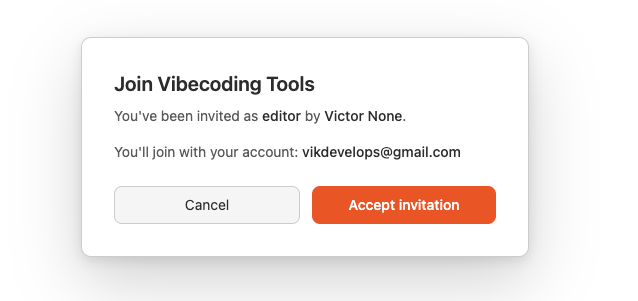
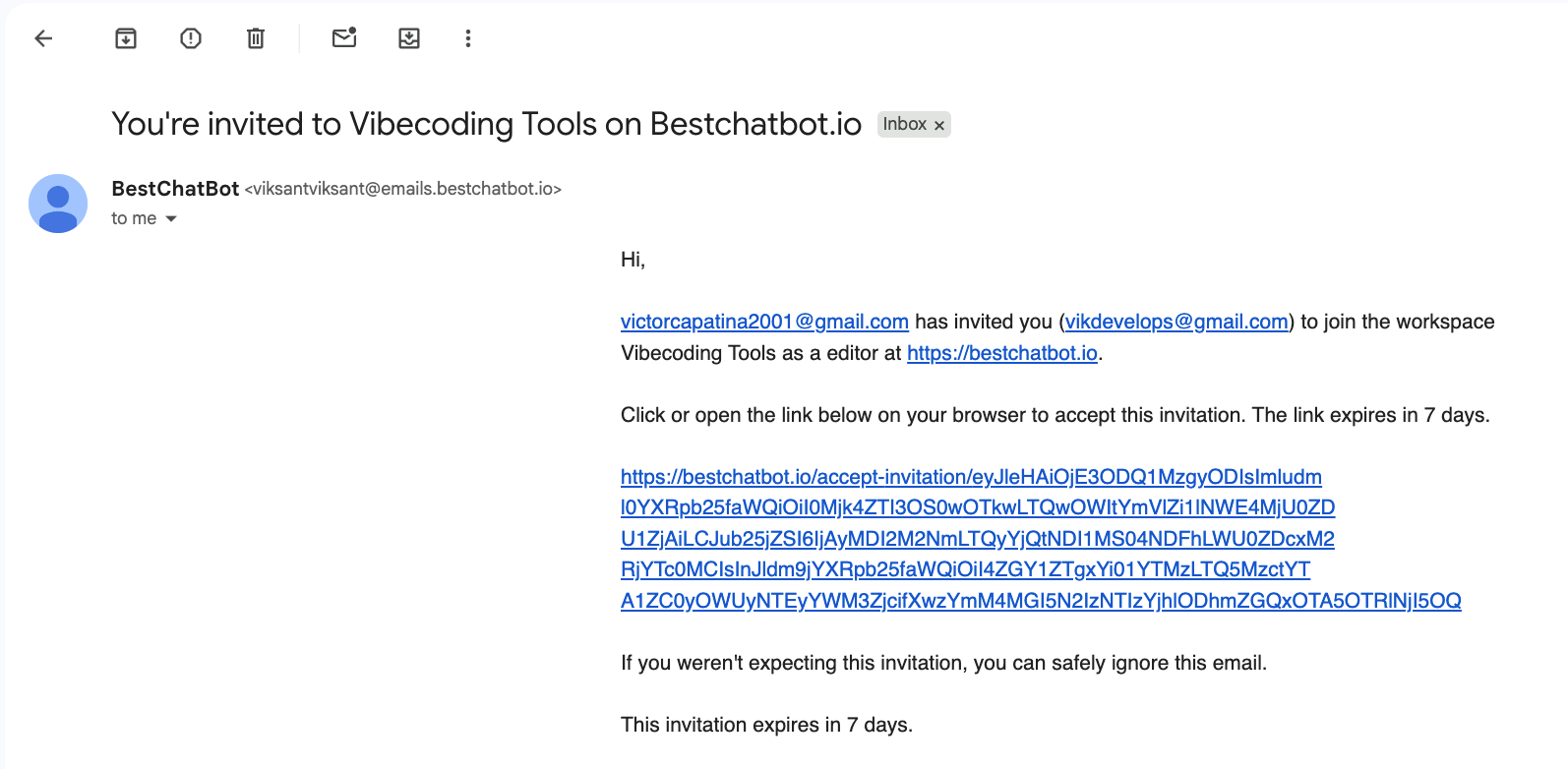 The link opens a consent screen showing the workspace name, the offered role, and who invited them. After signing in to BestChatBot, they accept.
 The new member appears in the **Members** list with the role you assigned. Admins can change a member's role or remove them later.
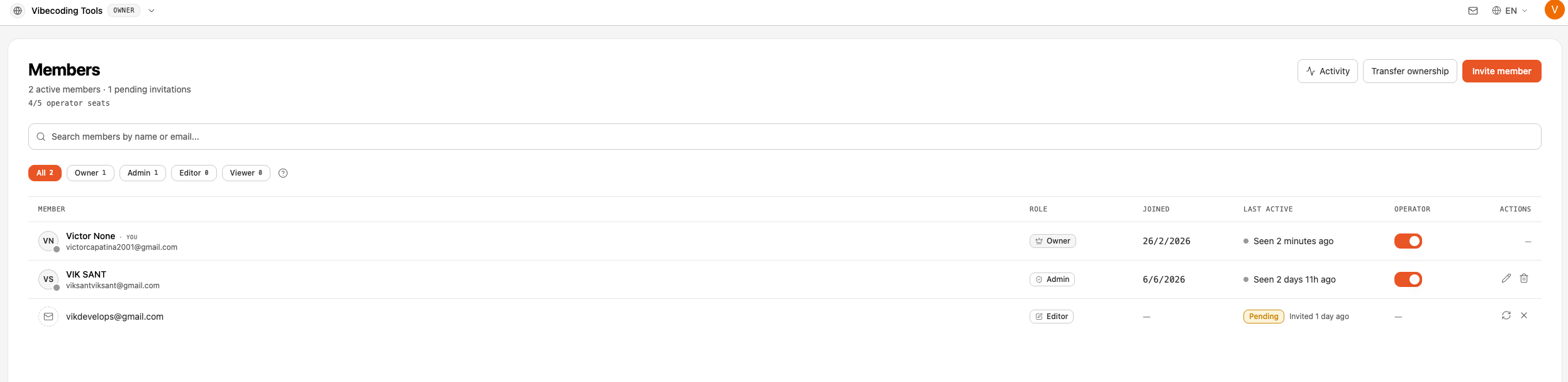 Your plan sets how many members you can invite. If the workspace is full, you'll be prompted to upgrade before sending more invitations. See [Pricing Plans](/billing/pricing-plans).
## Ownership
Every workspace has exactly **one Owner**: the person who created it.
* The Owner role can't be assigned with a normal role change. To hand it over, the current Owner uses **Transfer Ownership** to promote an existing Admin.
* The Owner can't be removed or leave the workspace directly. They must transfer ownership (or delete the workspace) first.
* Any other member can leave the workspace voluntarily at any time.
## Next Steps
See how many members each plan includes.
Upgrade your plan to add more seats.
Your plan sets how many members you can invite. If the workspace is full, you'll be prompted to upgrade before sending more invitations. See [Pricing Plans](/billing/pricing-plans).
## Ownership
Every workspace has exactly **one Owner**: the person who created it.
* The Owner role can't be assigned with a normal role change. To hand it over, the current Owner uses **Transfer Ownership** to promote an existing Admin.
* The Owner can't be removed or leave the workspace directly. They must transfer ownership (or delete the workspace) first.
* Any other member can leave the workspace voluntarily at any time.
## Next Steps
See how many members each plan includes.
Upgrade your plan to add more seats.