> ## Documentation Index
> Fetch the complete documentation index at: https://docs.bestchatbot.io/llms.txt
> Use this file to discover all available pages before exploring further.
# Retrieval Testing
> Test your bot's answers directly from the dashboard before going live.
# Retrieval Testing
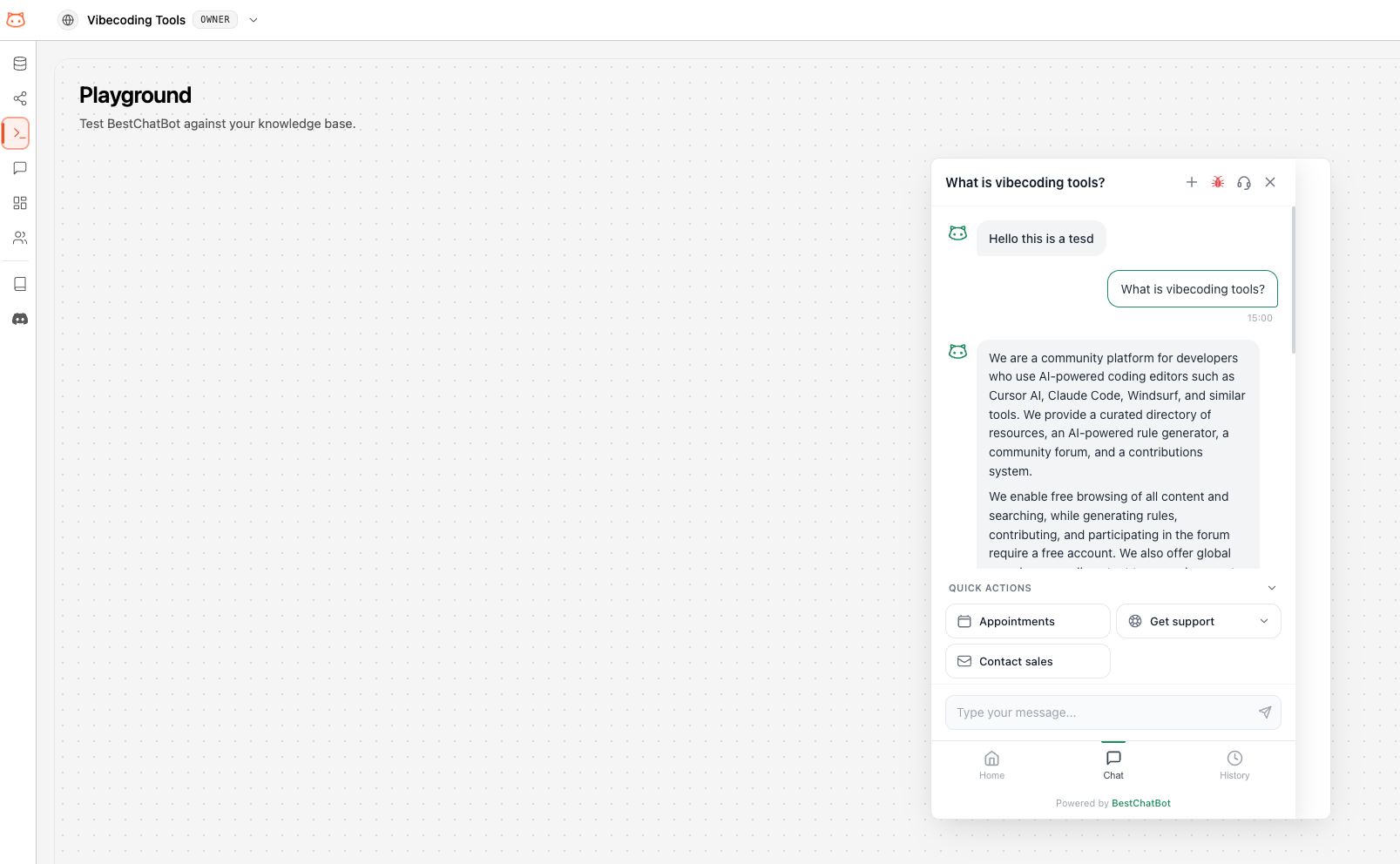
The **Retrieval Testing** page lets you chat with your bot directly from the dashboard. Use it to verify the bot's answers, test edge cases, and make sure everything works before your visitors see it.
Retrieval Testing produces **real bot answers**, so each response you get here **counts toward your monthly response quota**, exactly like a visitor message on your website. Usage is billed to the workspace owner. If the bot can't produce an answer, that attempt is **not** charged.
## How to Use Retrieval Testing
Go to **Retrieval Testing** from the dashboard sidebar.
Use the chat input at the bottom to type a question, just like a visitor would on your website.
The bot replies in real time with a streaming response. You'll see the answer appear word by word, along with the sources it used.
Ask follow-up questions or test different phrasings to see how the bot handles variations.
## What to Test
Start with the most frequent questions your visitors ask.
Try questions where the answer is partial or not in your knowledge base.
Ask the same question in different ways to check consistency.
After rebuilding, test with questions related to newly added content.
## Understanding the Response
Each response in the testing chat includes:
* **The answer**: Generated from your knowledge base content
* **Cited sources**: Which documents or URLs the bot used to form its answer
If the bot can't answer a question, it usually means the relevant information isn't in your knowledge base yet. Try uploading more content or adding the relevant URL.
## Chat Sessions
Your testing conversations are saved as **sessions**. You can:
* Continue a previous conversation
* Start a new session for fresh testing
* Review past sessions to track improvements
## Next Steps
See how the widget is performing with real visitors.
See the connections in your knowledge base.
 ## What to Test