> ## Documentation Index
> Fetch the complete documentation index at: https://docs.bestchatbot.io/llms.txt
> Use this file to discover all available pages before exploring further.
# Knowledge Graph
> Explore the visual knowledge graph that maps connections between your content.
# Knowledge Graph
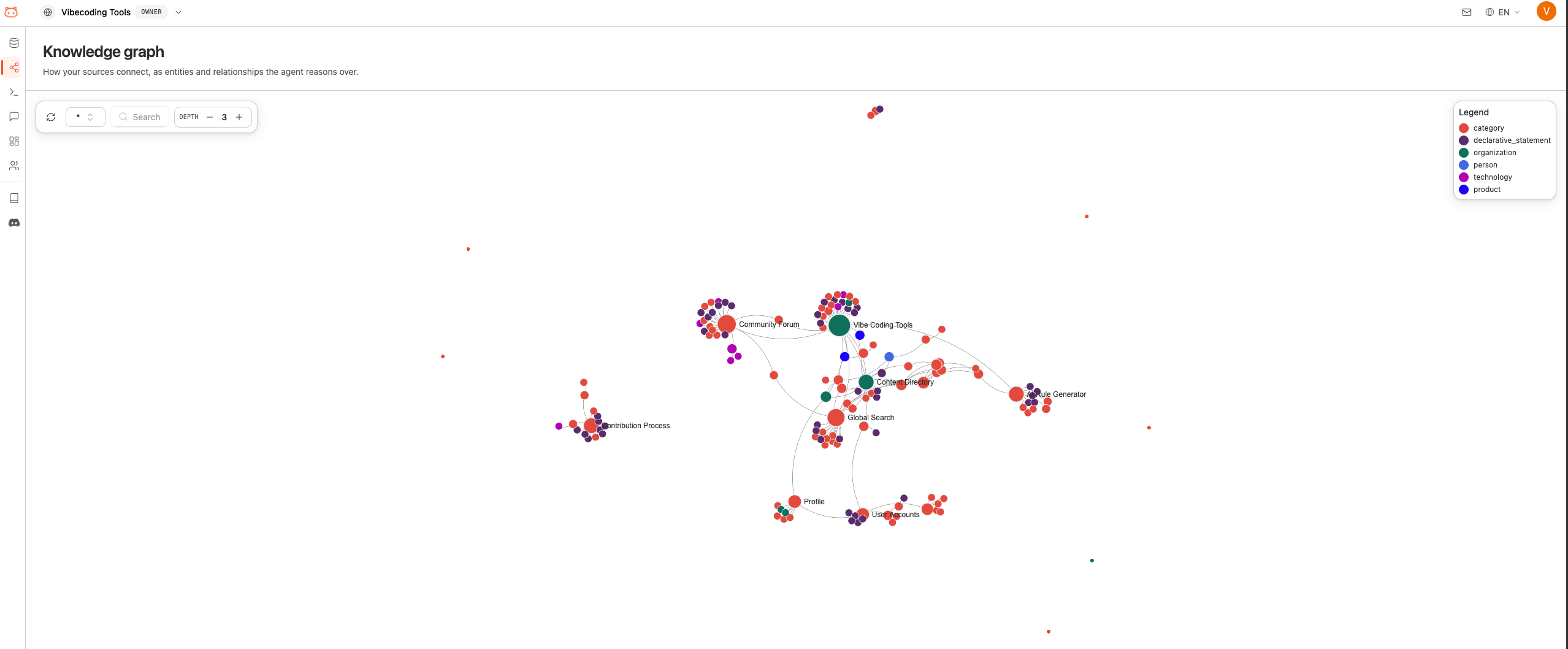
The **Knowledge Graph** is an interactive visualization that shows how your knowledge base content connects. It maps relationships between concepts, topics, and entities found in your documents.
## What the Graph Shows
The knowledge graph displays:
* **Nodes**: Individual concepts, topics, or entities extracted from your content
* **Edges**: Connections between related concepts
* **Clusters**: Groups of closely related topics that form natural categories
## How to Use It
Open the **Knowledge Graph** section from the dashboard sidebar.
The graph loads with all your content's concepts displayed as connected nodes. You can:
* **Pan**: Click and drag to move around the graph
* **Zoom**: Scroll to zoom in or out
* **Click nodes**: Select a node to see its details and connections
Use the search bar to find specific concepts. The graph will highlight matching nodes and their connections.
The legend shows what different colors and node sizes mean. Larger nodes typically represent more connected or central concepts.
## After Rebuilding
The knowledge graph updates automatically when you rebuild your knowledge base. After adding new content and rebuilding, revisit the graph to see how the new information connects to your existing knowledge.
## Next Steps
Fine-tune how the bot communicates.
Verify the bot answers correctly.
 ## How to Use It