> ## Documentation Index
> Fetch the complete documentation index at: https://docs.bestchatbot.io/llms.txt
> Use this file to discover all available pages before exploring further.
# Conversations
> Track full visitor conversations with your bot, including the agentic actions it performed.
# Conversations
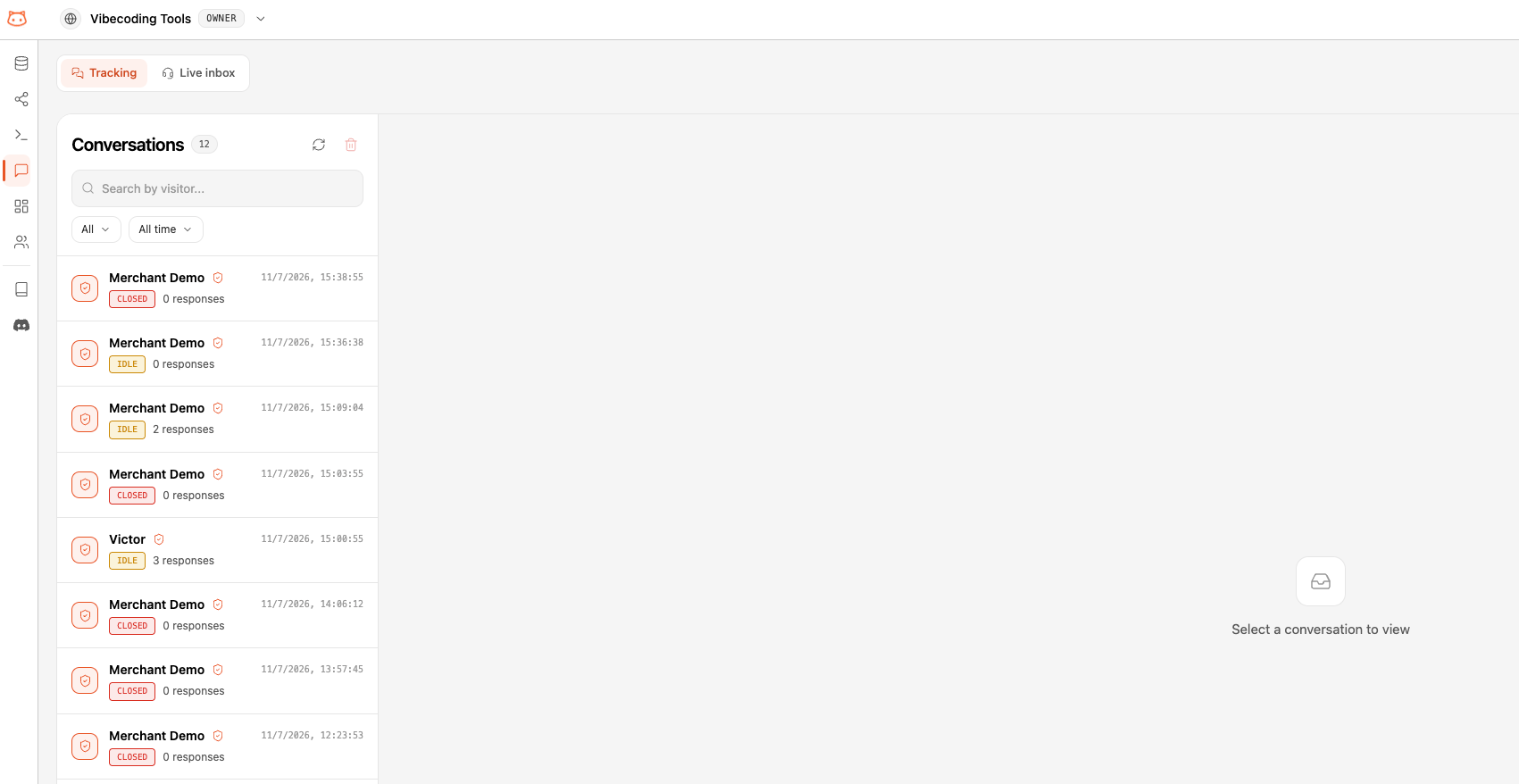
The **Conversations** page shows every conversation your bot has had with visitors. Instead of isolated question-and-answer pairs, each entry is a **full conversation** — the complete back-and-forth of a visitor session, including any agentic actions the bot performed (product cards, booking forms, checkout links, support tickets).
 ## The Conversation List
Each row is one visitor conversation. For each one you can see:
* **Visitor** — a short identifier for the visitor session. If the visitor was identified with a signed token, their name or email appears instead.
* **Status** — `Open`, `Idle`, or `Closed`, reflecting how recently the visitor was active.
* **Responses** — how many bot responses the conversation contains.
* **Last activity** — when the conversation was last active.
The header shows your total conversation count. Click **Refresh** to pull in the latest ones.
## Conversation Detail
Click any conversation to open its full timeline. You'll see the entire exchange in order — visitor messages, bot answers, and every agentic step the bot took along the way:
## The Conversation List
Each row is one visitor conversation. For each one you can see:
* **Visitor** — a short identifier for the visitor session. If the visitor was identified with a signed token, their name or email appears instead.
* **Status** — `Open`, `Idle`, or `Closed`, reflecting how recently the visitor was active.
* **Responses** — how many bot responses the conversation contains.
* **Last activity** — when the conversation was last active.
The header shows your total conversation count. Click **Refresh** to pull in the latest ones.
## Conversation Detail
Click any conversation to open its full timeline. You'll see the entire exchange in order — visitor messages, bot answers, and every agentic step the bot took along the way:
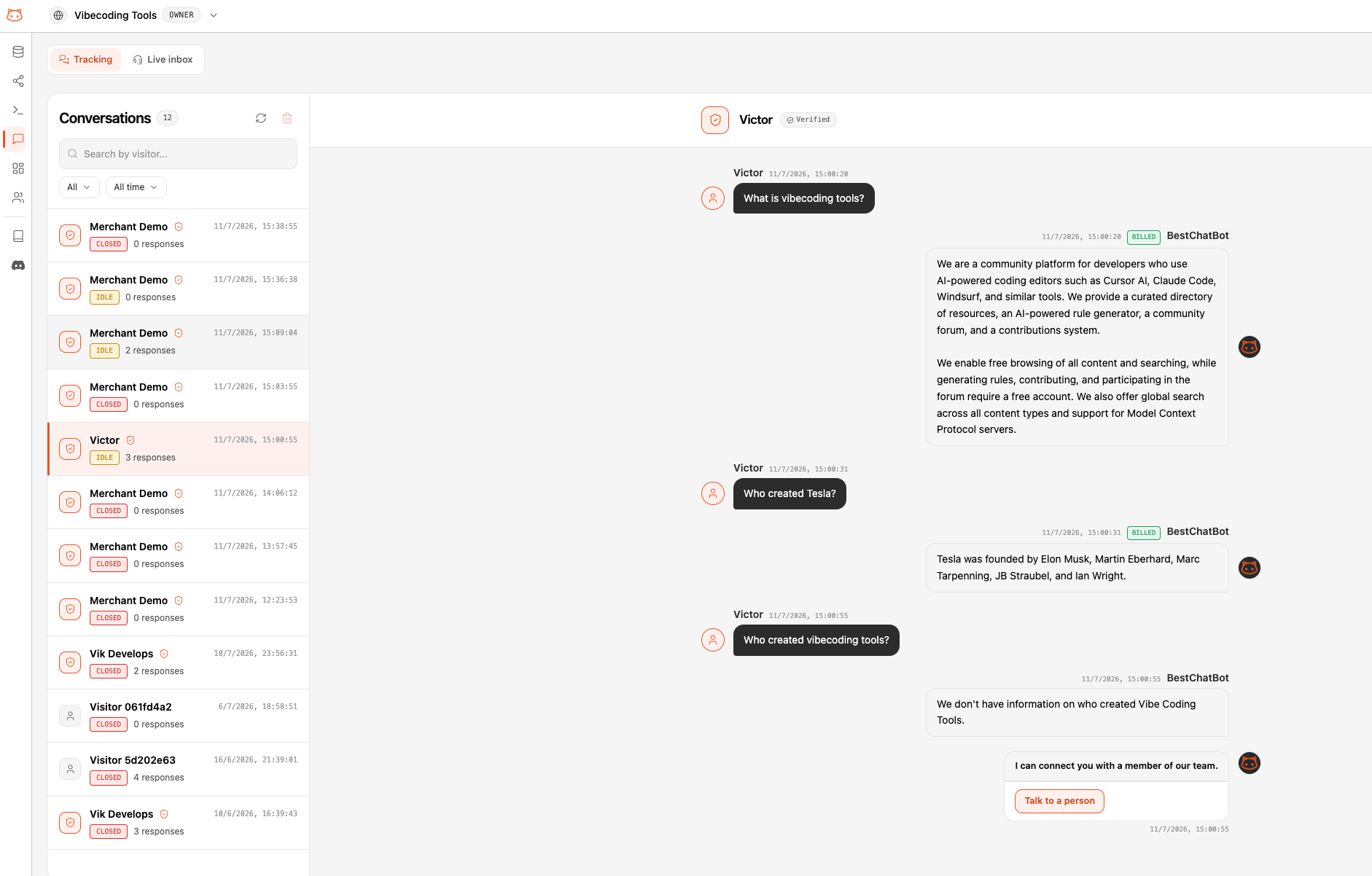 The detail view reconstructs rich elements exactly as the visitor saw them:
| Element | What it shows |
| ------------------------ | -------------------------------------------------------------------------------------------------------------------------------------------------- |
| **Text** | Plain bot answers and visitor messages |
| **Action cards** | Buttons the bot offered (for example, **Go to checkout** or **Book a Call**) |
| **Product / time cards** | Curated products with prices, or available meeting times |
| **Forms** | Forms the bot requested (such as a Schedule Meeting form), with the data the visitor submitted — or a **Not submitted** badge if they abandoned it |
| **Tool results** | The outcome of an action: a booked meeting, an order status, an opened ticket |
This makes it easy to see not just what the bot **said**, but what it **did**. Each conversation is anchored to a single visitor session, so you always get the full thread rather than scattered messages.
## Next Steps
Learn how the bot takes the actions you see in conversations.
Visualize how your content connects.
The detail view reconstructs rich elements exactly as the visitor saw them:
| Element | What it shows |
| ------------------------ | -------------------------------------------------------------------------------------------------------------------------------------------------- |
| **Text** | Plain bot answers and visitor messages |
| **Action cards** | Buttons the bot offered (for example, **Go to checkout** or **Book a Call**) |
| **Product / time cards** | Curated products with prices, or available meeting times |
| **Forms** | Forms the bot requested (such as a Schedule Meeting form), with the data the visitor submitted — or a **Not submitted** badge if they abandoned it |
| **Tool results** | The outcome of an action: a booked meeting, an order status, an opened ticket |
This makes it easy to see not just what the bot **said**, but what it **did**. Each conversation is anchored to a single visitor session, so you always get the full thread rather than scattered messages.
## Next Steps
Learn how the bot takes the actions you see in conversations.
Visualize how your content connects.