> ## Documentation Index
> Fetch the complete documentation index at: https://docs.bestchatbot.io/llms.txt
> Use this file to discover all available pages before exploring further.
# Create Your Account
> Sign up for BestChatBot with Google or email.
# Create Your Account
BestChatBot offers two ways to sign up: **Google** or **Email and password**. Pick whichever you prefer.
## How to Sign Up
Go to [bestchatbot.io](https://bestchatbot.io) and click the **Get Started** button.
You'll see two options:
* **Continue with Google**: one-click sign-up using your Google account
* **Email and password**: create a new account with any email address
Both methods create the same account. You can always sign in with either one later.
After signing up, you'll be taken directly to the BestChatBot dashboard. From here you can create your first workspace.
 ## What Happens During Sign-Up
When you create your account, BestChatBot:
* Creates your profile
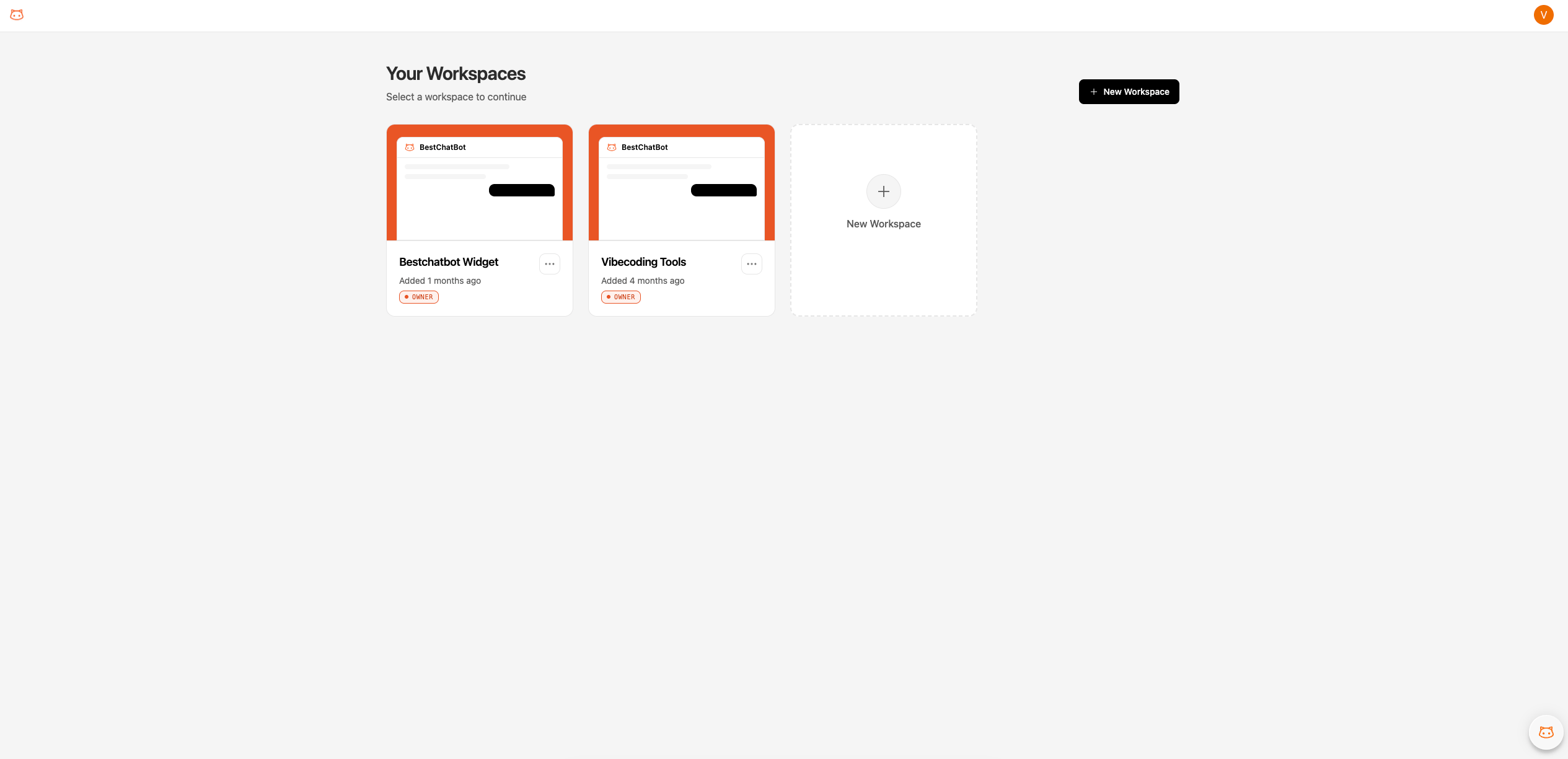
* Takes you to the workspace selector where you can create your first workspace
* Each workspace is an independent environment with its own knowledge base and widget configuration. Billing is applied per account, not per workspace.
A **workspace** is your project space. Each workspace runs one chat widget. Create separate workspaces if you manage multiple sites or brands.
## Next Step
Get up and running in 5 minutes.
Configure and embed the chat widget on your site.
## What Happens During Sign-Up
When you create your account, BestChatBot:
* Creates your profile
* Takes you to the workspace selector where you can create your first workspace
* Each workspace is an independent environment with its own knowledge base and widget configuration. Billing is applied per account, not per workspace.
A **workspace** is your project space. Each workspace runs one chat widget. Create separate workspaces if you manage multiple sites or brands.
## Next Step
Get up and running in 5 minutes.
Configure and embed the chat widget on your site.