> ## Documentation Index
> Fetch the complete documentation index at: https://docs.bestchatbot.io/llms.txt
> Use this file to discover all available pages before exploring further.
# Office Hours
> Set when your team is available for live chat. Outside those hours, handoff becomes an async ticket and BestChatBot emails the visitor when you reply.
# Office Hours
Your team isn't online 24/7, and that's fine. Set your **office hours** and BestChatBot fits human handoff around them. Inside your hours, a visitor connects to an operator live. Outside them, the same request becomes an **async ticket** and the visitor gets an email when your team replies. The bot keeps answering while they wait, so no one stares at a blank screen.
Setting office hours doesn't depend on your plan. Any member with an **Editor** role or higher can set them. Live handoff itself works on **every plan**, since you're a reserved operator by default. See [Human Handoff](/live-chat/human-handoff).
## Setting Your Hours
Open **Web Widget → Availability**. By default the schedule is off and operators show as available around the clock. Turn on **Use an availability schedule** to limit live support to set hours.
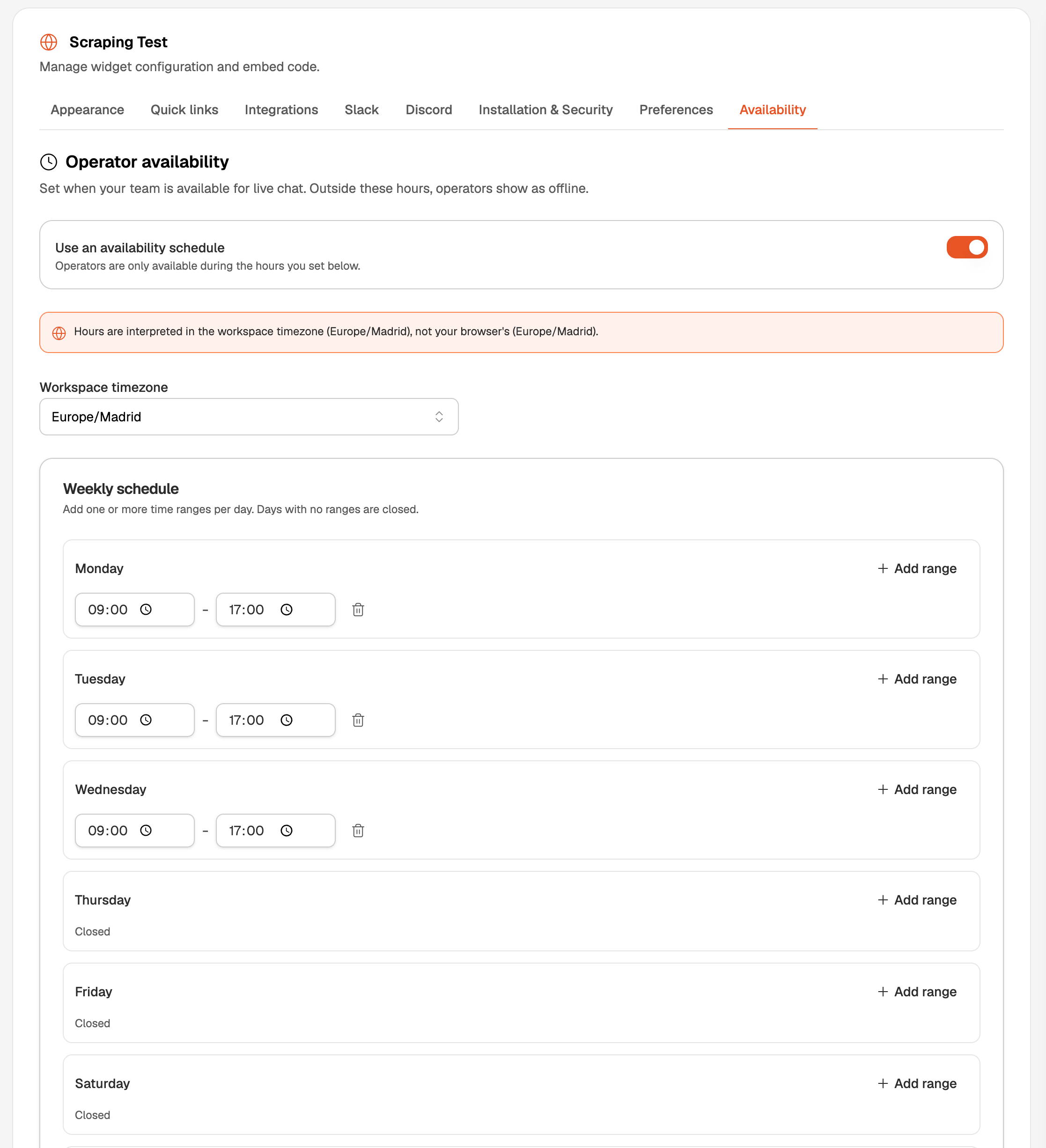 Two settings do the work:
* **Workspace timezone** sets the clock your hours run on, not the visitor's and not your browser's. Point it at wherever your team works, like Europe/Madrid.
* **Weekly schedule** takes one or more time ranges per day. A day with no ranges stays **closed**. Ranges use 24-hour time and can't cross midnight.
Turn the schedule on but leave every day empty, and operators show as offline all week. Email then answers **every** request. Add at least one range, or turn the schedule off for 24/7 live support.
## What Visitors See
The **Talk to a human** button looks the same inside and outside your hours. Only what happens on tap changes. It disappears just once: when no one on your team is set as an operator, so there's nobody to reach.
* **Inside your hours**, the conversation connects live. The visitor reads *"Connecting you with our team. Someone will be with you shortly."* and your operators get a ping.
* **Outside your hours**, the request opens an async ticket. The visitor reads *"We're outside our support hours right now. We'll email you when we reply."* An anonymous visitor also gets a short form to leave an email, so you can reach them.
## The Waiting Ticket
An after-hours request, or a live request nobody grabs in time, becomes a **waiting** ticket. It's a real, open handoff:
* Any operator can claim and answer it later, from the dashboard, Slack, or Discord.
* The bot keeps answering the visitor while it sits, so they're never stuck.
* It stays open for up to **30 days**. If nobody ever picks it up, it quietly goes back to the bot.
In your dashboard [live inbox](/live-chat/human-handoff), these show a **Waiting** status next to your live conversations.
## Emailing the Visitor
Email is how a visitor avoids sitting and waiting. BestChatBot emails the visitor in two cases. Here's each one:
* **They reach you after hours.** A *"We got your message"* email confirms your team will follow up. BestChatBot sends it only to visitors whose email is **verified** through [signed identity](/integrations/identity/overview), never to an address typed into the chat. We built that guard on purpose, to stop misuse.
* **You reply and they've already left.** If the visitor closed the chat, BestChatBot emails your reply as *"You have a new reply from support"* with a preview. It caps at one email per conversation every 15 minutes.
Every visitor email accepts a reply. The visitor answers the email and their message lands right back in the conversation, so the thread keeps going after they close the widget.
Visitor emails are best-effort. If delivery fails, the handoff still works, the visitor just misses that one notification. A visitor who never shares an email stays in the widget only.
## Next Steps
How live chat and operator seats work in the dashboard.
See what each plan includes, from dashboard handoff to Slack and Discord.
Two settings do the work:
* **Workspace timezone** sets the clock your hours run on, not the visitor's and not your browser's. Point it at wherever your team works, like Europe/Madrid.
* **Weekly schedule** takes one or more time ranges per day. A day with no ranges stays **closed**. Ranges use 24-hour time and can't cross midnight.
Turn the schedule on but leave every day empty, and operators show as offline all week. Email then answers **every** request. Add at least one range, or turn the schedule off for 24/7 live support.
## What Visitors See
The **Talk to a human** button looks the same inside and outside your hours. Only what happens on tap changes. It disappears just once: when no one on your team is set as an operator, so there's nobody to reach.
* **Inside your hours**, the conversation connects live. The visitor reads *"Connecting you with our team. Someone will be with you shortly."* and your operators get a ping.
* **Outside your hours**, the request opens an async ticket. The visitor reads *"We're outside our support hours right now. We'll email you when we reply."* An anonymous visitor also gets a short form to leave an email, so you can reach them.
## The Waiting Ticket
An after-hours request, or a live request nobody grabs in time, becomes a **waiting** ticket. It's a real, open handoff:
* Any operator can claim and answer it later, from the dashboard, Slack, or Discord.
* The bot keeps answering the visitor while it sits, so they're never stuck.
* It stays open for up to **30 days**. If nobody ever picks it up, it quietly goes back to the bot.
In your dashboard [live inbox](/live-chat/human-handoff), these show a **Waiting** status next to your live conversations.
## Emailing the Visitor
Email is how a visitor avoids sitting and waiting. BestChatBot emails the visitor in two cases. Here's each one:
* **They reach you after hours.** A *"We got your message"* email confirms your team will follow up. BestChatBot sends it only to visitors whose email is **verified** through [signed identity](/integrations/identity/overview), never to an address typed into the chat. We built that guard on purpose, to stop misuse.
* **You reply and they've already left.** If the visitor closed the chat, BestChatBot emails your reply as *"You have a new reply from support"* with a preview. It caps at one email per conversation every 15 minutes.
Every visitor email accepts a reply. The visitor answers the email and their message lands right back in the conversation, so the thread keeps going after they close the widget.
Visitor emails are best-effort. If delivery fails, the handoff still works, the visitor just misses that one notification. A visitor who never shares an email stays in the widget only.
## Next Steps
How live chat and operator seats work in the dashboard.
See what each plan includes, from dashboard handoff to Slack and Discord.