> ## Documentation Index
> Fetch the complete documentation index at: https://docs.bestchatbot.io/llms.txt
> Use this file to discover all available pages before exploring further.
# Human Handoff
> Let visitors talk to a real person on your team, live in the chat, and draft replies with AI grounded in your knowledge base.
# Human Handoff
Your bot handles most conversations on its own. But sometimes a visitor needs a real person — a tricky case, a sensitive question, or a deal worth closing in the moment. **Human handoff** lets a visitor pass the conversation to your team and chat with them live, right inside the widget.
Human handoff runs on **operator seats**, which come with your plan. See [Pricing Plans](/billing/pricing-plans) for what your plan includes.
## How a Visitor Reaches Your Team
The widget shows a **Talk to a human** button in its header whenever a live agent is available — that is, when you have at least one operator seat and one active operator.
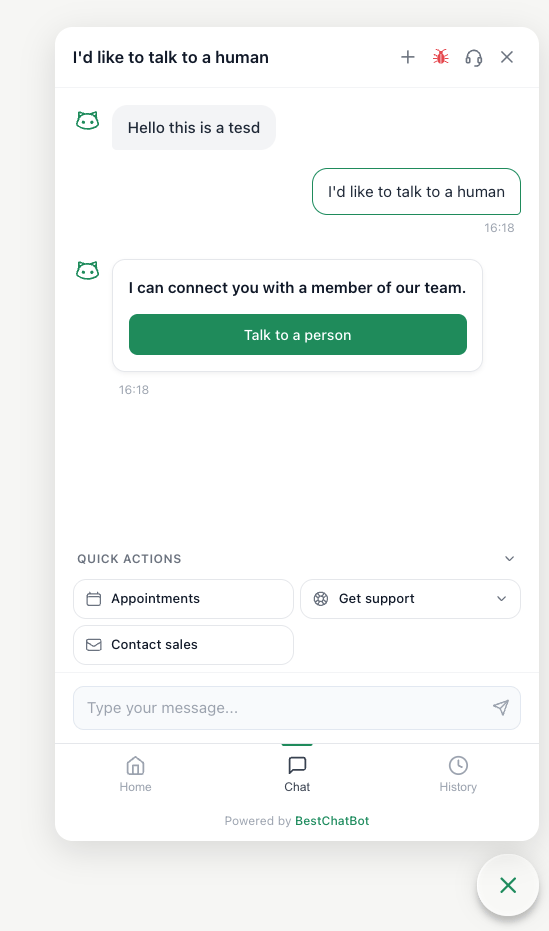 When the visitor taps it, the conversation joins your team's queue, and your operators get an email letting them know a visitor is waiting.
## Answering from Your Dashboard
Handoffs land in the **Conversations** area of your dashboard, which has two views switched with a toggle:
* **Tracking** — a read-only history of conversations, visible to your whole team.
* **Live inbox** — the operator workspace where you actually reply. This toggle only appears for members who are **operators**.
When the visitor taps it, the conversation joins your team's queue, and your operators get an email letting them know a visitor is waiting.
## Answering from Your Dashboard
Handoffs land in the **Conversations** area of your dashboard, which has two views switched with a toggle:
* **Tracking** — a read-only history of conversations, visible to your whole team.
* **Live inbox** — the operator workspace where you actually reply. This toggle only appears for members who are **operators**.
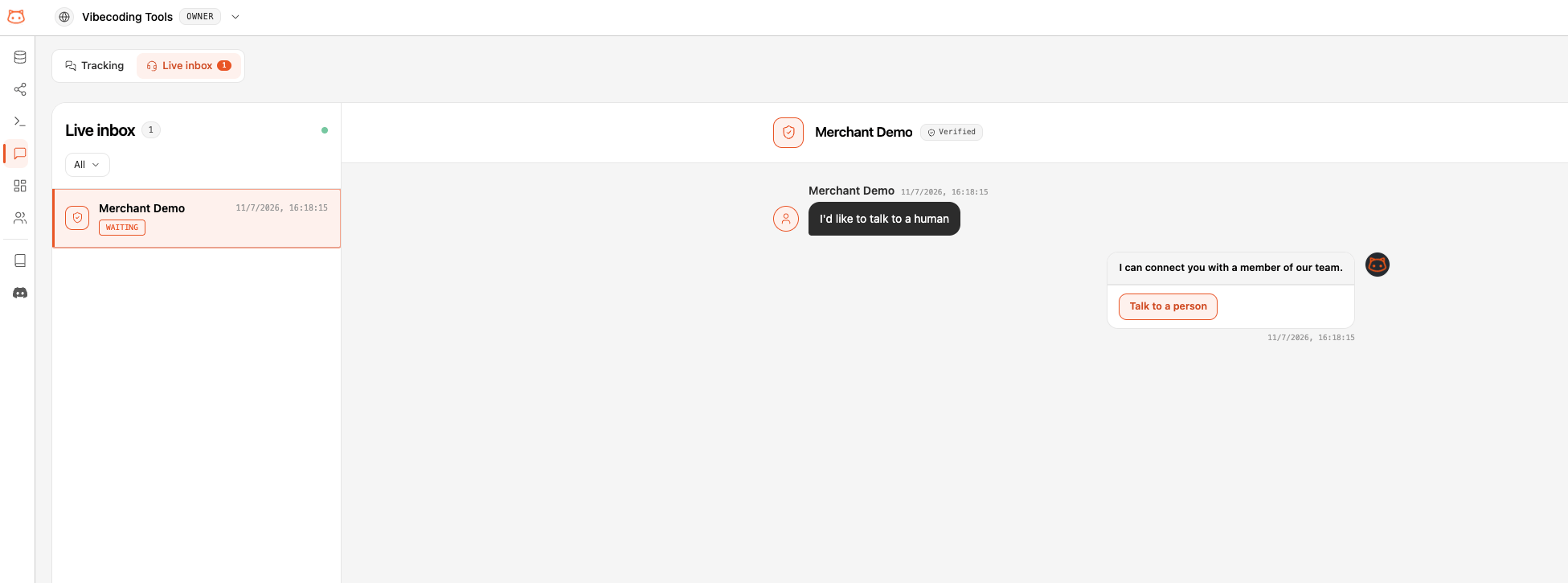 In the **Live inbox**, waiting conversations appear in real time — a sound plays when a new one arrives (you can mute it). Each conversation shows a status: **Waiting**, **Active**, **Closed**, or **Slack**.
Select a conversation to see the full transcript and a reply box. Type your reply and press **Enter** to send (**Shift + Enter** adds a new line).
* **Your first reply claims the conversation.** From then on it's yours, and other operators see it as handled. If two operators open the same one, only the first to reply gets it — the other keeps their draft and a note that someone else took over.
* **Close it when you're done.** The **Close conversation** button ends the handoff, returns the visitor to the bot, and removes the conversation from every operator's live inbox. The visitor can request a human again later.
## Who Can Answer: Operators & Seats
Being an **operator** is a capability you grant per member — separate from their role. An owner or admin marks a member as an operator from **Members & Roles**, and any role can be one.
How many people can be operators at once is set by your **operator seats**, which come with your plan. Your Members page shows how many seats are used out of your limit. If a plan includes no operator seats, human handoff stays off and the **Talk to a human** button never appears.
Operator seats are governed by billing. Use [Members & Roles](/workspace/members-roles) to assign operators, and see [Pricing Plans](/billing/pricing-plans) for seat limits.
## Conversation Markers
The transcript records who joined and left, so anyone reviewing it later gets the full picture:
* **Operator joined the conversation** — added when an operator sends their first reply.
* **Operator closed the conversation** — added when the handoff is closed.
In the widget, the visitor sees a simple **A team member joined** divider when a person takes over.
## AI Compose: Draft Replies from Your Knowledge Base
While you answer live, you don't have to write every reply from scratch. Next to each visitor message, an **AI compose** button (✨) appears on hover.
In the **Live inbox**, waiting conversations appear in real time — a sound plays when a new one arrives (you can mute it). Each conversation shows a status: **Waiting**, **Active**, **Closed**, or **Slack**.
Select a conversation to see the full transcript and a reply box. Type your reply and press **Enter** to send (**Shift + Enter** adds a new line).
* **Your first reply claims the conversation.** From then on it's yours, and other operators see it as handled. If two operators open the same one, only the first to reply gets it — the other keeps their draft and a note that someone else took over.
* **Close it when you're done.** The **Close conversation** button ends the handoff, returns the visitor to the bot, and removes the conversation from every operator's live inbox. The visitor can request a human again later.
## Who Can Answer: Operators & Seats
Being an **operator** is a capability you grant per member — separate from their role. An owner or admin marks a member as an operator from **Members & Roles**, and any role can be one.
How many people can be operators at once is set by your **operator seats**, which come with your plan. Your Members page shows how many seats are used out of your limit. If a plan includes no operator seats, human handoff stays off and the **Talk to a human** button never appears.
Operator seats are governed by billing. Use [Members & Roles](/workspace/members-roles) to assign operators, and see [Pricing Plans](/billing/pricing-plans) for seat limits.
## Conversation Markers
The transcript records who joined and left, so anyone reviewing it later gets the full picture:
* **Operator joined the conversation** — added when an operator sends their first reply.
* **Operator closed the conversation** — added when the handoff is closed.
In the widget, the visitor sees a simple **A team member joined** divider when a person takes over.
## AI Compose: Draft Replies from Your Knowledge Base
While you answer live, you don't have to write every reply from scratch. Next to each visitor message, an **AI compose** button (✨) appears on hover.
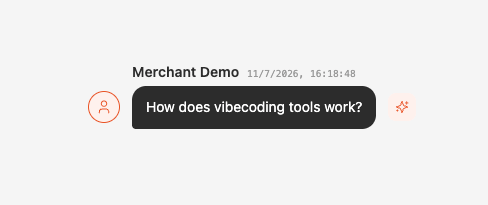 Click it and BestChatBot drafts a reply to **that specific message**, grounded in your knowledge base, and drops it into your reply box. A banner reminds you it's a draft — *"AI draft — generated from the visitor's message, review before sending."*
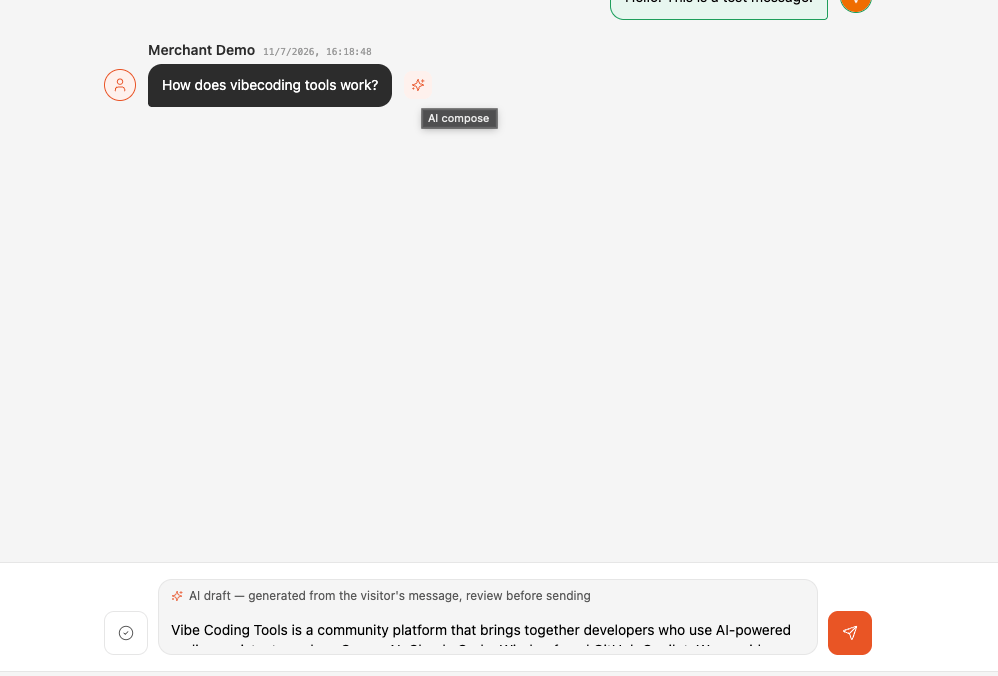 You stay in control: edit the draft (any typing clears the AI flag), then send it like any other reply. If your knowledge base can't ground an answer, the draft is a neutral, safe message instead.
AI compose is **free** — a draft never counts against your response quota. Only the bot's own automatic replies do.
## Answer from Slack Instead
Prefer to handle live chats where your team already works? You can route handoffs to a Slack channel and reply from there.
Handle handoffs from a Slack channel — your team replies in Slack, visitors keep chatting in the widget.
Assign operators and manage who can reply to live conversations.
You stay in control: edit the draft (any typing clears the AI flag), then send it like any other reply. If your knowledge base can't ground an answer, the draft is a neutral, safe message instead.
AI compose is **free** — a draft never counts against your response quota. Only the bot's own automatic replies do.
## Answer from Slack Instead
Prefer to handle live chats where your team already works? You can route handoffs to a Slack channel and reply from there.
Handle handoffs from a Slack channel — your team replies in Slack, visitors keep chatting in the widget.
Assign operators and manage who can reply to live conversations.