> ## Documentation Index
> Fetch the complete documentation index at: https://docs.bestchatbot.io/llms.txt
> Use this file to discover all available pages before exploring further.
# Connect Slack
> Handle live chat handoffs from a Slack channel — your team replies in Slack, visitors keep chatting in the widget.
# Connect Slack
Human handoff doesn't have to live in the dashboard. Connect Slack and your team can pick up live conversations **from a Slack channel** — replies you post in the thread reach the visitor in the widget, and the conversation still shows up in your dashboard inbox.
Slack live-chat handoff is a **premium** feature, available on the **Pro** and **Business** plans. See [Pricing Plans](/billing/pricing-plans).
## How It Works
When a visitor asks for a human, BestChatBot opens **one thread per conversation** in your chosen Slack channel. Anyone on your team replies in that thread; the visitor sees the replies in the widget, and messages stay in sync with your dashboard inbox.
## Connect Slack to Your Widget
You need an **Editor**, **Admin**, or **Owner** role, on a plan that includes Slack.
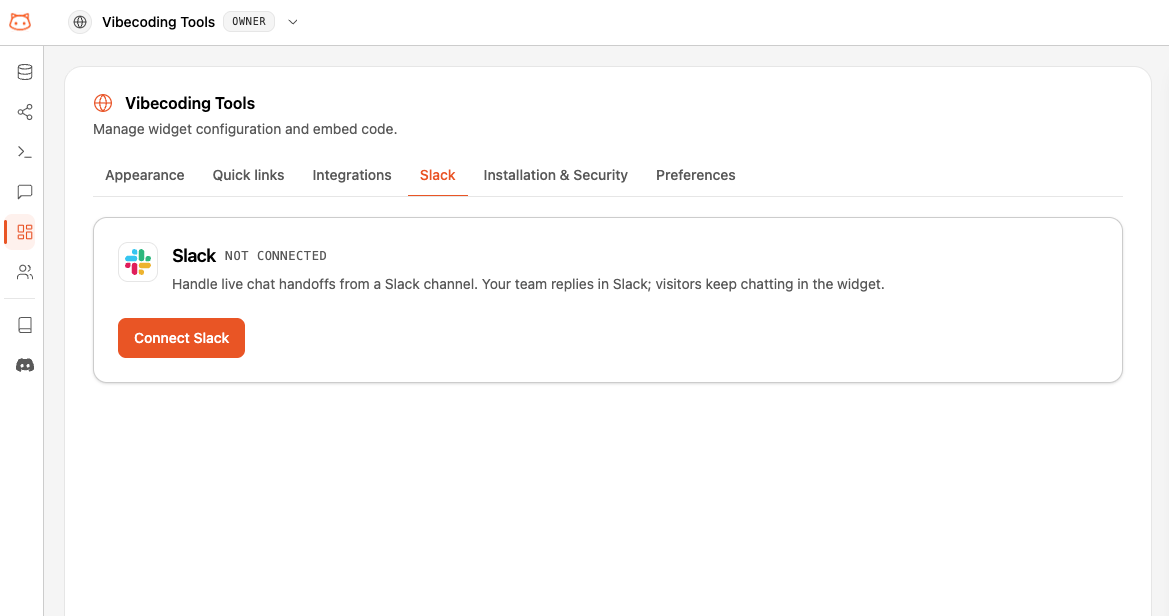
In your workspace dashboard, open **Web Widget → Slack**, then click **Connect Slack**.
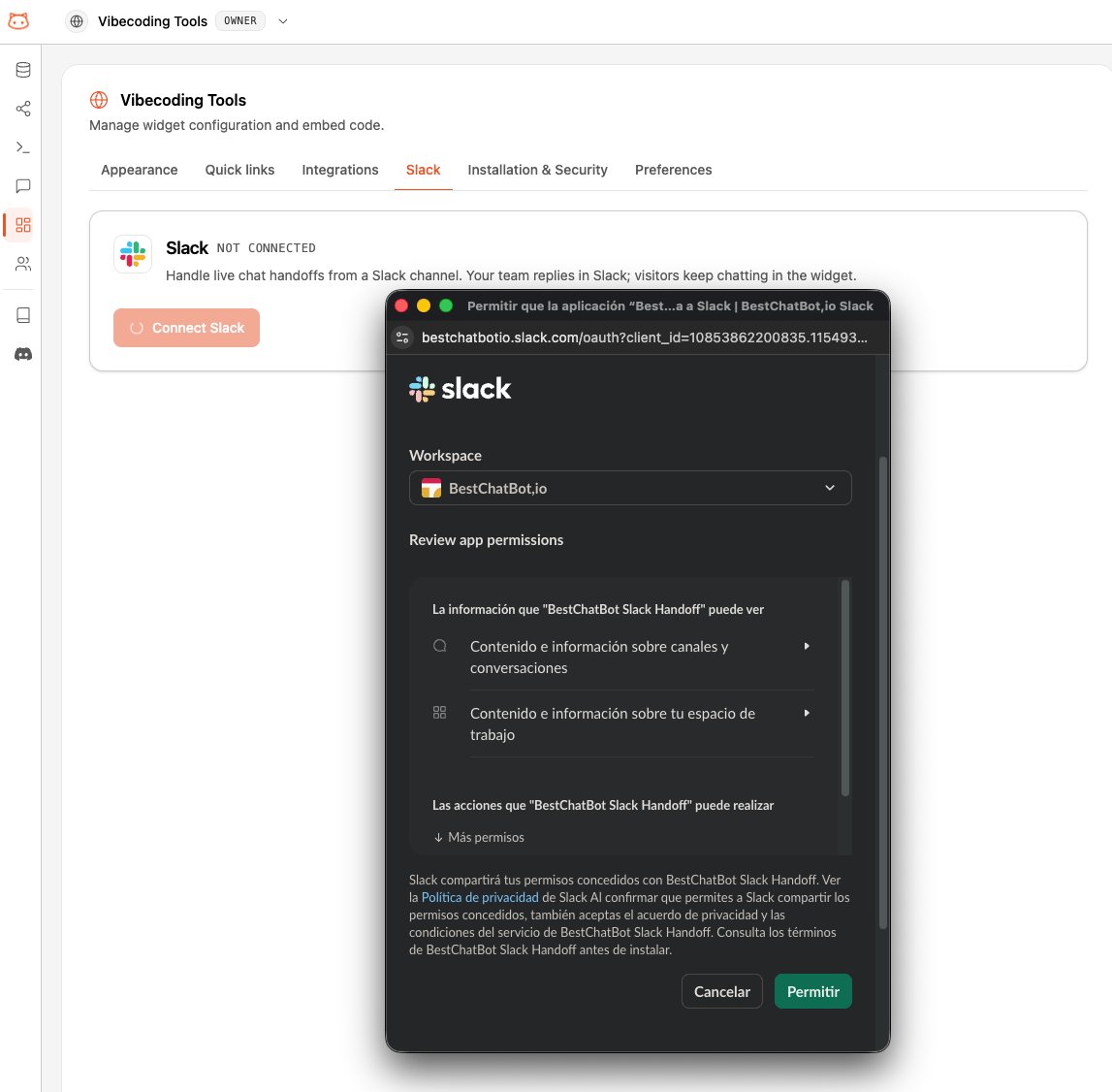
 A Slack window opens. Sign in and approve the **BestChatBot Handoff** app for your Slack workspace. It requests only the scopes it needs to post and read handoff threads — it can't leave your channels on its own.
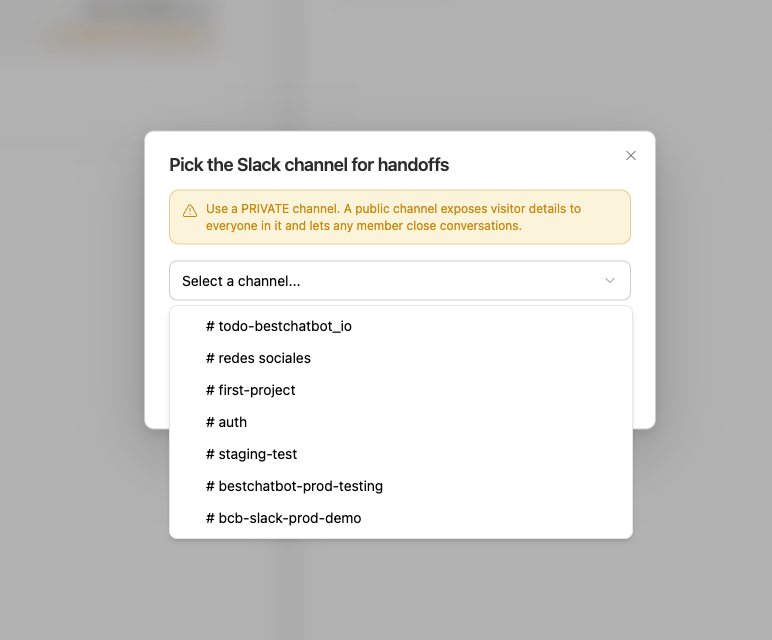
 Back in BestChatBot, choose the Slack channel where handoffs should land.
Use a **private** channel. A public channel exposes visitor details to everyone in your Slack workspace.
For a private channel, invite the **BestChatBot Handoff** bot to it first — private channels only appear in the list once the bot is a member.
Back in BestChatBot, choose the Slack channel where handoffs should land.
Use a **private** channel. A public channel exposes visitor details to everyone in your Slack workspace.
For a private channel, invite the **BestChatBot Handoff** bot to it first — private channels only appear in the list once the bot is a member.
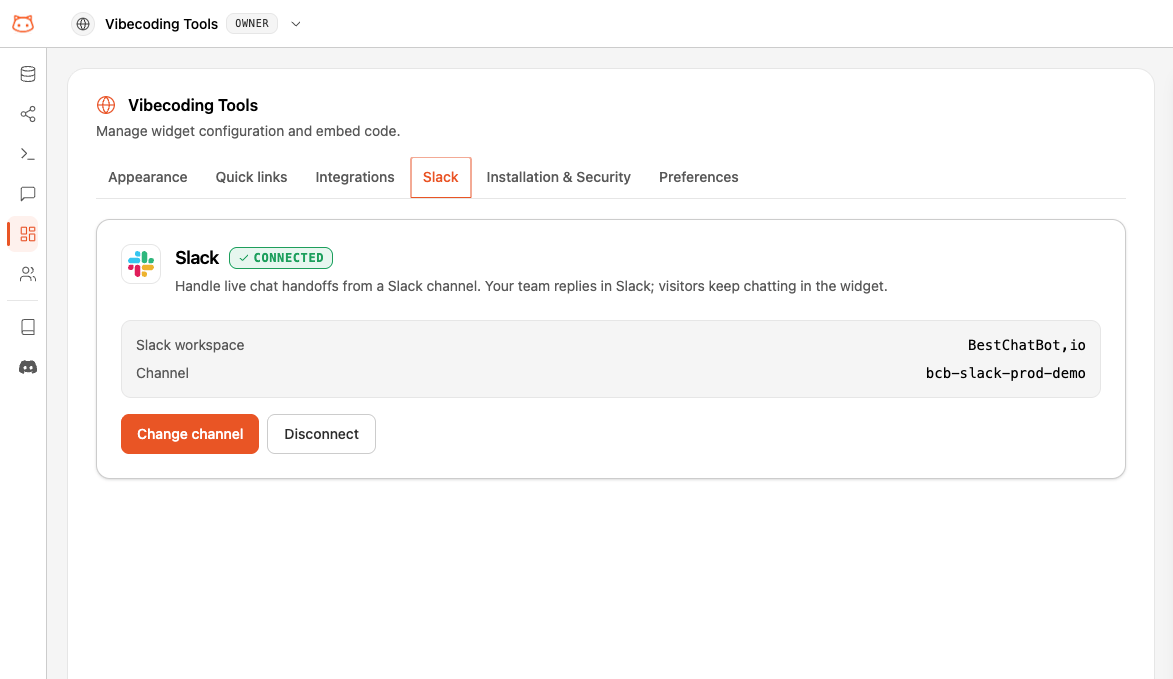
 The Slack tab shows your connected Slack workspace and channel, with options to **Change channel** or **Disconnect**.
 ## Handling a Handoff in Slack
When a visitor requests a human, a thread opens in your channel titled **New user handoff request**, with a card showing who the visitor is (name, email, ID, or "Anonymous visitor") and a link to open the conversation in your dashboard.
## Handling a Handoff in Slack
When a visitor requests a human, a thread opens in your channel titled **New user handoff request**, with a card showing who the visitor is (name, email, ID, or "Anonymous visitor") and a link to open the conversation in your dashboard.
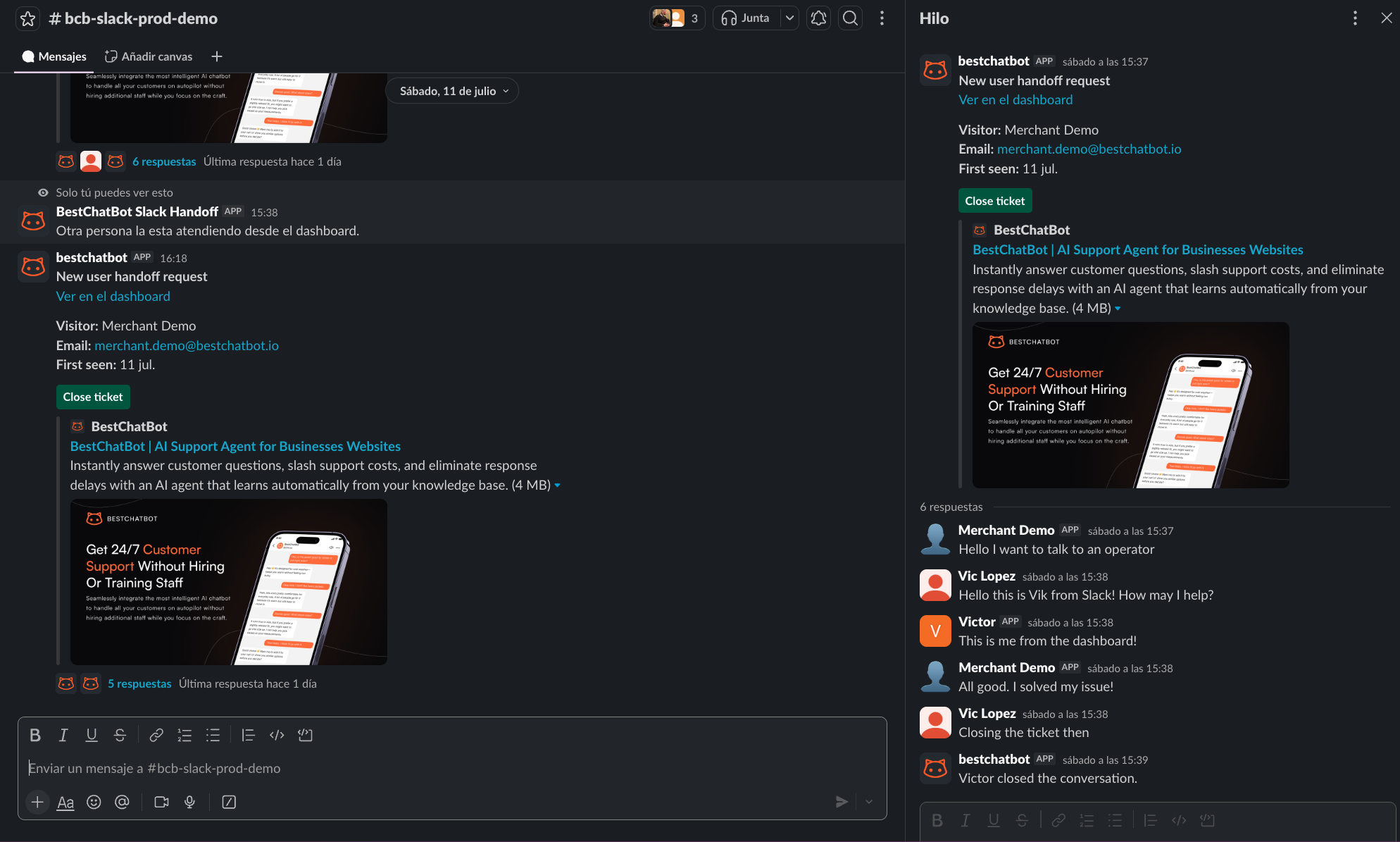 * **Reply in the thread** to answer the visitor — your message appears in their widget.
* The visitor's messages and any dashboard-operator replies are mirrored into the thread, so the whole exchange stays in one place.
* Click **Close ticket** when you're done. The thread is marked resolved and the handoff ends.
Slack is an **alternative** to the dashboard, not a replacement. The same conversation still appears in your dashboard's [live inbox](/live-chat/human-handoff), tagged so you can see it's being handled in Slack.
## Privacy
When you enable Slack handoff, visitor conversation data is shared with Slack to deliver it to your channel. Slack is listed as a third-party service in our Privacy Policy. Using a **private** channel keeps that data limited to the team members you invite.
## Disconnecting
Open **Web Widget → Slack** and click **Disconnect**. Handoffs stop going to Slack right away and return to dashboard-only. You can reconnect anytime — your channel choice is remembered.
## Availability
| Plan | Slack handoff |
| -------- | :-----------: |
| Free | — |
| Starter | — |
| Pro | ✅ |
| Business | ✅ |
## Next Steps
See how live chat works in the dashboard, including AI-drafted replies.
Compare plans and find the one that includes Slack handoff.
* **Reply in the thread** to answer the visitor — your message appears in their widget.
* The visitor's messages and any dashboard-operator replies are mirrored into the thread, so the whole exchange stays in one place.
* Click **Close ticket** when you're done. The thread is marked resolved and the handoff ends.
Slack is an **alternative** to the dashboard, not a replacement. The same conversation still appears in your dashboard's [live inbox](/live-chat/human-handoff), tagged so you can see it's being handled in Slack.
## Privacy
When you enable Slack handoff, visitor conversation data is shared with Slack to deliver it to your channel. Slack is listed as a third-party service in our Privacy Policy. Using a **private** channel keeps that data limited to the team members you invite.
## Disconnecting
Open **Web Widget → Slack** and click **Disconnect**. Handoffs stop going to Slack right away and return to dashboard-only. You can reconnect anytime — your channel choice is remembered.
## Availability
| Plan | Slack handoff |
| -------- | :-----------: |
| Free | — |
| Starter | — |
| Pro | ✅ |
| Business | ✅ |
## Next Steps
See how live chat works in the dashboard, including AI-drafted replies.
Compare plans and find the one that includes Slack handoff.