> ## Documentation Index
> Fetch the complete documentation index at: https://docs.bestchatbot.io/llms.txt
> Use this file to discover all available pages before exploring further.
# Connect Discord
> Handle live chat handoffs from a Discord server. Your team replies in Discord, visitors keep chatting in the widget.
# Connect Discord
Human handoff can live where your team already hangs out. Connect Discord and your operators pick up live conversations from a Discord server. Replies they post in the thread reach the visitor in the widget, and the conversation still shows up in your dashboard inbox.
Discord live-chat handoff is a **premium** feature on the **Pro** and **Business** plans. See [Pricing Plans](/billing/pricing-plans).
Discord and Slack handoff are **mutually exclusive**. Connecting Discord turns off Slack handoff for this workspace, and the other way around. Live chat routes to one place at a time.
## How It Works
When a visitor asks for a human, BestChatBot opens one thread per conversation in your chosen channel. An operator replies in that thread, the visitor sees the replies in the widget, and everything stays in sync with your dashboard inbox.
Connecting takes two phases. First you install the bot in your server. Then you pick a channel and an operator role. Handoffs stay off until both are done.
## Connect Discord to Your Widget
You need an **Editor**, **Admin**, or **Owner** role, on a plan that includes Discord. Adding a bot to a server also needs the **Manage Server** permission in Discord itself.
In your workspace dashboard, open **Web Widget → Discord**, then click **Connect Discord**.
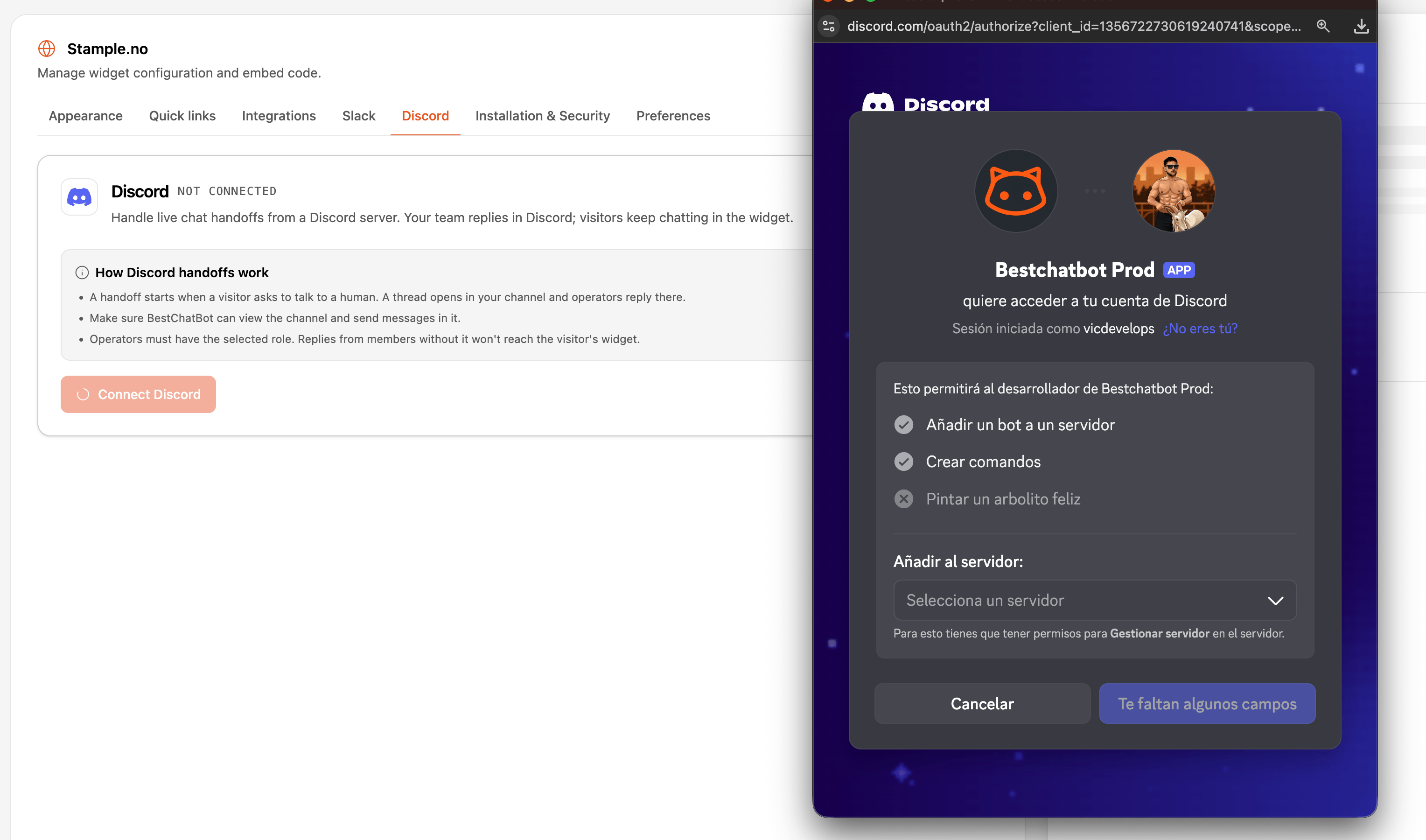
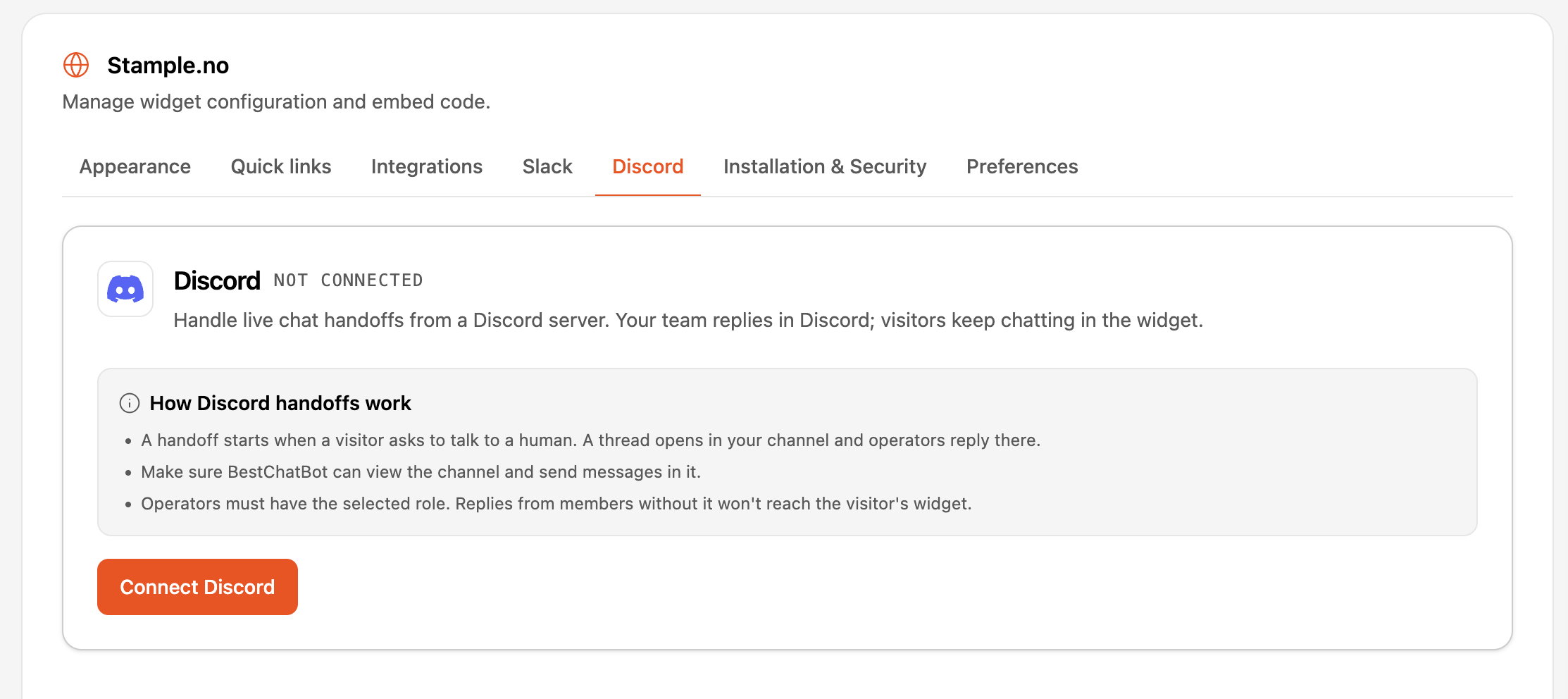 A Discord window opens. Pick one of your servers and approve the bot. BestChatBot asks only for the permissions it needs to run handoff threads: **View Channel**, **Send Messages**, **Read Message History**, **Create Public/Private Threads**, and **Send Messages in Threads**.
 Back in the dashboard, the Discord tab now reads **Setup incomplete**. The bot is in your server, but handoffs stay off until you finish the next step.
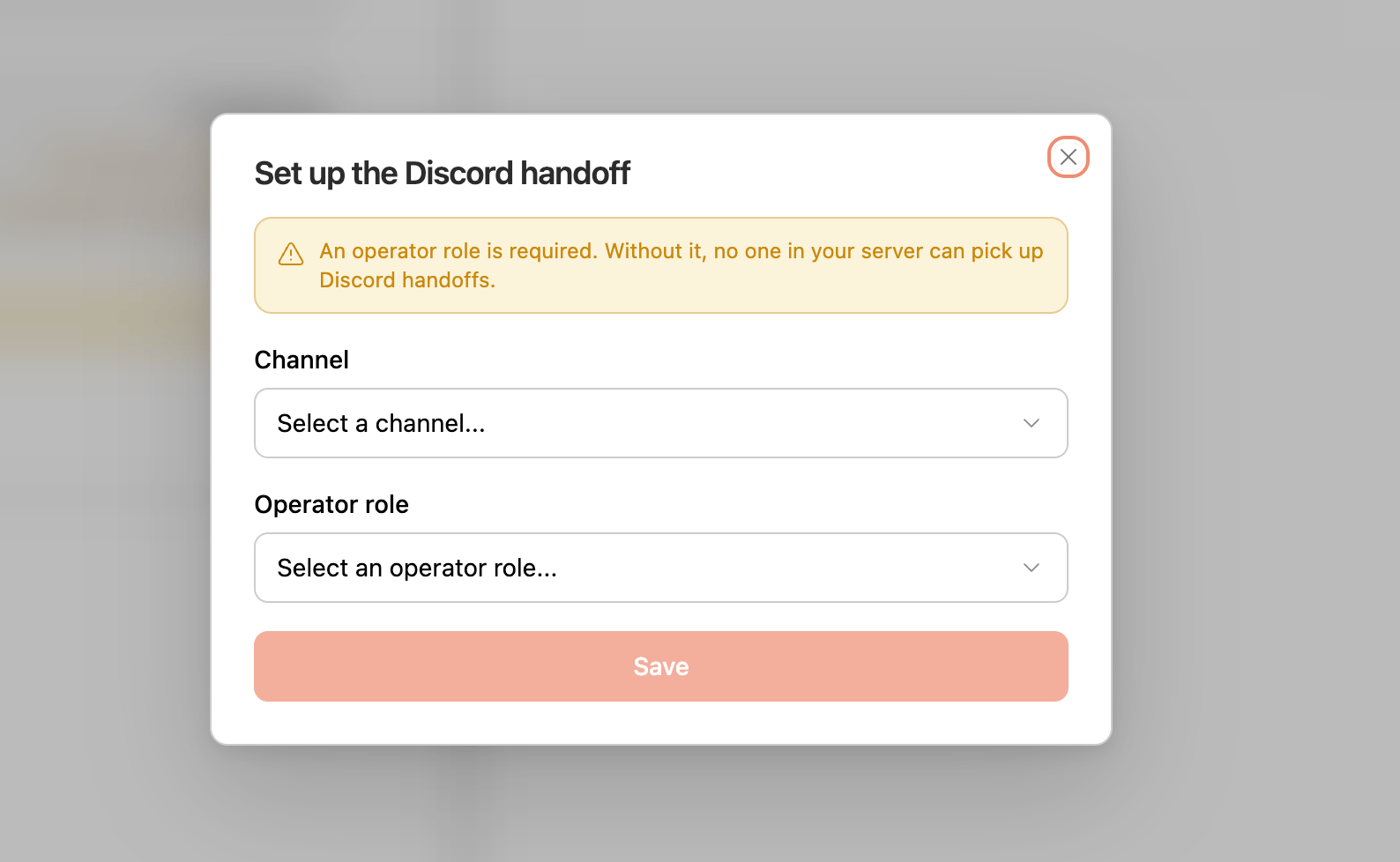
Click **Finish setup** and choose two things. Both are required:
* **Channel** is the text channel where handoff threads open. Only text channels show up in the list.
* **Operator role** is the role whose members can answer. **Replies from members without this role never reach the visitor.**
Back in the dashboard, the Discord tab now reads **Setup incomplete**. The bot is in your server, but handoffs stay off until you finish the next step.
Click **Finish setup** and choose two things. Both are required:
* **Channel** is the text channel where handoff threads open. Only text channels show up in the list.
* **Operator role** is the role whose members can answer. **Replies from members without this role never reach the visitor.**
 If the bot can't see or post in the channel you picked, setup fails with: *"The bot doesn't have permission for that action in your Discord server. Give the bot's role the 'View Channel' and 'Send Messages' permissions (or the Administrator role) and try again."* Fix the channel's permissions in Discord, then try again.
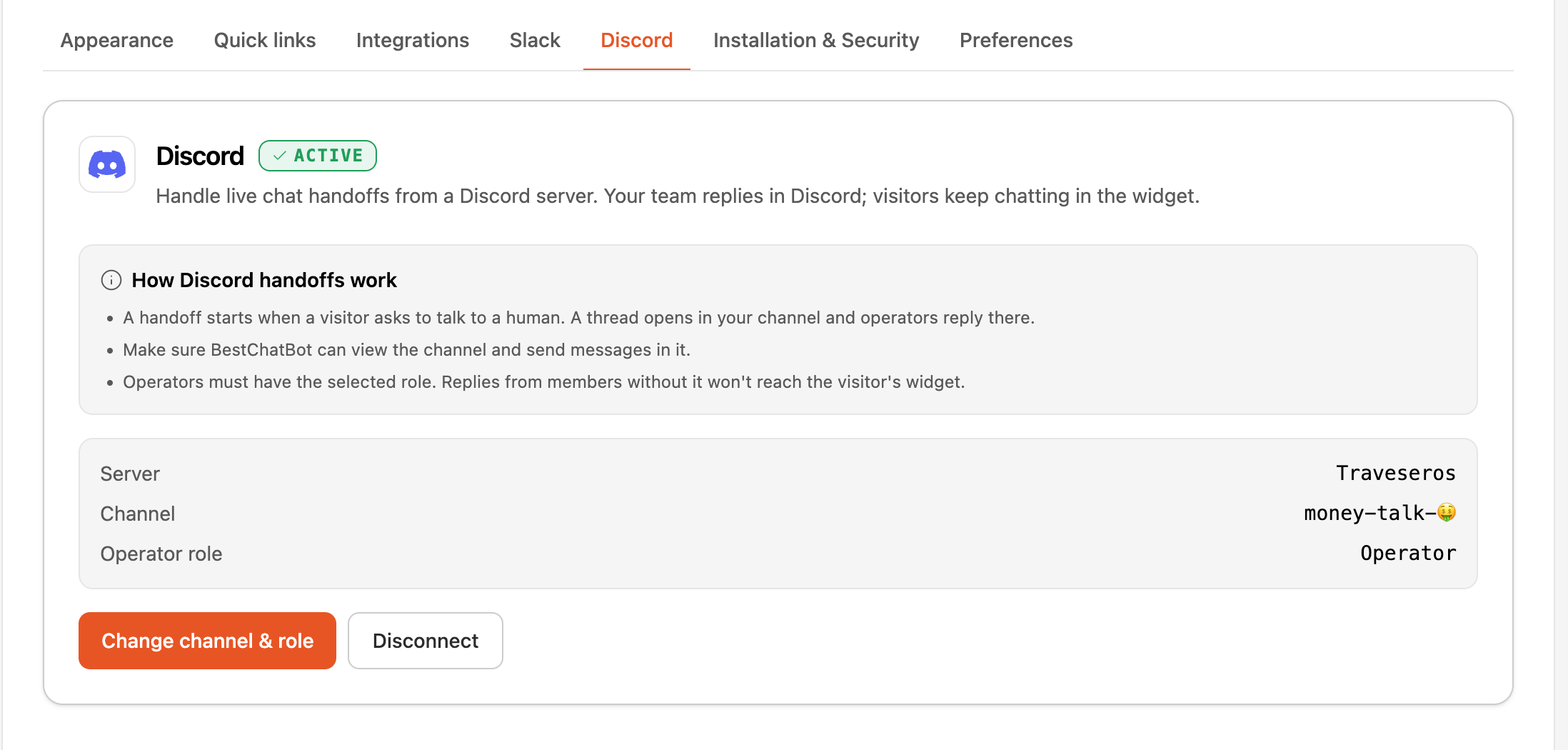
The Discord tab now reads **Active** and shows your server, channel, and operator role, plus buttons to **Change channel & role** or **Disconnect**.
If the bot can't see or post in the channel you picked, setup fails with: *"The bot doesn't have permission for that action in your Discord server. Give the bot's role the 'View Channel' and 'Send Messages' permissions (or the Administrator role) and try again."* Fix the channel's permissions in Discord, then try again.
The Discord tab now reads **Active** and shows your server, channel, and operator role, plus buttons to **Change channel & role** or **Disconnect**.
 ## Handling a Handoff in Discord
When a visitor requests a human, the bot opens a thread named after the conversation, like **Handoff a1b2c3d4**. The first post is a card, *"New handoff - a visitor requested a human. Reply in this thread."*, with the visitor's **Visitor**, **Email**, **ID**, and **First seen** details.
## Handling a Handoff in Discord
When a visitor requests a human, the bot opens a thread named after the conversation, like **Handoff a1b2c3d4**. The first post is a card, *"New handoff - a visitor requested a human. Reply in this thread."*, with the visitor's **Visitor**, **Email**, **ID**, and **First seen** details.
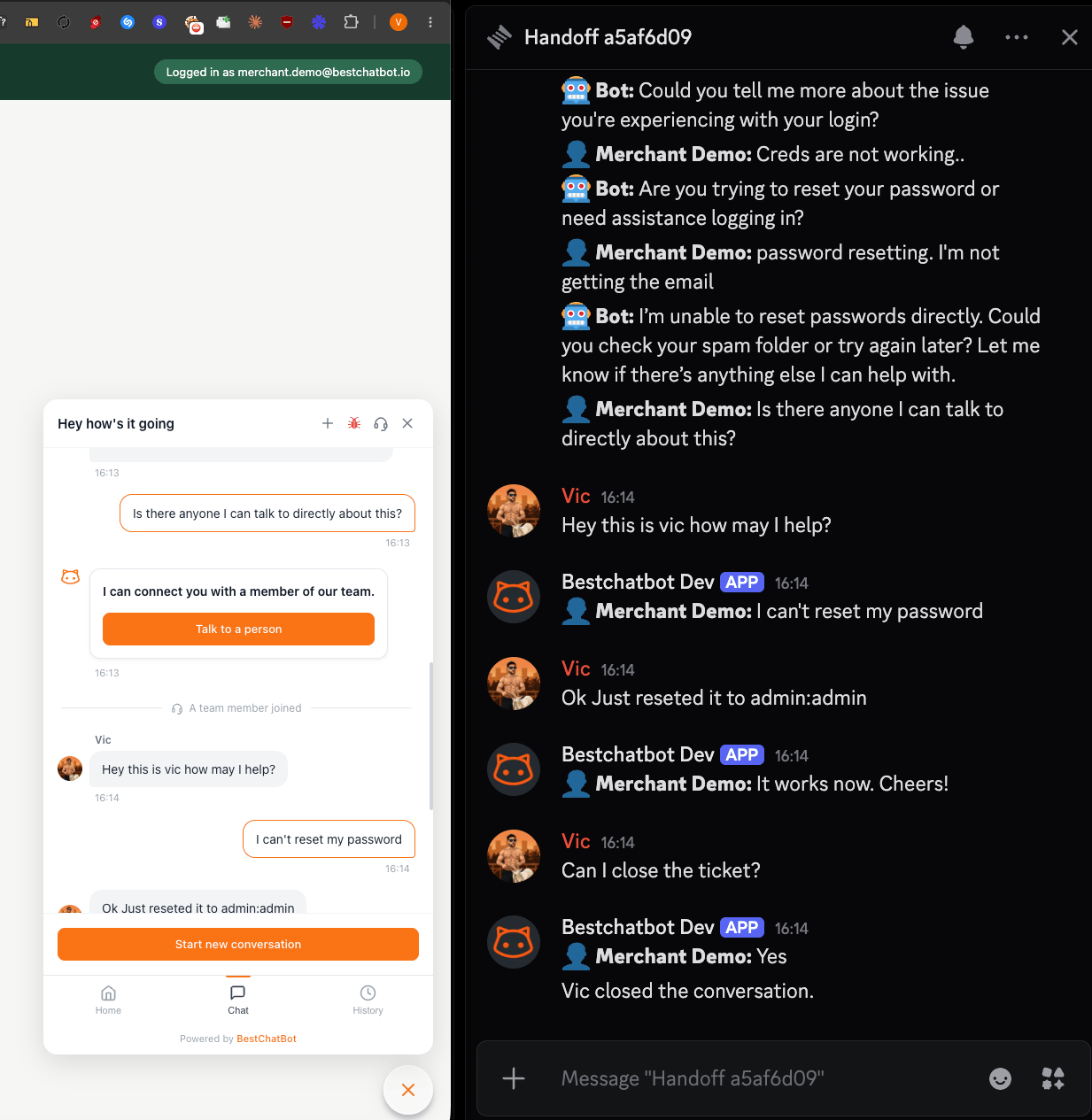 Here's the flow:
* **Reply in the thread** to answer the visitor. Your message shows up in their widget. Only members with the operator role can answer.
* The bot mirrors the visitor's messages and any dashboard-operator replies into the thread. A Discord bot posts under one identity, so each mirrored message carries a small badge for who sent it: visitor, bot, or operator.
* Click **Resolve** when you're done. The handoff ends and the visitor goes back to the bot.
Discord is an **alternative** to the dashboard, not a replacement. The same conversation still shows up in your dashboard's [live inbox](/live-chat/human-handoff), tagged **In Discord** so you can see where your team is handling it.
## Privacy
Here's the one thing I'd double-check before going live. Handoff threads are **public** to your server by design, and the visitor's email and ID show up in the thread's first card. Pick a **dedicated channel that only your operator role can see**, so visitor details don't reach your whole server. Turning on Discord handoff shares visitor conversation data with Discord to deliver it to your channel. We list Discord as a third-party service in our Privacy Policy.
## Disconnecting
Open **Web Widget → Discord** and click **Disconnect**. Handoffs stop going to Discord right away and go back to dashboard-only. You can reconnect anytime, though you'll pick the channel and operator role again.
## Availability
| Plan | Discord handoff |
| -------- | :-------------: |
| Free | ❌ |
| Starter | ❌ |
| Pro | ✅ |
| Business | ✅ |
## Next Steps
See how live chat works in the dashboard, including AI-drafted replies.
Set when your team is live, and decide what happens to handoffs after hours.
Here's the flow:
* **Reply in the thread** to answer the visitor. Your message shows up in their widget. Only members with the operator role can answer.
* The bot mirrors the visitor's messages and any dashboard-operator replies into the thread. A Discord bot posts under one identity, so each mirrored message carries a small badge for who sent it: visitor, bot, or operator.
* Click **Resolve** when you're done. The handoff ends and the visitor goes back to the bot.
Discord is an **alternative** to the dashboard, not a replacement. The same conversation still shows up in your dashboard's [live inbox](/live-chat/human-handoff), tagged **In Discord** so you can see where your team is handling it.
## Privacy
Here's the one thing I'd double-check before going live. Handoff threads are **public** to your server by design, and the visitor's email and ID show up in the thread's first card. Pick a **dedicated channel that only your operator role can see**, so visitor details don't reach your whole server. Turning on Discord handoff shares visitor conversation data with Discord to deliver it to your channel. We list Discord as a third-party service in our Privacy Policy.
## Disconnecting
Open **Web Widget → Discord** and click **Disconnect**. Handoffs stop going to Discord right away and go back to dashboard-only. You can reconnect anytime, though you'll pick the channel and operator role again.
## Availability
| Plan | Discord handoff |
| -------- | :-------------: |
| Free | ❌ |
| Starter | ❌ |
| Pro | ✅ |
| Business | ✅ |
## Next Steps
See how live chat works in the dashboard, including AI-drafted replies.
Set when your team is live, and decide what happens to handoffs after hours.