> ## Documentation Index
> Fetch the complete documentation index at: https://docs.bestchatbot.io/llms.txt
> Use this file to discover all available pages before exploring further.
# Upload Documents
> Add files to your knowledge base so the bot can answer questions from your content.
# Upload Documents
The **Files** tab in the Document Manager lets you upload files that BestChatBot uses to answer questions. This is the most direct way to add knowledge to your bot.
## Supported File Types
| Format | Extension | Best For |
| -------- | --------- | -------------------------------- |
| PDF | `.pdf` | Product manuals, guides, reports |
| Word | `.docx` | Internal documentation, SOPs |
| Text | `.txt` | Plain text notes, FAQs |
| Markdown | `.md` | Technical docs, README files |
## How to Upload
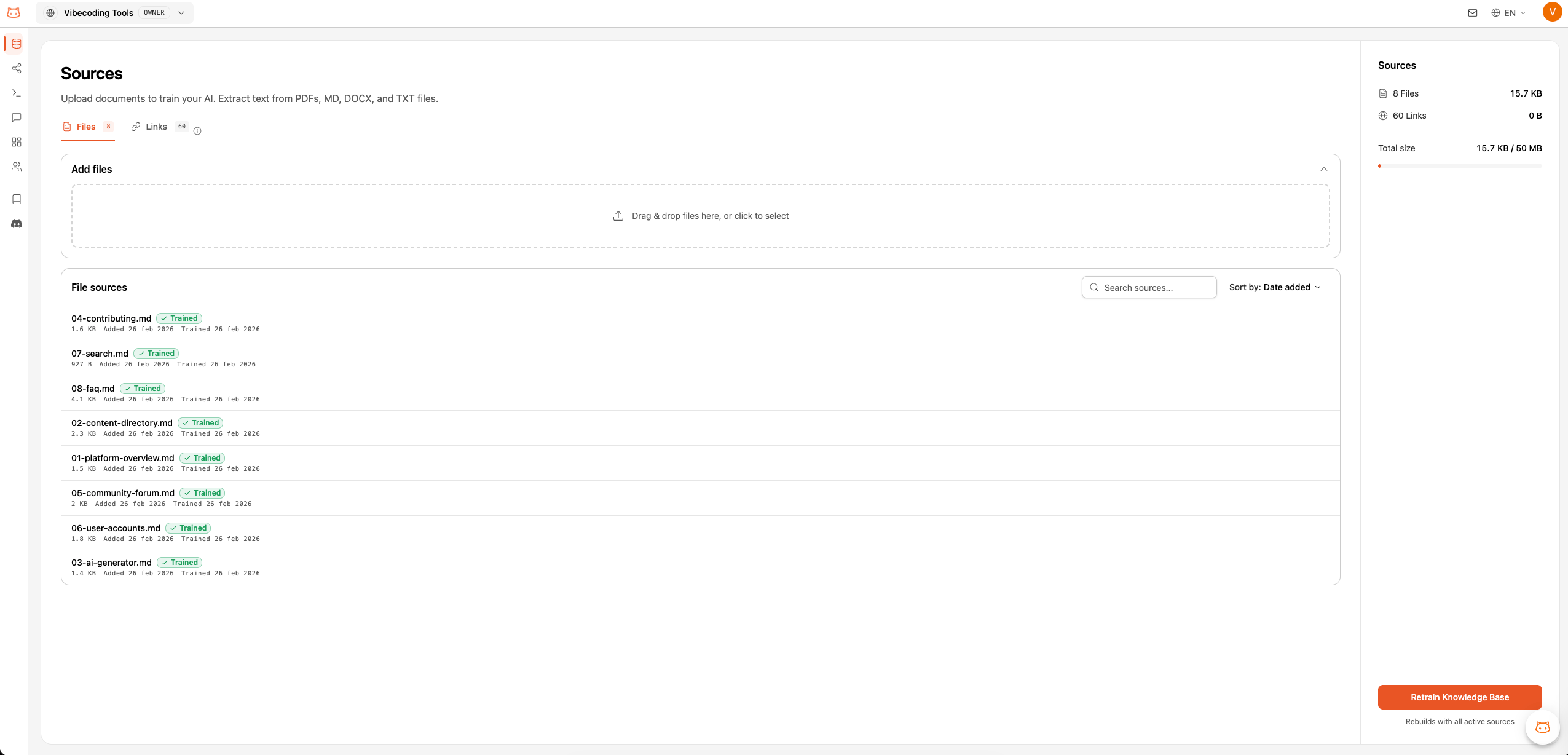
From the dashboard sidebar, go to the **Document Manager** section. Make sure you're on the **Files** tab.
Drag your files directly into the upload area, or click the upload zone to browse your computer.
You can upload multiple files at once by selecting them all before dropping.
You'll see a progress indicator for each file as it's being processed.
After uploading, click **Rebuild Knowledge Base** to incorporate the new content into the bot's active knowledge.
The bot won't use newly uploaded content until you rebuild the knowledge base. During the rebuild, the bot will **not respond** to questions to avoid giving incorrect or incomplete answers.
 ## Managing Documents
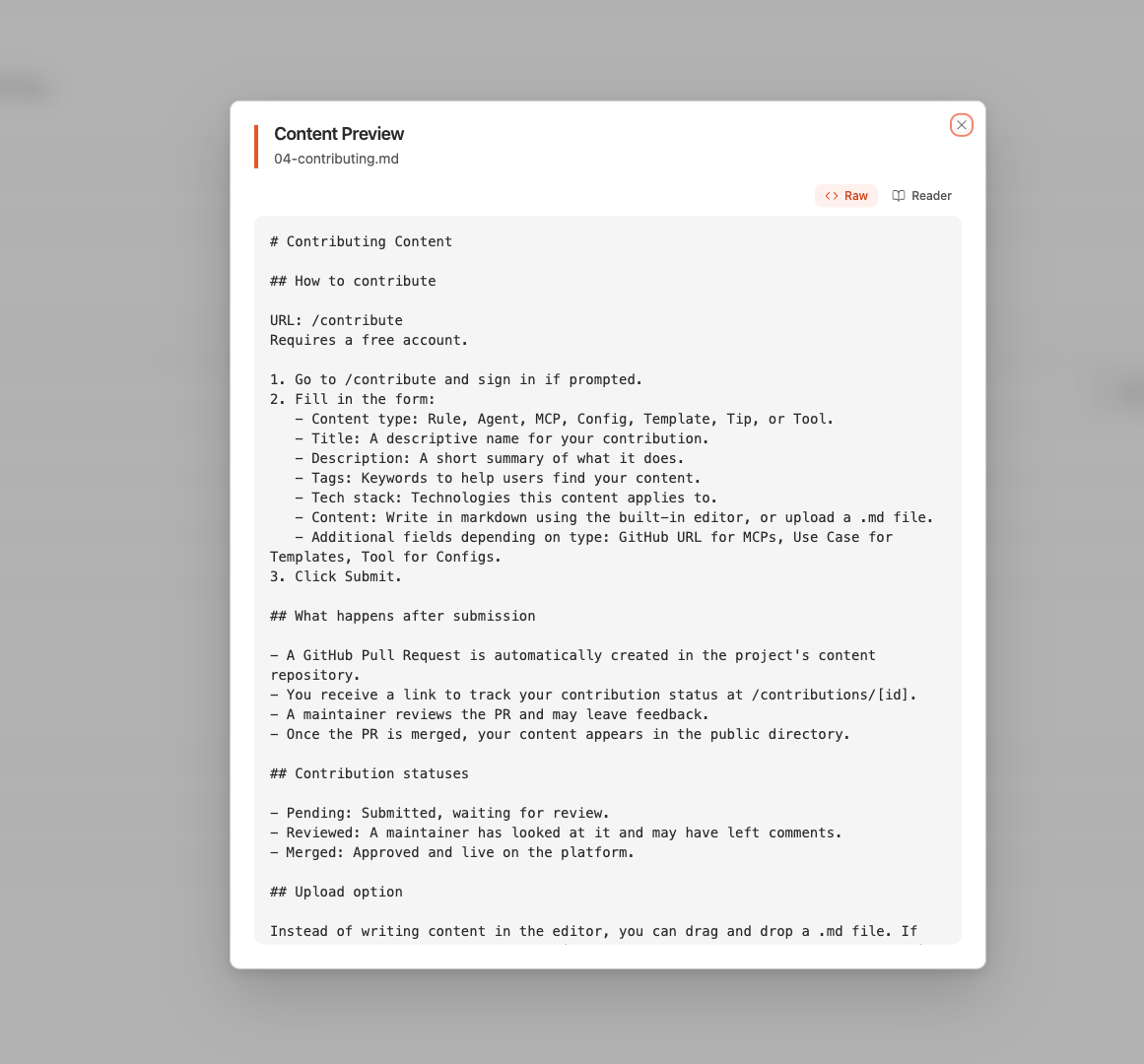
Once uploaded, your documents appear in a list where you can:
* **View** the document name and upload date
* **Delete** documents you no longer need
* **See status**: whether the document has been processed successfully
## Managing Documents
Once uploaded, your documents appear in a list where you can:
* **View** the document name and upload date
* **Delete** documents you no longer need
* **See status**: whether the document has been processed successfully
 Changes to your documents (new uploads or deletions) are **not applied** until you perform a [Knowledge Base Rebuild](/knowledge-base/rebuild). The bot continues using the previous version of the knowledge base until then.
## Knowledge Base Size Limits
Your plan limits the **total size** of your knowledge base, not the number of documents. Every uploaded file and every scraped URL shares the same size budget, measured by the size of their processed text content.
| Plan | Knowledge Base Size |
| -------- | ------------------- |
| Free | 1 MB |
| Starter | 15 MB |
| Pro | 30 MB |
| Business | 50 MB |
Because the limit is by size, many short documents can fit in a small budget, while a few very large PDFs can fill it quickly. If you hit the limit, remove content you no longer need or upgrade your plan. See [Pricing Plans](/billing/pricing-plans).
## Tips for Better Results
Write documents in clear, simple language. The bot's answers will mirror the clarity of your source content.
Shorter, topic-focused documents work better than one giant file covering everything.
When your information changes, upload updated documents and rebuild the knowledge base.
Delete old documents to prevent the bot from giving outdated answers.
## Next Steps
Scrape content directly from your website.
Learn when and how to rebuild.
Changes to your documents (new uploads or deletions) are **not applied** until you perform a [Knowledge Base Rebuild](/knowledge-base/rebuild). The bot continues using the previous version of the knowledge base until then.
## Knowledge Base Size Limits
Your plan limits the **total size** of your knowledge base, not the number of documents. Every uploaded file and every scraped URL shares the same size budget, measured by the size of their processed text content.
| Plan | Knowledge Base Size |
| -------- | ------------------- |
| Free | 1 MB |
| Starter | 15 MB |
| Pro | 30 MB |
| Business | 50 MB |
Because the limit is by size, many short documents can fit in a small budget, while a few very large PDFs can fill it quickly. If you hit the limit, remove content you no longer need or upgrade your plan. See [Pricing Plans](/billing/pricing-plans).
## Tips for Better Results
Write documents in clear, simple language. The bot's answers will mirror the clarity of your source content.
Shorter, topic-focused documents work better than one giant file covering everything.
When your information changes, upload updated documents and rebuild the knowledge base.
Delete old documents to prevent the bot from giving outdated answers.
## Next Steps
Scrape content directly from your website.
Learn when and how to rebuild.