> ## Documentation Index
> Fetch the complete documentation index at: https://docs.bestchatbot.io/llms.txt
> Use this file to discover all available pages before exploring further.
# Rebuild Knowledge Base
> When and how to rebuild your knowledge base to activate new content.
# Rebuild Knowledge Base
After you add or remove content (documents or URLs), you need to **rebuild** the knowledge base. This processes your content and makes it available for the bot to use when answering questions.
## When to Rebuild
You should rebuild your knowledge base when you:
* Upload new documents
* Scrape new URLs
* Delete existing content
New content is **not** available to the bot until you rebuild. If you upload a document and don't rebuild, the bot won't know about it.
## How to Rebuild
In the dashboard sidebar, look for the **Knowledge Base** section or the rebuild button in the Document Manager.
Click the **Rebuild Knowledge Base** button to start the process.
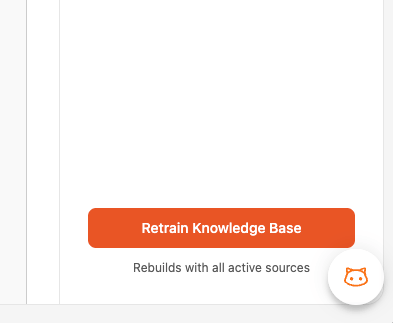 You'll see a progress indicator showing the rebuild status. The time depends on the amount and density of your content. Smaller knowledge bases finish faster, while larger ones with many documents and URLs take longer.
Once complete, the status will update to show the rebuild was successful. The bot is now using your latest content.
## What Happens During a Rebuild
When you rebuild, BestChatBot replaces the entire knowledge base with a fresh version built from your current sources:
1. **Clears** the existing knowledge base completely
2. **Discards** sources marked as deleted
3. **Fetches** content for any pending sources (e.g., new URLs that haven't been scraped yet)
4. **Re-processes** all active sources from scratch to build the new knowledge base
5. **Activates** the new knowledge for the bot to use
The widget **will not respond** to questions while a rebuild is in progress, to avoid giving incorrect or incomplete answers.
You can continue using the dashboard while a rebuild is in progress. The rebuild only affects the bot's ability to answer questions temporarily.
## Daily Rebuild Limits
Each plan includes a limited number of rebuilds per day:
| Plan | Daily Rebuilds |
| -------- | -------------- |
| Free | 1 |
| Starter | 1 |
| Pro | 2 |
| Business | 3 |
Once you reach your daily rebuild limit, you'll need to wait until the next day or upgrade your plan for more rebuilds.
## Rebuild Best Practices
| Practice | Why |
| -------------------------------------- | ---------------------------------------------- |
| Rebuild after batch uploads | More efficient than rebuilding after each file |
| Know the widget pauses during rebuilds | It won't respond to questions until complete |
| Check the status before testing | Make sure the rebuild finished successfully |
## Next Steps
Verify the bot answers correctly after rebuilding.
Explore the connections between your content.
You'll see a progress indicator showing the rebuild status. The time depends on the amount and density of your content. Smaller knowledge bases finish faster, while larger ones with many documents and URLs take longer.
Once complete, the status will update to show the rebuild was successful. The bot is now using your latest content.
## What Happens During a Rebuild
When you rebuild, BestChatBot replaces the entire knowledge base with a fresh version built from your current sources:
1. **Clears** the existing knowledge base completely
2. **Discards** sources marked as deleted
3. **Fetches** content for any pending sources (e.g., new URLs that haven't been scraped yet)
4. **Re-processes** all active sources from scratch to build the new knowledge base
5. **Activates** the new knowledge for the bot to use
The widget **will not respond** to questions while a rebuild is in progress, to avoid giving incorrect or incomplete answers.
You can continue using the dashboard while a rebuild is in progress. The rebuild only affects the bot's ability to answer questions temporarily.
## Daily Rebuild Limits
Each plan includes a limited number of rebuilds per day:
| Plan | Daily Rebuilds |
| -------- | -------------- |
| Free | 1 |
| Starter | 1 |
| Pro | 2 |
| Business | 3 |
Once you reach your daily rebuild limit, you'll need to wait until the next day or upgrade your plan for more rebuilds.
## Rebuild Best Practices
| Practice | Why |
| -------------------------------------- | ---------------------------------------------- |
| Rebuild after batch uploads | More efficient than rebuilding after each file |
| Know the widget pauses during rebuilds | It won't respond to questions until complete |
| Check the status before testing | Make sure the rebuild finished successfully |
## Next Steps
Verify the bot answers correctly after rebuilding.
Explore the connections between your content.