> ## Documentation Index
> Fetch the complete documentation index at: https://docs.bestchatbot.io/llms.txt
> Use this file to discover all available pages before exploring further.
# Add URLs
> Scrape content from websites to add to your knowledge base.
# Add URLs
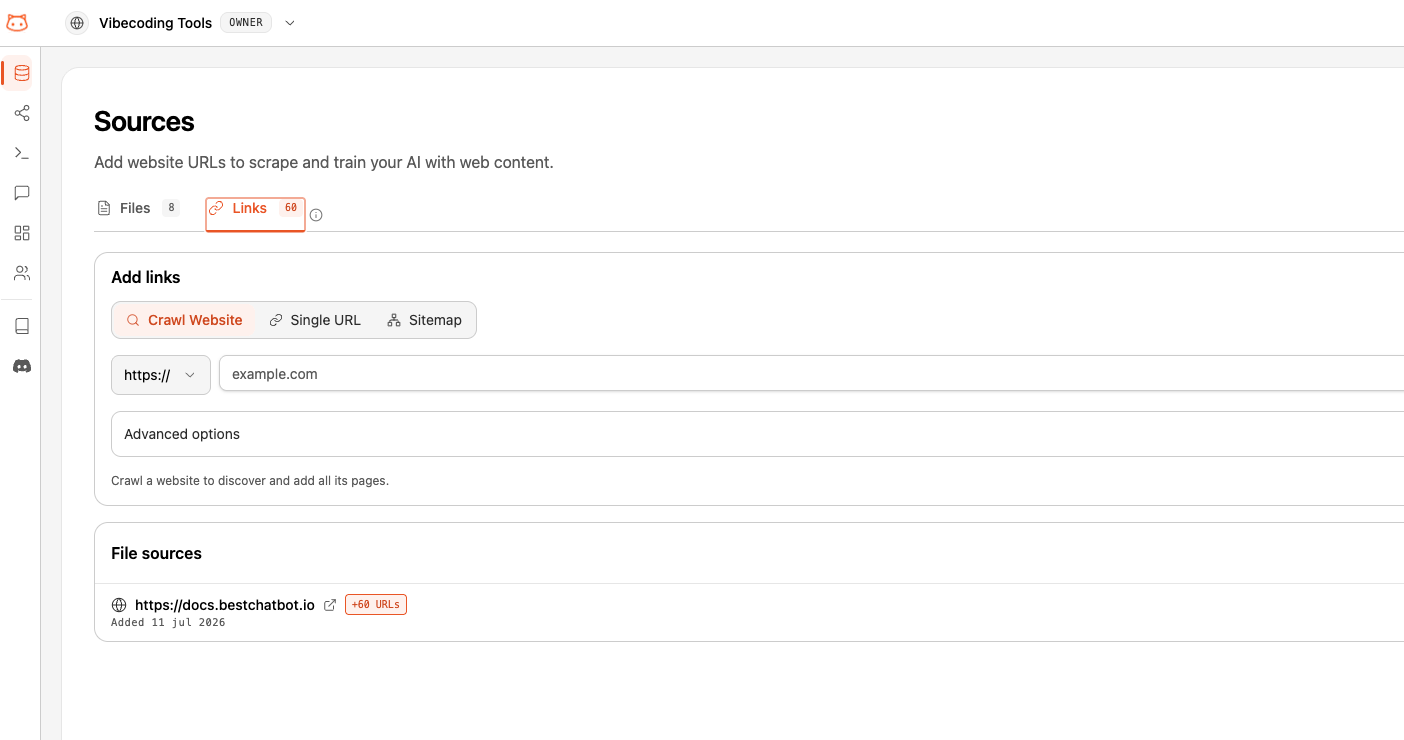
The **Links** tab in the Document Manager lets you add web content to your knowledge base. Instead of copying and pasting from websites, BestChatBot scrapes the content for you.
## Scraping Methods
BestChatBot offers three ways to add web content:
Paste a single page URL. The bot scrapes just that page.
Provide a sitemap URL and BestChatBot discovers all pages automatically.
Enter a starting URL and BestChatBot crawls the site following links to discover pages.
## How to Add URLs
Go to **Document Manager** from the dashboard sidebar and switch to the **Links** tab.
Select whether you want to add a **Direct URL**, **Sitemap**, or **Crawl**.
Paste the URL into the input field. For example:
* **Direct:** `https://yoursite.com/faq`
* **Sitemap:** `https://yoursite.com/sitemap.xml`
* **Crawl:** `https://yoursite.com/docs`
Narrow down which pages get added using URL patterns. The available options depend on the method:
* **Crawl** — open **Advanced options** to set **Include paths** and **Exclude paths**. Only pages matching an include pattern are kept; pages matching an exclude pattern are skipped.
* **Sitemap** — set a single **URL Pattern** to keep only the matching entries. Leave it empty to import every URL in the sitemap.
Patterns use glob-style wildcards (`*`) and are matched against the page path. For example, `docs/*` keeps everything under `/docs`, and `*/blog/*` matches any blog path.
Enter **one pattern per field**. To target several distinct sections, run separate scrapes.
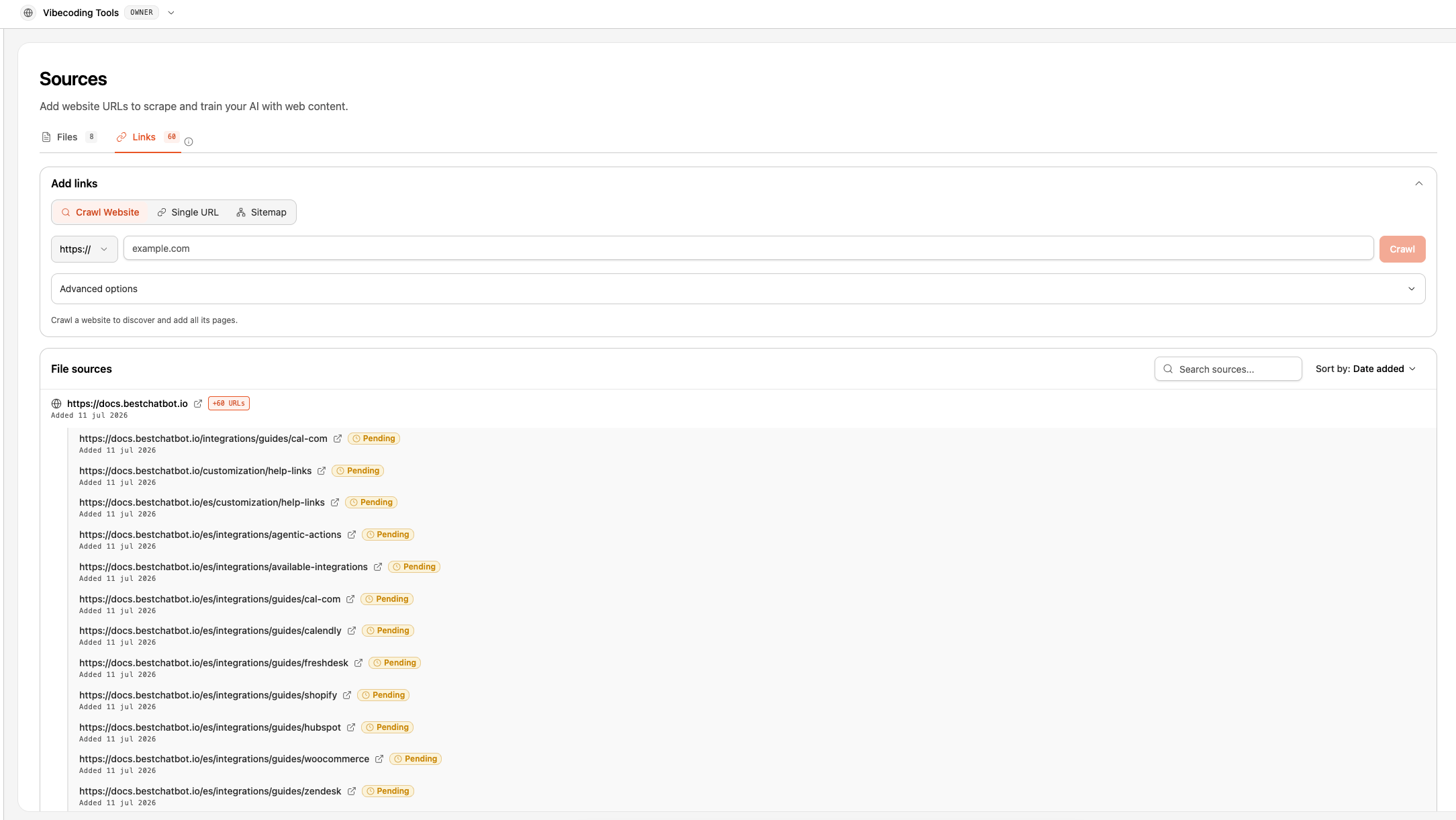
Click the button to begin scraping. You'll see progress as pages are discovered and processed.
Scraping time depends on the number of pages. A single page takes seconds; a full site crawl may take several minutes.
After scraping completes, remember to **Rebuild Knowledge Base** so the bot can use the new content.
Changes to your URLs (new scrapes or deletions) are **not applied** until you rebuild. The bot continues using the previous version of the knowledge base until then.
## Scraped Pages Limits
Each plan includes a set number of pages you can add from URLs. Every URL in your knowledge base counts toward this limit — whether it was added as a direct URL, discovered from a sitemap, or found during a crawl.
| Plan | Scraped Pages |
| -------- | ------------- |
| Free | 5 |
| Starter | 30 |
| Pro | 75 |
| Business | 150 |
Use **Direct URL** for your most important pages first. Save crawling for when you need full coverage.
## Managing Scraped Content
Scraped pages appear alongside uploaded documents in your knowledge base. You can:
* View the URL and scrape date
* Delete individual scraped pages
* Re-scrape a URL to get updated content
## Next Steps
Process your new content.
Add PDFs, DOCX, TXT, or MD files.
 ## Scraped Pages Limits
Each plan includes a set number of pages you can add from URLs. Every URL in your knowledge base counts toward this limit — whether it was added as a direct URL, discovered from a sitemap, or found during a crawl.
| Plan | Scraped Pages |
| -------- | ------------- |
| Free | 5 |
| Starter | 30 |
| Pro | 75 |
| Business | 150 |
## Scraped Pages Limits
Each plan includes a set number of pages you can add from URLs. Every URL in your knowledge base counts toward this limit — whether it was added as a direct URL, discovered from a sitemap, or found during a crawl.
| Plan | Scraped Pages |
| -------- | ------------- |
| Free | 5 |
| Starter | 30 |
| Pro | 75 |
| Business | 150 |
 ## Next Steps