> ## Documentation Index
> Fetch the complete documentation index at: https://docs.bestchatbot.io/llms.txt
> Use this file to discover all available pages before exploring further.
# Stripe
> What the Stripe integration can and can't do, and how to connect it in one click with OAuth.
# Stripe
**Category: Payments.** Connect Stripe and your widget can answer billing questions and start purchases for visitors, right inside the chat.
Integrations are available on the **Pro** and **Business** plans.
## What This Bot Can Do
The bot does exactly these actions, nothing more. "Needs sign-in" means the visitor must be identified first; otherwise the bot gives a safe, neutral answer.
| Action | What it does | Needs sign-in |
| --------------------------- | --------------------------------------------------------------------------------------- | :-----------: |
| **Check a subscription** | Show the visitor their current plan and next billing date. | Yes |
| **Check invoice history** | List the visitor's recent invoices with amounts, dates, and payment status. | Yes |
| **Check payment methods** | Show saved payment methods (card brand and last 4 digits only). | Yes |
| **Open the billing portal** | Give the visitor a secure portal link to cancel, upgrade, or update payment themselves. | Yes |
| **Start a purchase** | Generate a checkout link so the visitor can buy a plan or product. | No |
## What It Can't Do
Stripe is scoped to the actions above. It does **not**:
* Cancel or change a subscription directly (it hands the visitor a secure portal link instead)
* Issue refunds or charge a card
* Create or edit products and prices
* Show full card numbers (only the brand and last 4 digits)
## How to Connect
Connecting Stripe takes one click. BestChatBot uses **Stripe's official OAuth flow** — you authorize the **BestChatBot** Stripe App from your own Stripe account. There's no API key to create, copy, or paste.
Connecting integrations requires an **Editor**, **Admin**, or **Owner** role. See [Members & Roles](/workspace/members-roles).
In your workspace dashboard, open the **Integrations** tab, find **Stripe** under **Payments**, and click **Connect**.
A secure Stripe popup opens. Sign in to your Stripe account, review what the **BestChatBot** app can access, and approve it. Your credentials stay with Stripe — they're never typed into the chat or shared with BestChatBot.
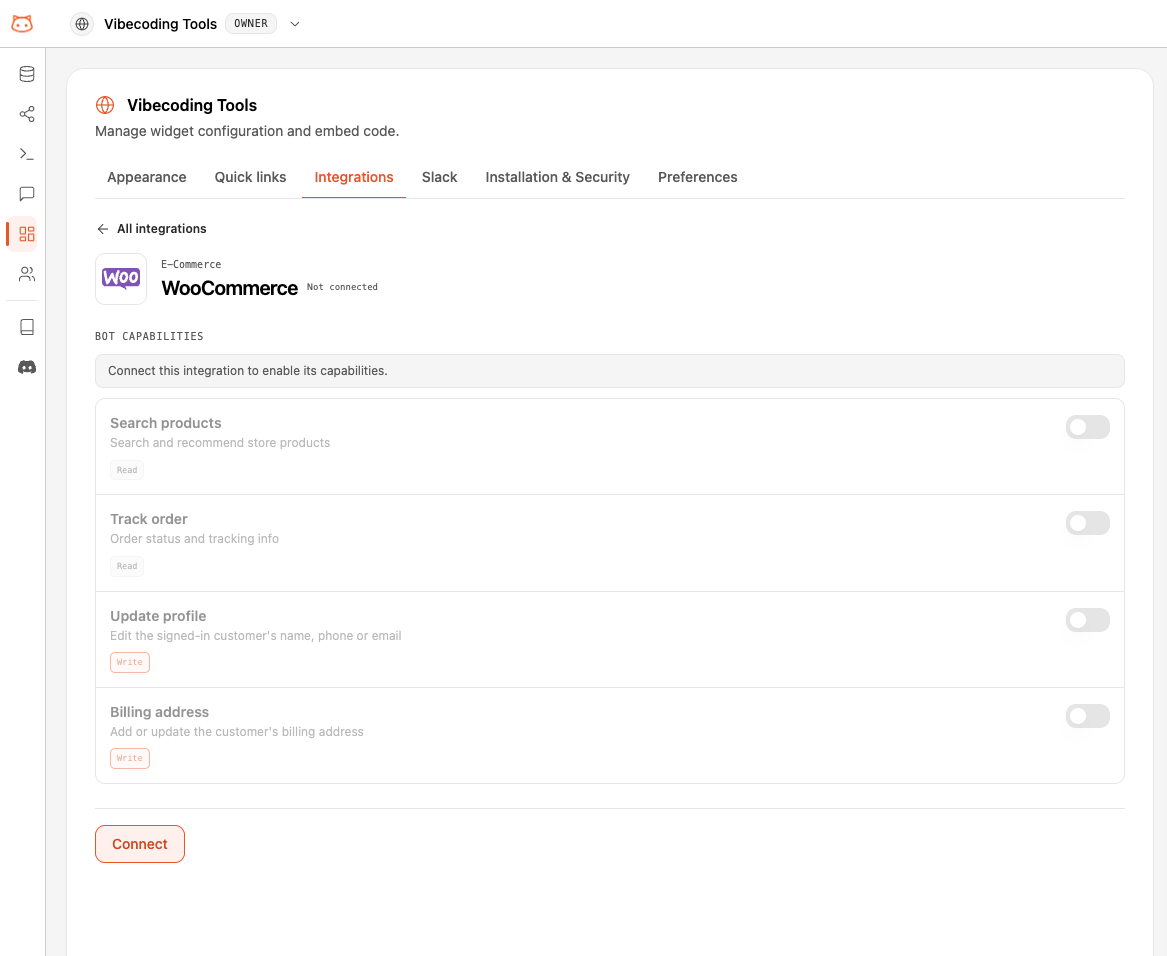 The popup closes and Stripe shows as **Connected** right away. Nothing to copy or paste, and no key to rotate later.
### What BestChatBot Can Access
When you approve the app, Stripe shows you exactly what it grants — a **narrow, mostly read-only** scope, never your secret keys:
* **Read** your customers, subscriptions, invoices, products, prices, payment methods, and charges — so the bot can answer each visitor's own billing questions.
* **Create** a Billing Portal link and a Checkout link on the visitor's behalf.
That's the full extent of the access. The bot can't change your account settings, issue refunds, or edit products. You can revoke it anytime — click **Disconnect** in BestChatBot, or remove the app from inside your Stripe Dashboard.
### After Connecting
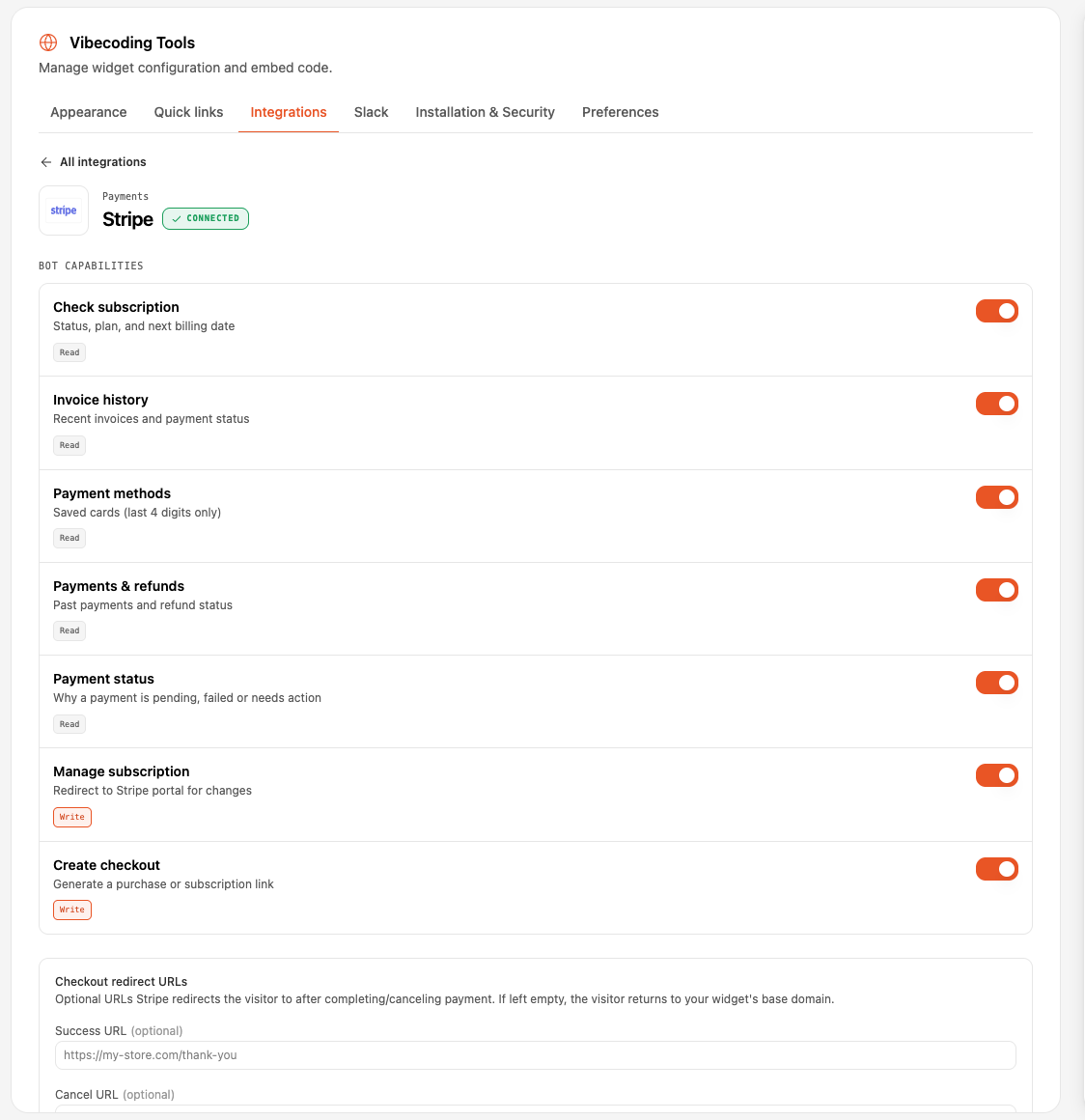
Once connected, Stripe's actions become available to your widget right away. From the integration panel you can toggle each **bot capability** (check subscription, invoice history, payment methods, manage subscription, create checkout) and set optional **Checkout redirect URLs**:
* **Success URL** — where the visitor lands after a completed payment.
* **Cancel URL** — where the visitor lands if they cancel.
If you leave them empty, the visitor returns to your widget's base domain.
The popup closes and Stripe shows as **Connected** right away. Nothing to copy or paste, and no key to rotate later.
### What BestChatBot Can Access
When you approve the app, Stripe shows you exactly what it grants — a **narrow, mostly read-only** scope, never your secret keys:
* **Read** your customers, subscriptions, invoices, products, prices, payment methods, and charges — so the bot can answer each visitor's own billing questions.
* **Create** a Billing Portal link and a Checkout link on the visitor's behalf.
That's the full extent of the access. The bot can't change your account settings, issue refunds, or edit products. You can revoke it anytime — click **Disconnect** in BestChatBot, or remove the app from inside your Stripe Dashboard.
### After Connecting
Once connected, Stripe's actions become available to your widget right away. From the integration panel you can toggle each **bot capability** (check subscription, invoice history, payment methods, manage subscription, create checkout) and set optional **Checkout redirect URLs**:
* **Success URL** — where the visitor lands after a completed payment.
* **Cancel URL** — where the visitor lands if they cancel.
If you leave them empty, the visitor returns to your widget's base domain.
 ## Showing Products in Checkout
When the bot offers **Start a purchase**, it only shows the products you've explicitly opted in — your full Stripe catalog is never exposed. To make a product available, add the metadata key `bcb_widget_visible` with the value `true` to the **product** (or to a specific **price**) in Stripe.
## Showing Products in Checkout
When the bot offers **Start a purchase**, it only shows the products you've explicitly opted in — your full Stripe catalog is never exposed. To make a product available, add the metadata key `bcb_widget_visible` with the value `true` to the **product** (or to a specific **price**) in Stripe.
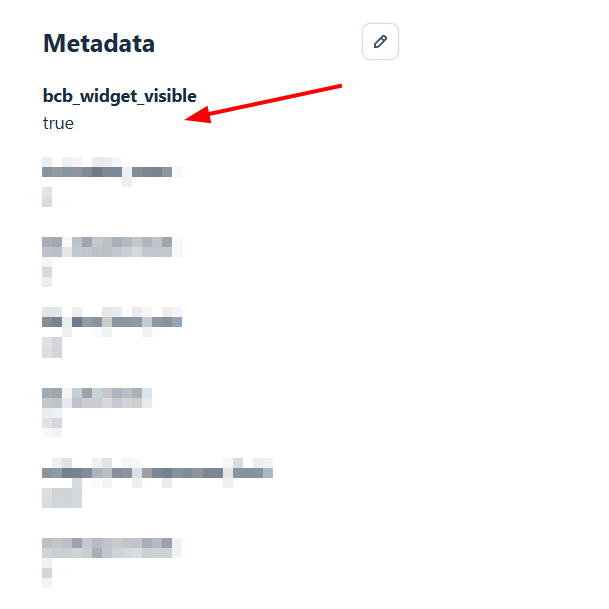 Set the flag on the product to expose all of its prices, or on a single price for finer control. Products without this flag never appear in the chat.
## See It in Action
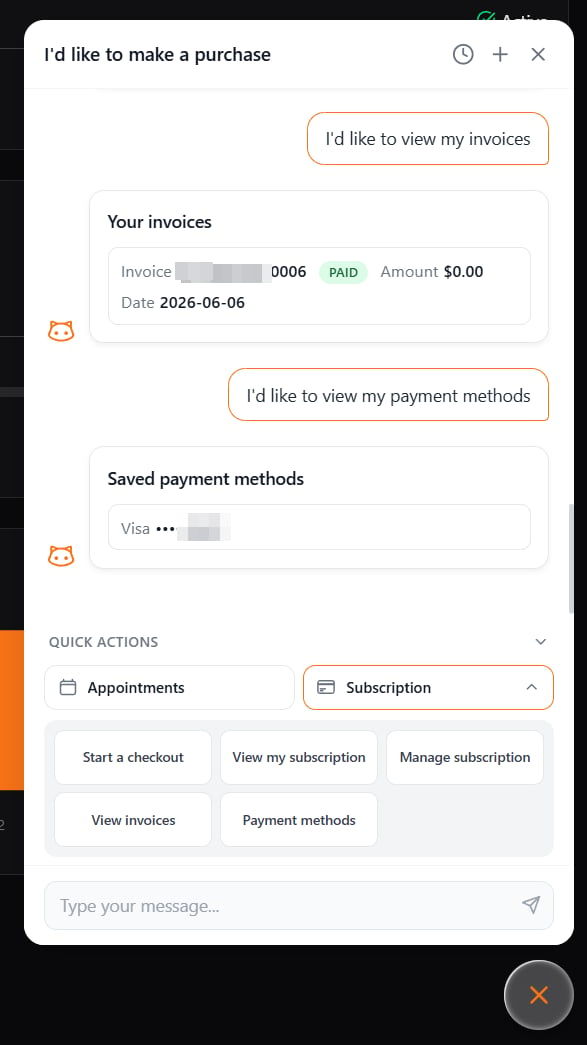
Once connected, identified visitors can check invoices, view saved payment methods, manage their subscription, and start a purchase — all from the widget.
Set the flag on the product to expose all of its prices, or on a single price for finer control. Products without this flag never appear in the chat.
## See It in Action
Once connected, identified visitors can check invoices, view saved payment methods, manage their subscription, and start a purchase — all from the widget.
 ## One per Category
Stripe is the only option in the **Payments** category, so it never conflicts with another integration.
## Availability
| Plan | Stripe |
| -------- | ------ |
| Free | — |
| Starter | — |
| Pro | ✅ |
| Business | ✅ |
## Next Steps
See the full catalog and how categories work.
Learn how the bot turns a request into a real action.
## One per Category
Stripe is the only option in the **Payments** category, so it never conflicts with another integration.
## Availability
| Plan | Stripe |
| -------- | ------ |
| Free | — |
| Starter | — |
| Pro | ✅ |
| Business | ✅ |
## Next Steps
See the full catalog and how categories work.
Learn how the bot turns a request into a real action.