> ## Documentation Index
> Fetch the complete documentation index at: https://docs.bestchatbot.io/llms.txt
> Use this file to discover all available pages before exploring further.
# HubSpot
> What the HubSpot integration can and can't do, and how to connect it step by step.
# HubSpot
**Category: CRM.** Connect HubSpot and your widget can capture leads for visitors, right inside the chat.
Integrations are available on the **Pro** and **Business** plans.
## What This Bot Can Do
The bot does exactly these actions, nothing more. "Needs sign-in" means the visitor must be identified first; otherwise the bot gives a safe, neutral answer.
| Action | What it does | Needs sign-in |
| ------------------ | -------------------------------------------------------------------------------------------------- | :-----------: |
| **Capture a lead** | Save the visitor as a new contact with their name, email, company, and what they're interested in. | No |
## What It Can't Do
HubSpot is scoped to the actions above. It does **not**:
* Look up, search, or update existing contacts
* View deals, companies, or pipelines
* Do anything beyond capturing a new lead
## How to Connect
Connecting an integration requires an **Editor**, **Admin**, or **Owner** role, on the **Pro** or **Business** plan. See [Members & Roles](/workspace/members-roles).
In your workspace dashboard, open your **Web Widget → Integrations** tab and find **HubSpot**.
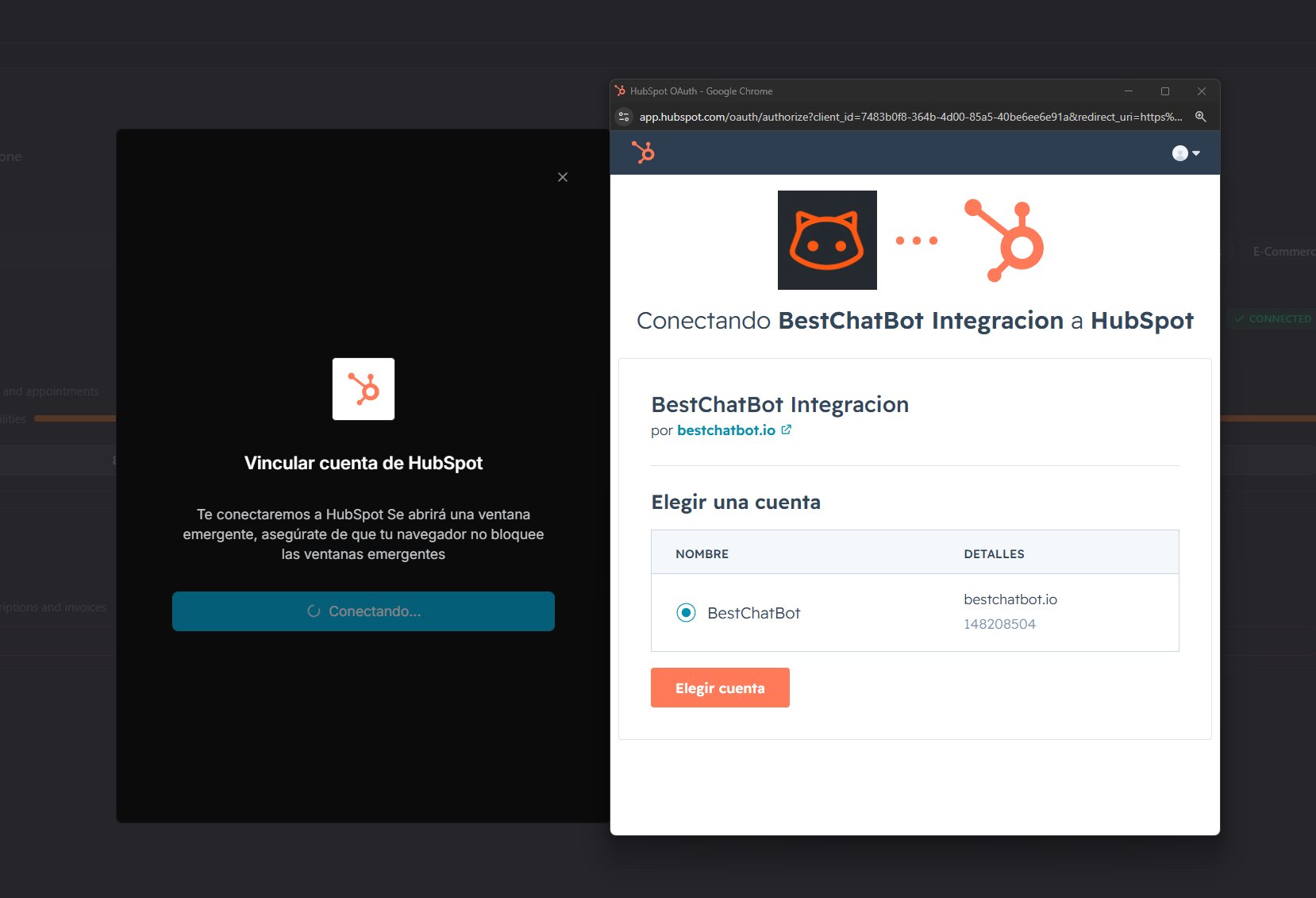
Click **Connect**. A secure popup opens — sign in to HubSpot, **choose the account** to connect, and authorize access. You never type credentials into BestChatBot.
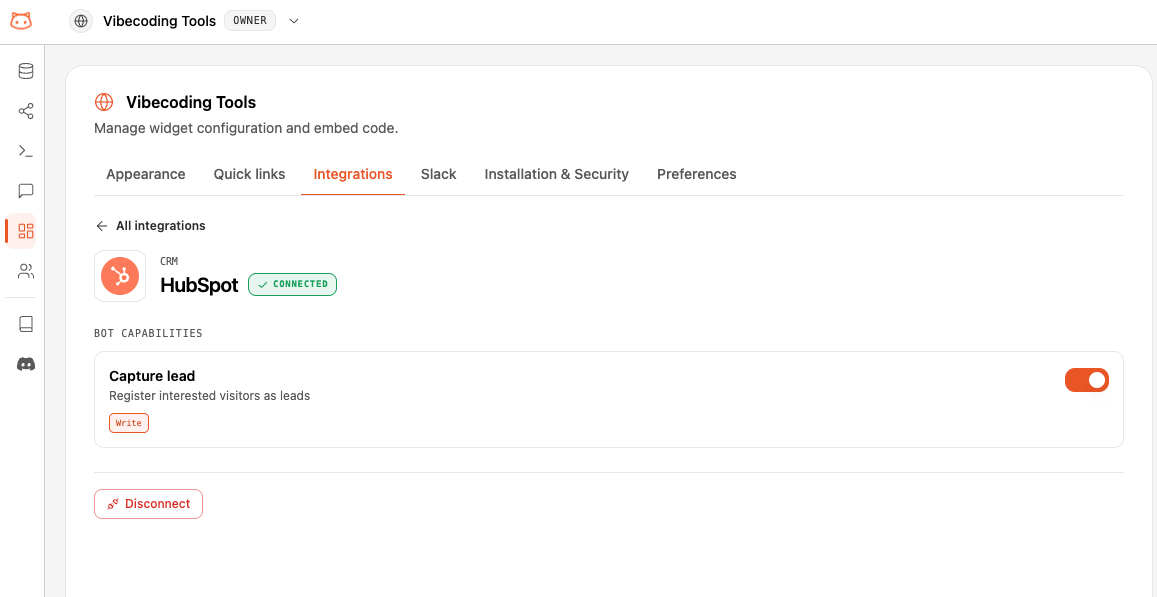
 Once connected, HubSpot's **Capture lead** action becomes available to your widget right away.
 ## One per Category
HubSpot is the only option in the **CRM** category, so it never conflicts with another integration.
## Availability
| Plan | HubSpot |
| -------- | ------- |
| Free | — |
| Starter | — |
| Pro | ✅ |
| Business | ✅ |
## Next Steps
See the full catalog and how categories work.
Learn how the bot turns a request into a real action.
## One per Category
HubSpot is the only option in the **CRM** category, so it never conflicts with another integration.
## Availability
| Plan | HubSpot |
| -------- | ------- |
| Free | — |
| Starter | — |
| Pro | ✅ |
| Business | ✅ |
## Next Steps
See the full catalog and how categories work.
Learn how the bot turns a request into a real action.