> ## Documentation Index
> Fetch the complete documentation index at: https://docs.bestchatbot.io/llms.txt
> Use this file to discover all available pages before exploring further.
# Available Integrations
> Connect your calendar, help desk, store, CRM, and billing so your chatbot can take real actions.
# Available Integrations
BestChatBot connects to **8 tools** your business already uses. Once connected, your widget can perform real actions with them through [Agentic Actions](/integrations/agentic-actions).
Integrations are available on the **Pro** and **Business** plans.
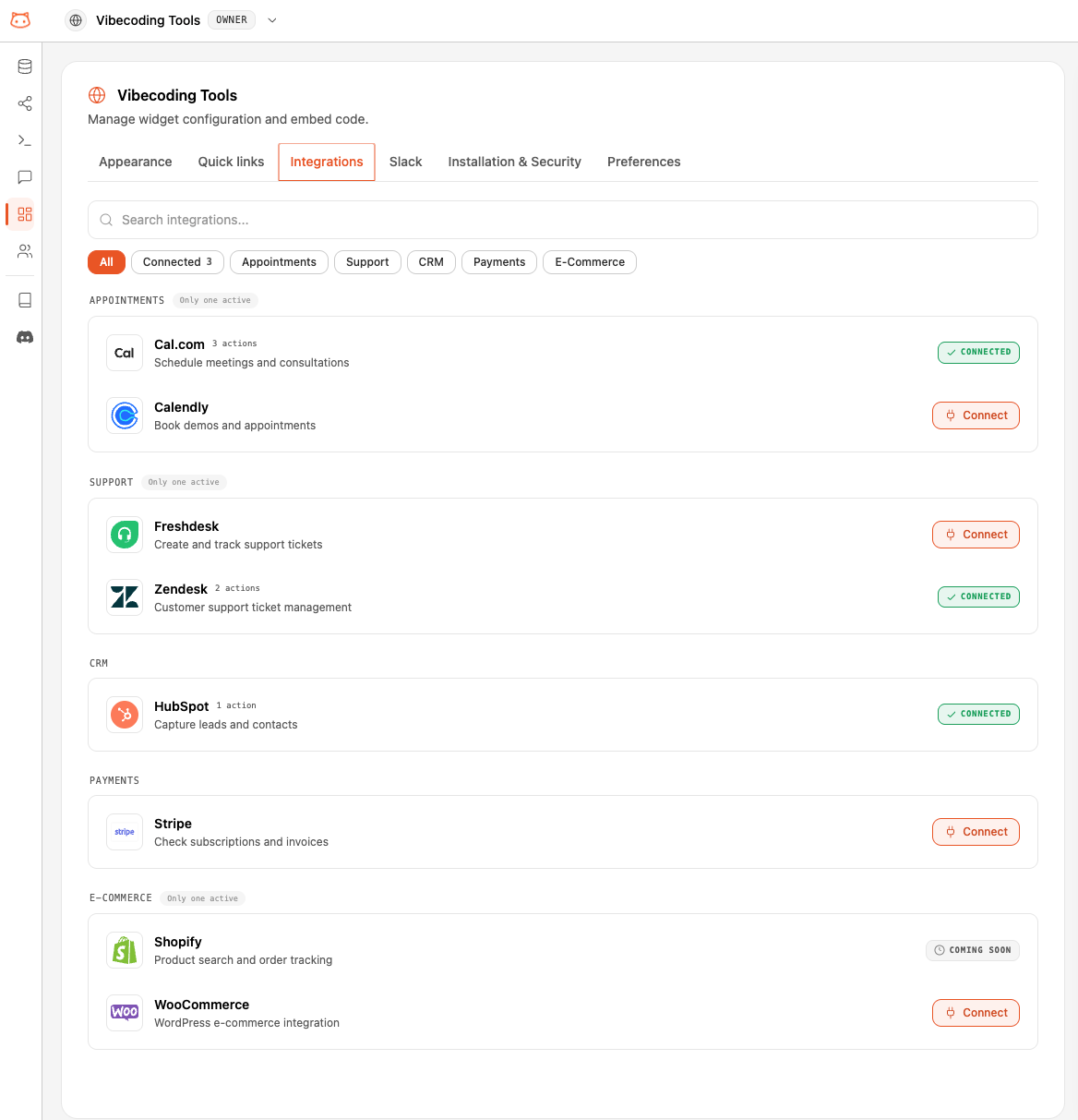 ## The 8 Integrations
| Integration | Category | What your bot can do |
| --------------- | ---------- | ----------------------------------------------------------------------------------------------------------------------------- |
| **Cal.com** | Scheduling | Check availability, book a meeting, cancel a meeting |
| **Calendly** | Scheduling | Check availability, book a meeting, cancel a meeting |
| **Freshdesk** | Help Desk | Open a support ticket, check a ticket's status |
| **Zendesk** | Help Desk | Open a support ticket, check a ticket's status |
| **HubSpot** | CRM | Capture a lead so your sales team can follow up |
| **Stripe** | Payments | View a subscription, view invoices and payment methods, open the billing portal, start a purchase, browse products and prices |
| **Shopify** | E-commerce | Browse the product catalog, check an order's status by email |
| **WooCommerce** | E-commerce | Browse the product catalog, check an order's status by email |
## One Integration per Category
Each category can have **only one active integration at a time**. The integrations in the same category expose the same actions to the bot, so allowing two at once would create ambiguity.
| Category | Options | Mutually exclusive? |
| ---------- | -------------------- | ------------------- |
| Scheduling | Cal.com, Calendly | Yes |
| Help Desk | Freshdesk, Zendesk | Yes |
| E-commerce | Shopify, WooCommerce | Yes |
| CRM | HubSpot | — (only option) |
| Payments | Stripe | — (only option) |
Connecting a second integration in the same category **automatically disconnects** the first. For example, if Cal.com is connected and you connect Calendly, Cal.com is turned off. The same applies to Freshdesk/Zendesk and Shopify/WooCommerce.
## The 8 Integrations
| Integration | Category | What your bot can do |
| --------------- | ---------- | ----------------------------------------------------------------------------------------------------------------------------- |
| **Cal.com** | Scheduling | Check availability, book a meeting, cancel a meeting |
| **Calendly** | Scheduling | Check availability, book a meeting, cancel a meeting |
| **Freshdesk** | Help Desk | Open a support ticket, check a ticket's status |
| **Zendesk** | Help Desk | Open a support ticket, check a ticket's status |
| **HubSpot** | CRM | Capture a lead so your sales team can follow up |
| **Stripe** | Payments | View a subscription, view invoices and payment methods, open the billing portal, start a purchase, browse products and prices |
| **Shopify** | E-commerce | Browse the product catalog, check an order's status by email |
| **WooCommerce** | E-commerce | Browse the product catalog, check an order's status by email |
## One Integration per Category
Each category can have **only one active integration at a time**. The integrations in the same category expose the same actions to the bot, so allowing two at once would create ambiguity.
| Category | Options | Mutually exclusive? |
| ---------- | -------------------- | ------------------- |
| Scheduling | Cal.com, Calendly | Yes |
| Help Desk | Freshdesk, Zendesk | Yes |
| E-commerce | Shopify, WooCommerce | Yes |
| CRM | HubSpot | — (only option) |
| Payments | Stripe | — (only option) |
Connecting a second integration in the same category **automatically disconnects** the first. For example, if Cal.com is connected and you connect Calendly, Cal.com is turned off. The same applies to Freshdesk/Zendesk and Shopify/WooCommerce.
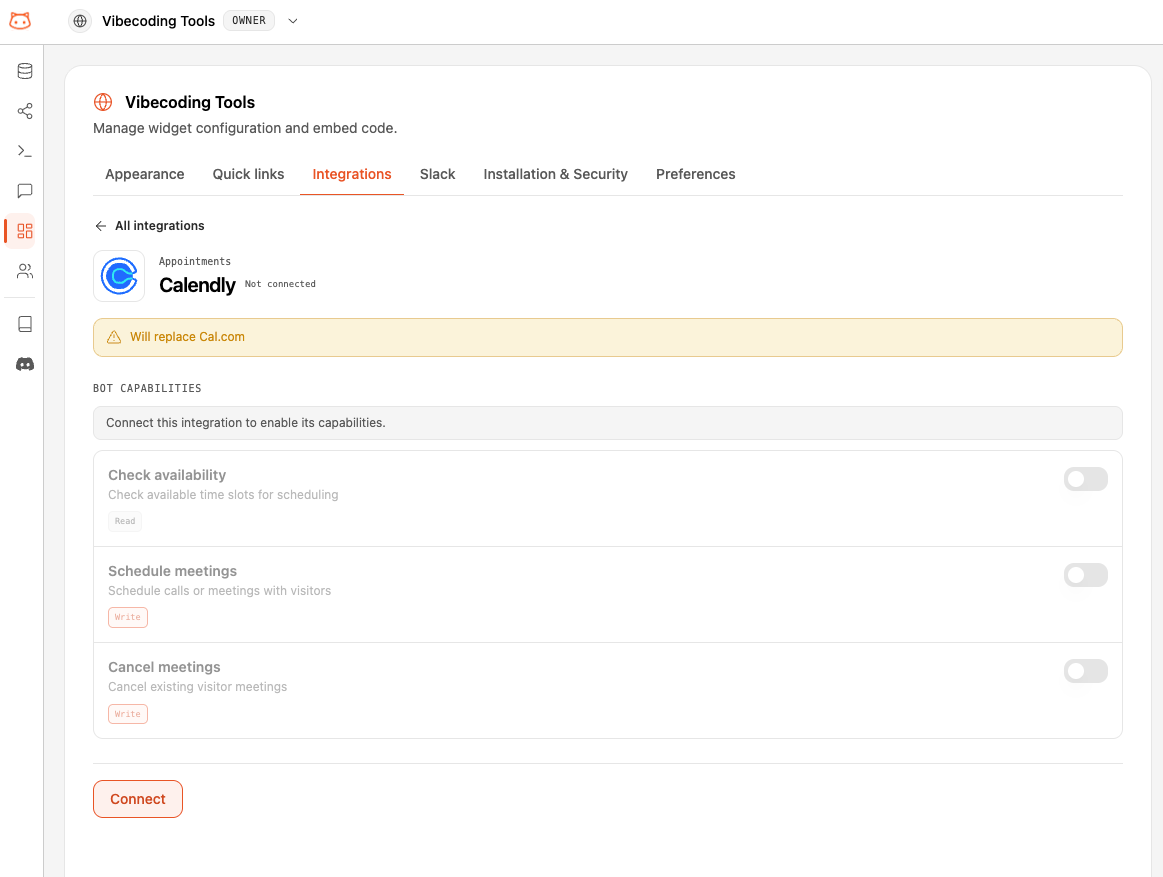 HubSpot and Stripe are the only options in their categories, so they never conflict with another integration.
## Connecting an Integration
From your workspace dashboard, go to the **Integrations** page. You'll see the catalog of available tools and their connection status.
Click **Connect** on the integration you want and follow the secure authorization flow. You authorize BestChatBot directly with the provider, so your credentials are never typed into the chat.
Once connected, the integration's actions become available to your widget right away. If another integration in the same category was active, it's disconnected automatically.
## Disconnecting
You can disconnect any integration from the **Integrations** page at any time. Its actions stop being offered to the widget immediately. Disconnecting one integration never affects the others.
## Availability
| Plan | Integrations |
| -------- | ------------ |
| Free | — |
| Starter | — |
| Pro | ✅ |
| Business | ✅ |
## Next Steps
Understand how the bot decides to act and how visitors stay in control.
Control who on your team can connect and manage integrations.
HubSpot and Stripe are the only options in their categories, so they never conflict with another integration.
## Connecting an Integration
From your workspace dashboard, go to the **Integrations** page. You'll see the catalog of available tools and their connection status.
Click **Connect** on the integration you want and follow the secure authorization flow. You authorize BestChatBot directly with the provider, so your credentials are never typed into the chat.
Once connected, the integration's actions become available to your widget right away. If another integration in the same category was active, it's disconnected automatically.
## Disconnecting
You can disconnect any integration from the **Integrations** page at any time. Its actions stop being offered to the widget immediately. Disconnecting one integration never affects the others.
## Availability
| Plan | Integrations |
| -------- | ------------ |
| Free | — |
| Starter | — |
| Pro | ✅ |
| Business | ✅ |
## Next Steps
Understand how the bot decides to act and how visitors stay in control.
Control who on your team can connect and manage integrations.