> ## Documentation Index
> Fetch the complete documentation index at: https://docs.bestchatbot.io/llms.txt
> Use this file to discover all available pages before exploring further.
# Response Preferences
> Customize how your bot communicates. Choose its style and response length.
# Response Preferences
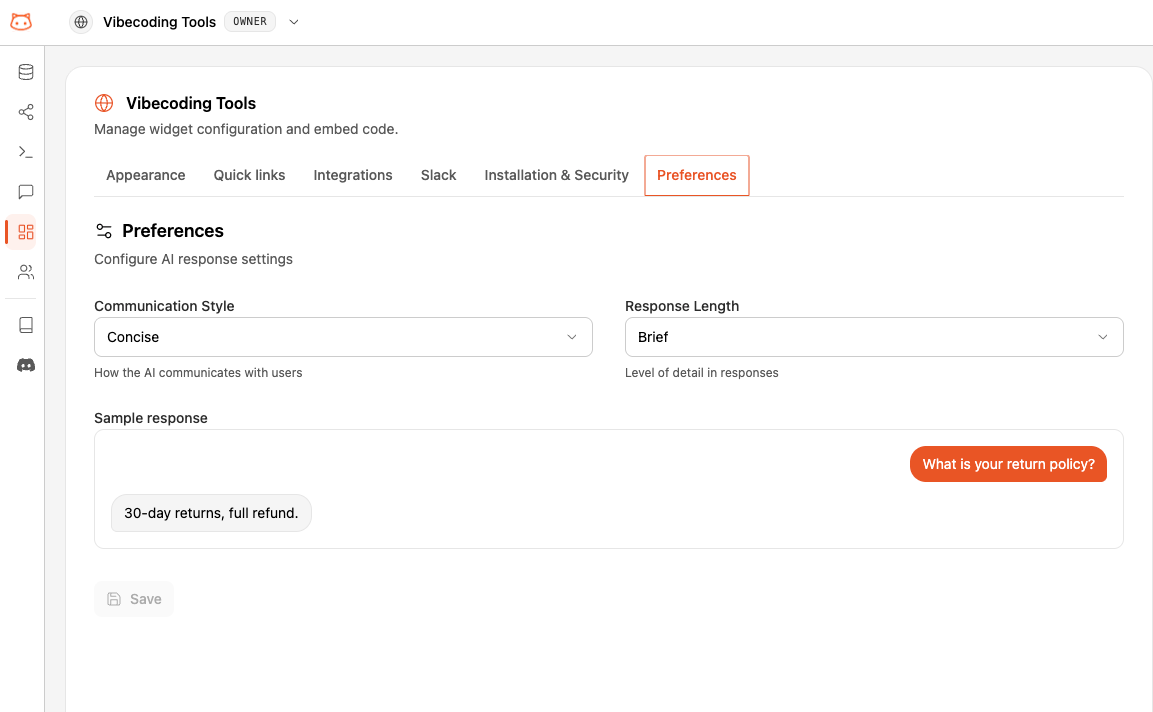
The **Preferences** panel lets you control how your bot communicates with your visitors. You can adjust the communication style and response length to match your brand's voice.
## Communication Style
Choose how the bot talks to your users:
| Style | Description | Best For |
| ---------------- | --------------------------------- | ----------------------------------- |
| **Professional** | Formal, polished language | Business sites, SaaS support |
| **Casual** | Friendly, conversational tone | Consumer brands, lifestyle sites |
| **Technical** | Precise, detail-oriented language | Developer tools, technical products |
| **Concise** | Short, to-the-point answers | High-traffic FAQ-heavy pages |
## Response Length
Control how detailed the bot's answers are:
| Length | Description | Best For |
| ------------ | --------------------------------------- | ------------------------------------- |
| **Brief** | Short, direct answers in 1-2 sentences | Simple FAQs, quick support |
| **Moderate** | Balanced answers with enough context | Most use cases (default) |
| **Detailed** | Full answers with thorough explanations | Complex products, educational content |
 ## How to Change Preferences
Click the **Preferences** icon (gear icon) in the dashboard. A side panel will open.
Use the **Communication Style** dropdown to choose between Professional, Casual, Technical, or Concise.
Use the **Response Length** dropdown to choose between Brief, Moderate, or Detailed.
Click the **Save** button. Changes take effect immediately for all new responses.
Past widget conversations stay as they were. Only new answers will use the updated style.
## Per-Workspace Settings
Preferences are configured **per workspace**. If you run multiple widgets across different sites or brands, each one can have its own communication style and response length.
A consumer brand might use **Casual** + **Brief**, while a SaaS product's docs site might use **Professional** + **Detailed**.
## Next Step
See what's included in each plan.
## How to Change Preferences
Click the **Preferences** icon (gear icon) in the dashboard. A side panel will open.
Use the **Communication Style** dropdown to choose between Professional, Casual, Technical, or Concise.
Use the **Response Length** dropdown to choose between Brief, Moderate, or Detailed.
Click the **Save** button. Changes take effect immediately for all new responses.
Past widget conversations stay as they were. Only new answers will use the updated style.
## Per-Workspace Settings
Preferences are configured **per workspace**. If you run multiple widgets across different sites or brands, each one can have its own communication style and response length.
A consumer brand might use **Casual** + **Brief**, while a SaaS product's docs site might use **Professional** + **Detailed**.
## Next Step
See what's included in each plan.