> ## Documentation Index
> Fetch the complete documentation index at: https://docs.bestchatbot.io/llms.txt
> Use this file to discover all available pages before exploring further.
# Manage Subscription
> Upgrade, downgrade, or manage your BestChatBot subscription.
# Manage Your Subscription
BestChatBot uses **Stripe** for payment processing. You manage your subscription from the dashboard. Here is how.
## Viewing Your Current Plan
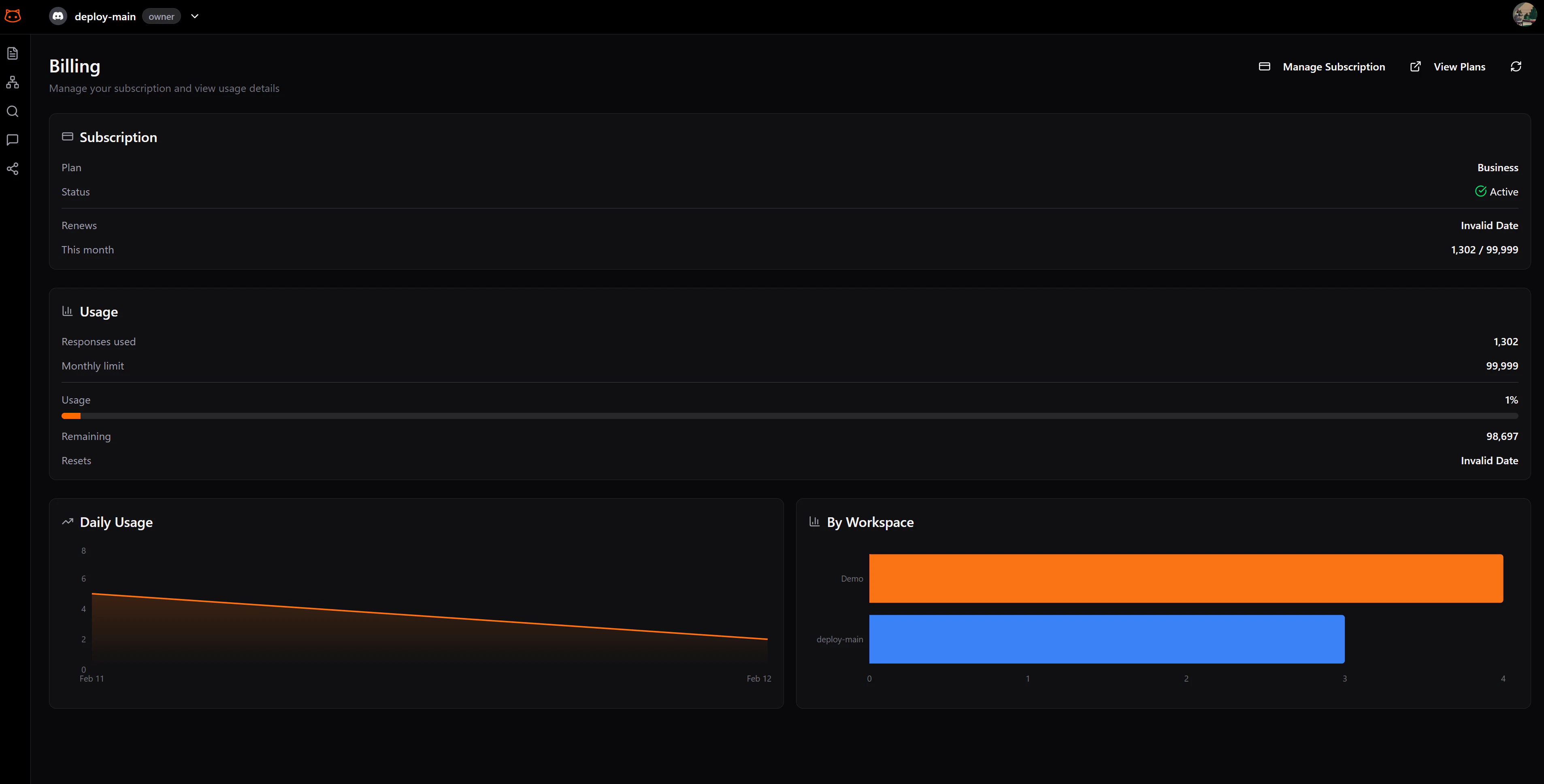
Open the **Billing** section from the dashboard sidebar.
Your current plan is displayed on a subscription card showing:
* Plan name and tier
* Monthly price
* Renewal date
* Current usage
 ## Upgrading Your Plan
Open the **Billing** section from the sidebar.
You'll see the available plans. Click **Upgrade** on the plan you want.
You'll be directed to a Stripe checkout page to enter or confirm your payment details. After payment, the upgrade takes effect immediately.
When upgrading mid-cycle, you're charged a prorated amount for the remaining days in your billing period.
## Downgrading Your Plan
From the Billing section, click **Manage Subscription** to open the Stripe customer portal.
Choose the plan you want to downgrade to.
The downgrade takes effect at the end of your current billing cycle. You'll keep your current plan's features until then.
If your current usage exceeds the limits of the lower plan (e.g., more scraped pages or workspaces), you may need to reduce your usage before the downgrade takes effect.
## Managing Payment Methods
Through the **Stripe Customer Portal**, you can:
* Update your credit card or payment method
* View past invoices and receipts
* Download invoices for accounting
## Canceling Your Subscription
To cancel, open the Stripe Customer Portal and select **Cancel Subscription**. Your plan will remain active until the end of the current billing period, then revert to the Free plan.
Canceling doesn't delete your data. Your knowledge base, settings, and history remain intact. You can resubscribe at any time to pick up where you left off.
## Next Step
Monitor how many bot responses you've used this month.
## Upgrading Your Plan
Open the **Billing** section from the sidebar.
You'll see the available plans. Click **Upgrade** on the plan you want.
You'll be directed to a Stripe checkout page to enter or confirm your payment details. After payment, the upgrade takes effect immediately.
When upgrading mid-cycle, you're charged a prorated amount for the remaining days in your billing period.
## Downgrading Your Plan
From the Billing section, click **Manage Subscription** to open the Stripe customer portal.
Choose the plan you want to downgrade to.
The downgrade takes effect at the end of your current billing cycle. You'll keep your current plan's features until then.
If your current usage exceeds the limits of the lower plan (e.g., more scraped pages or workspaces), you may need to reduce your usage before the downgrade takes effect.
## Managing Payment Methods
Through the **Stripe Customer Portal**, you can:
* Update your credit card or payment method
* View past invoices and receipts
* Download invoices for accounting
## Canceling Your Subscription
To cancel, open the Stripe Customer Portal and select **Cancel Subscription**. Your plan will remain active until the end of the current billing period, then revert to the Free plan.
Canceling doesn't delete your data. Your knowledge base, settings, and history remain intact. You can resubscribe at any time to pick up where you left off.
## Next Step
Monitor how many bot responses you've used this month.